
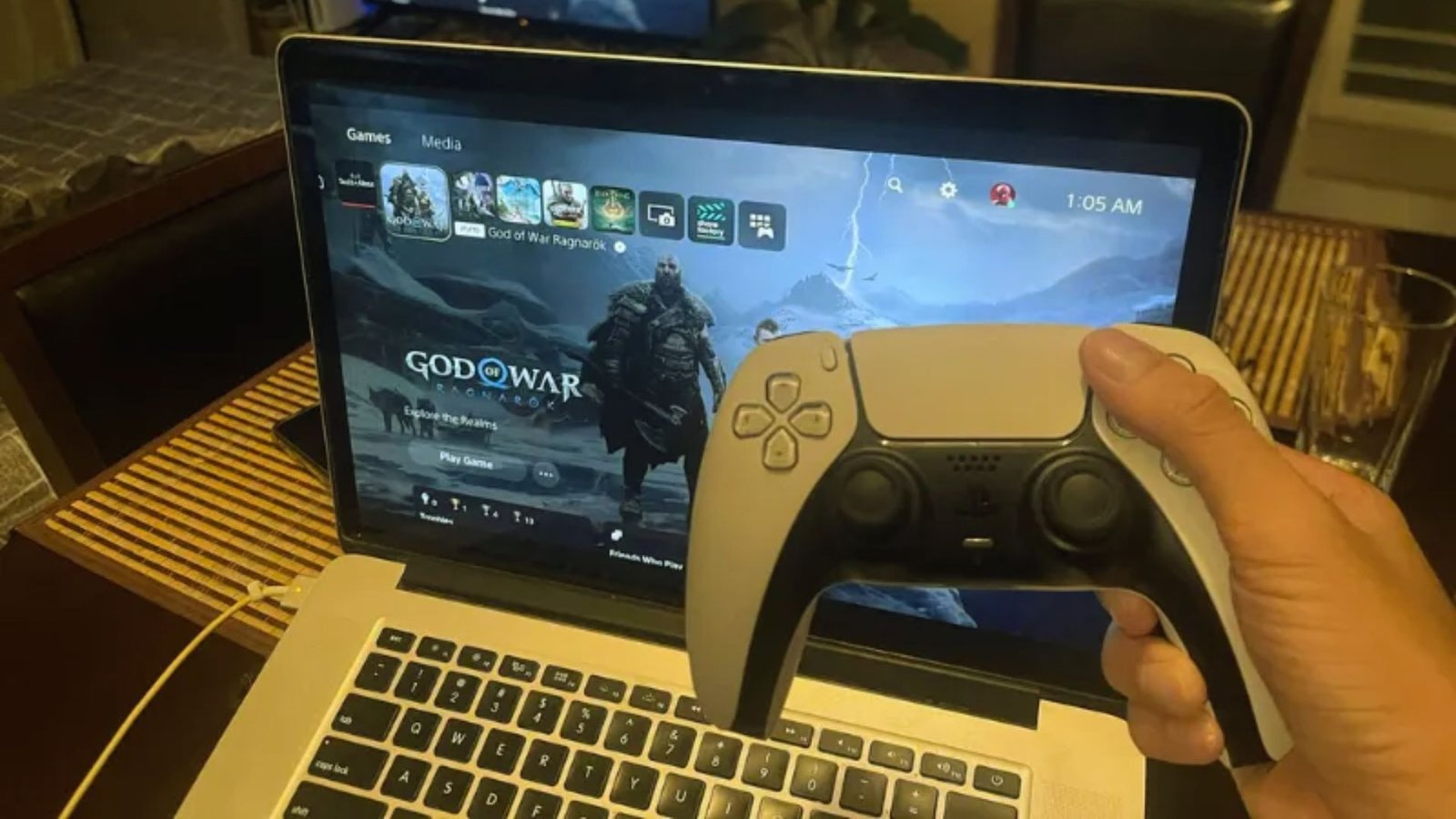
Can I use my laptop as a monitor for PS5? I asked myself this exact question after my TV broke right before a gaming session.
Good news: it is possible, just not the way most people expect.In this article, I’ll walk you through exactly how it works, what gear you may need, and which method fits your setup best.
No TV? No problem. I’ve tested both main options so you don’t have to guess.
Here’s what you’ll find inside: why a direct HDMI connection usually won’t work, how PS Remote Play gets you gaming fast, and when a capture card makes more sense.
Can I Use My Laptop as a Monitor for PS5?
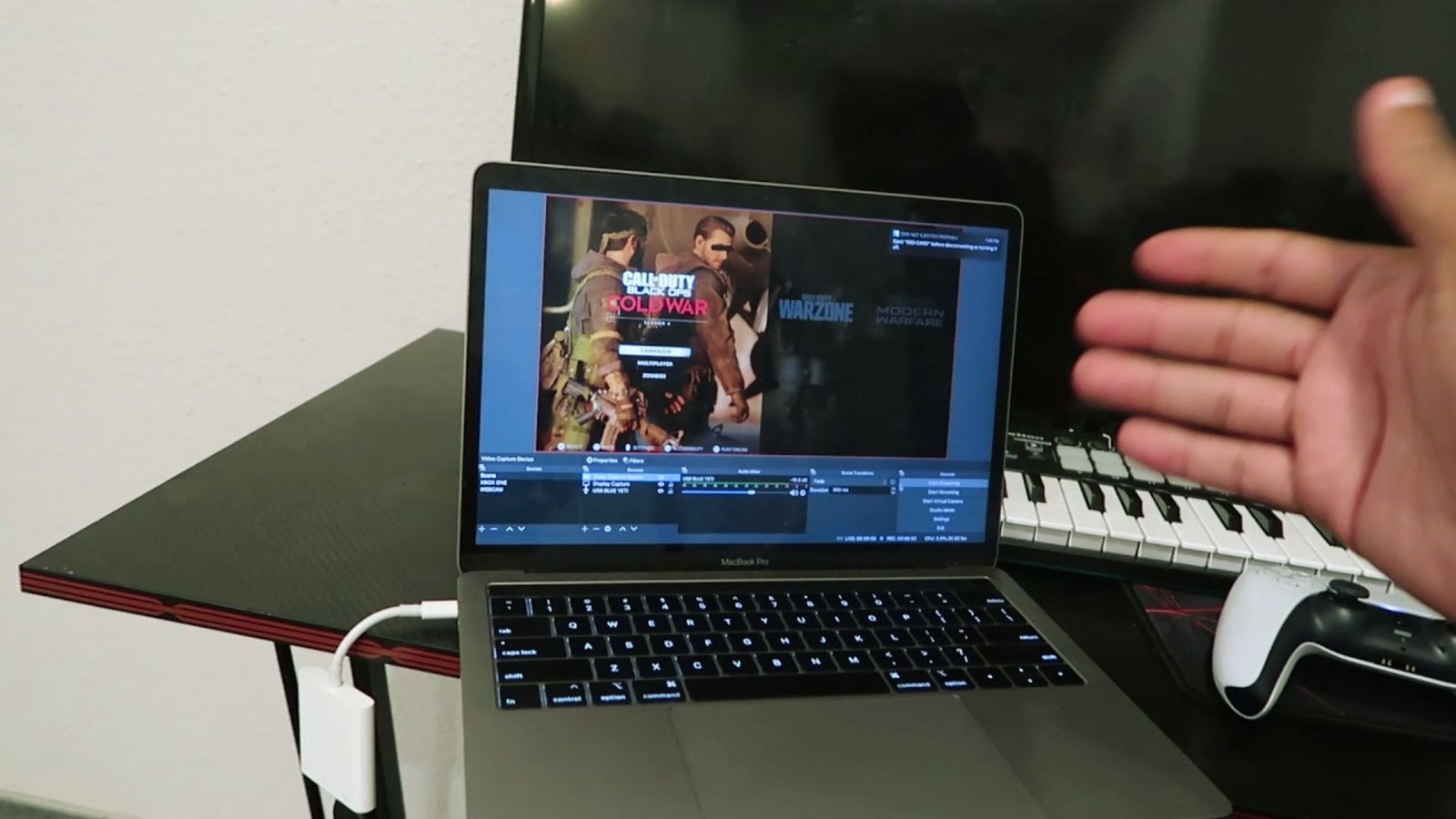
You can use your laptop as a PS5 display, but the method matters. The two most reliable options are PS Remote Play and a capture card.
A direct HDMI connection typically does not work on most laptops, and here’s why.
Not everyone has a TV in every room. Students, travelers, and people in small spaces rely on laptops as their main screens.
The PS5 is a powerful console, and leaving it unused just because a TV isn’t nearby feels like a waste.
Before you start, your laptop needs a decent processor and a stable internet connection for Remote Play.
For a capture card setup, you just need a USB port and the right software. Neither method is complicated once you know the steps.
How to Use Your Laptop as a Monitor for PlayStation 5 Without a TV
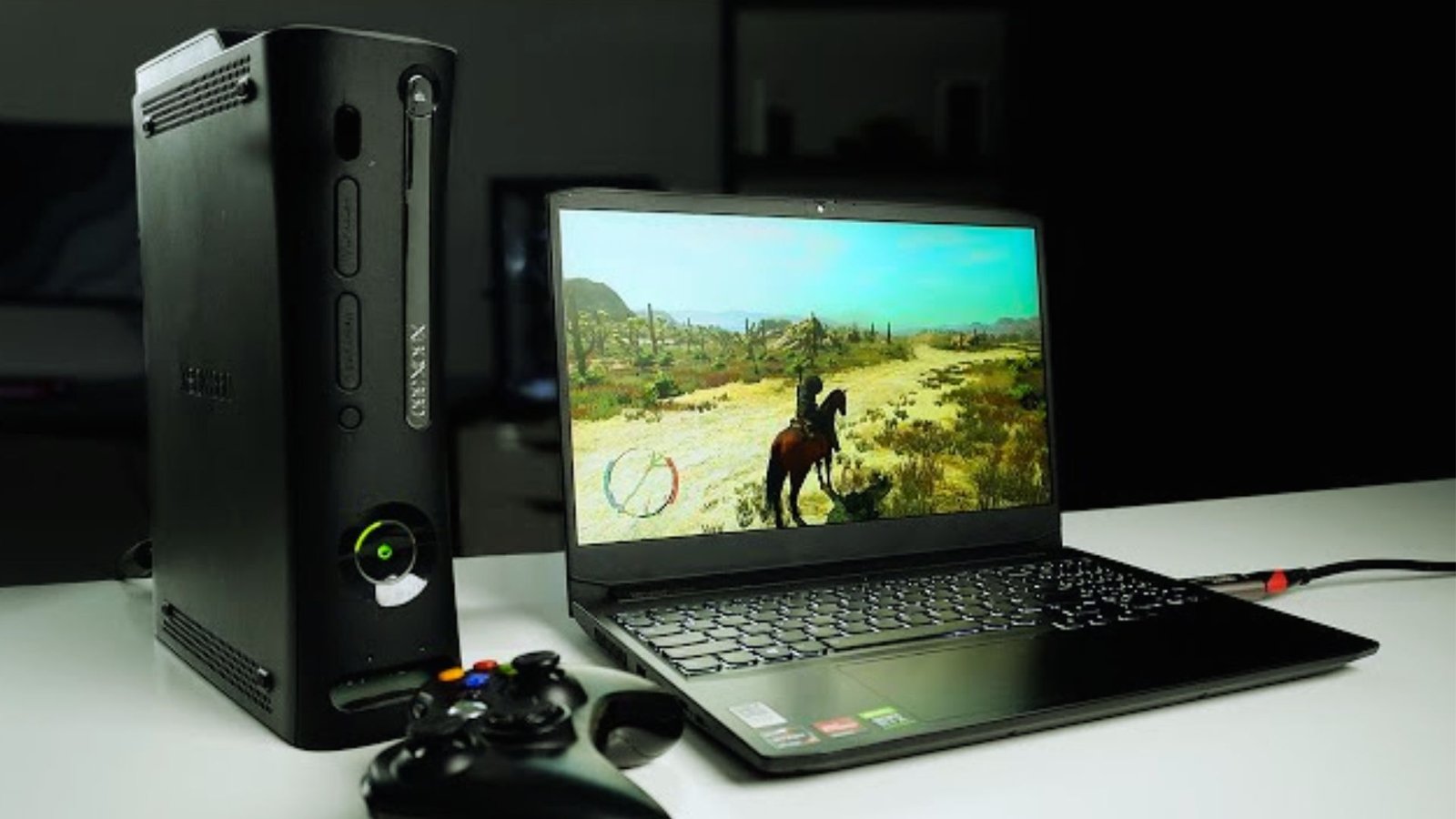
PS Remote Play is the easiest way to game on your laptop without a TV. It streams your PS5 directly to your screen over your home network or internet.
Using PS Remote Play on a Laptop
Setting this up takes less than ten minutes and works on both Windows and Mac.
Go to the PlayStation website and download the PS Remote Play app. Install it, sign in with your PlayStation account, and connect to your PS5.
Your console needs to be in rest mode or powered on. Once connected, your PS5 screen shows up right on your laptop.
Requirements for PS Remote Play to Work Smoothly
A few basic things need to be in place before you get started.
Your PS5 and laptop should be on the same Wi-Fi network for best results. A wired connection on the PS5 side makes a noticeable difference.
Your laptop should have at least an Intel Core i5 or equivalent processor. A weak connection leads to blurry video and input lag.
Best Internet Settings for Low Lag
The right network setup makes Remote Play feel much closer to playing on a TV.
Use a 5GHz Wi-Fi band instead of 2.4GHz. If possible, plug your PS5 directly into your router with an ethernet cable.
Set Remote Play to 1080p only if your internet can handle it. Dropping to 720p often gives smoother gameplay with less stutter.
Best Way to Use Laptop as a Monitor for PS5 Without TV
Not every setup needs the same solution. The right method depends on how you play and what you care about most.
PS Remote Play vs Capture Card Comparison
Both work, but they serve different needs and budgets.
Remote Play is free, easy to set up, and works over Wi-Fi. A capture card gives you a more direct feed with better image quality but costs more and takes longer to set up.
The difference comes down to budget and how competitive your gaming style is.
Best Option for Casual Gamers
If timing isn’t everything, Remote Play is all you need.
PS Remote Play is more than enough for single-player games and story-based titles. It’s free, and most people get it running in under ten minutes.
I use it myself when I’m away from my main setup, and it works great for relaxed sessions.
Best Option for Competitive or Streaming Gamers
When every millisecond counts, a capture card is the better call.
If you play fast-paced games online or plan to stream, go with a capture card. The lower lag and cleaner image make a real difference.
It also lets you record and stream your gameplay without any extra steps.
Can I Use My Laptop as a Monitor for PS5 Wirelessly?
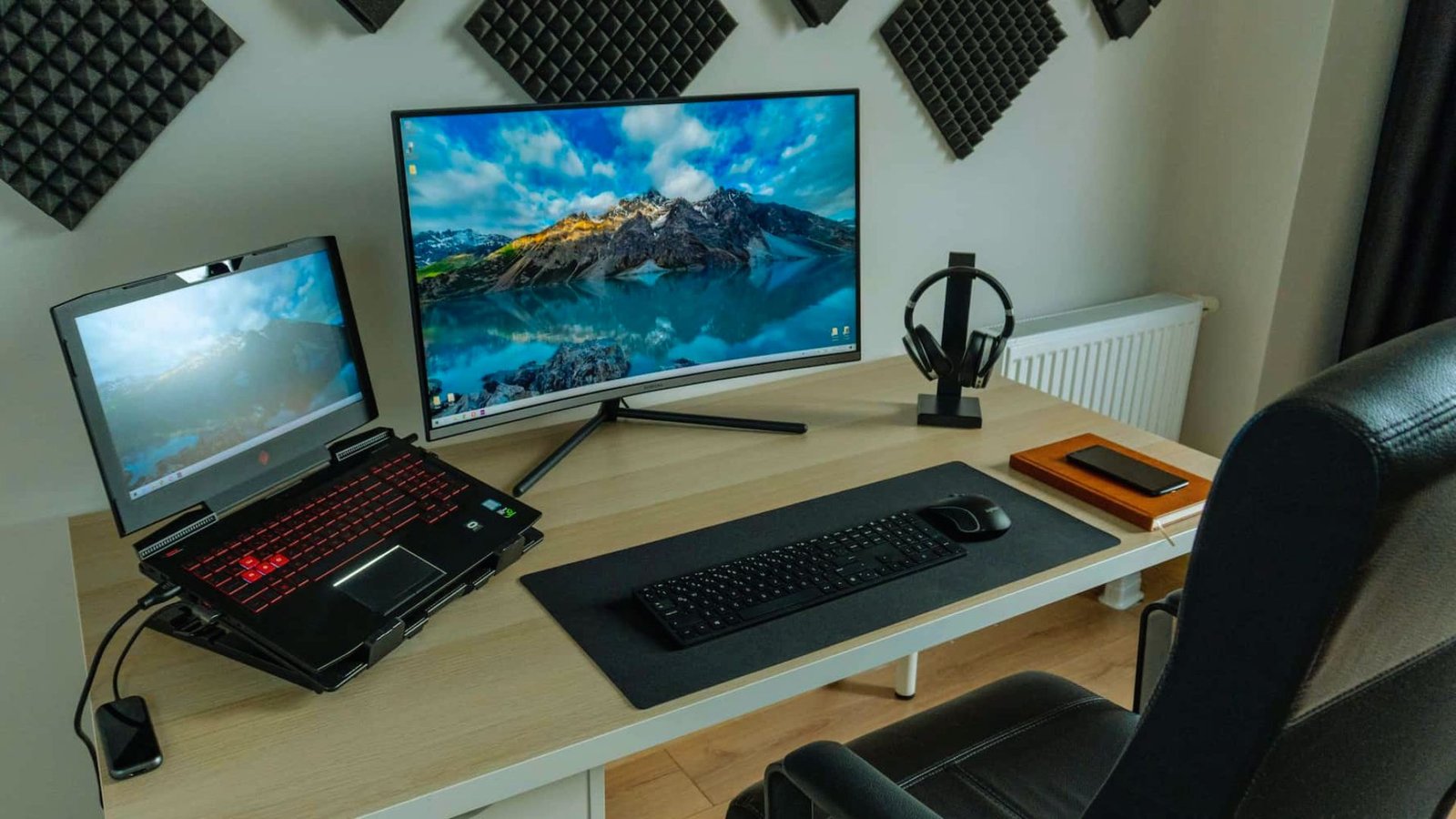
Wireless works, but how well depends on your network.
Wireless Streaming Options Explained
Sony’s own app is all you really need.
PS Remote Play streams your PS5 directly to your laptop over Wi-Fi. Chiaki is a free open-source alternative if you prefer that route.
Latency and Performance Limitations
Expect some delay, especially on weaker connections.
On a fast 5GHz network, lag is barely noticeable in casual play. On 2.4GHz or a busy network, the delay becomes a real problem for fast-paced games.
When Wireless Play Is Worth It
Convenience over perfection is the right mindset here.
Wireless works well for single-player games, playing from another room, or gaming on a trip. For ranked matches or competitive play, stick with a wired capture card setup.
Common Problems When Using a Laptop as a PS5 Monitor
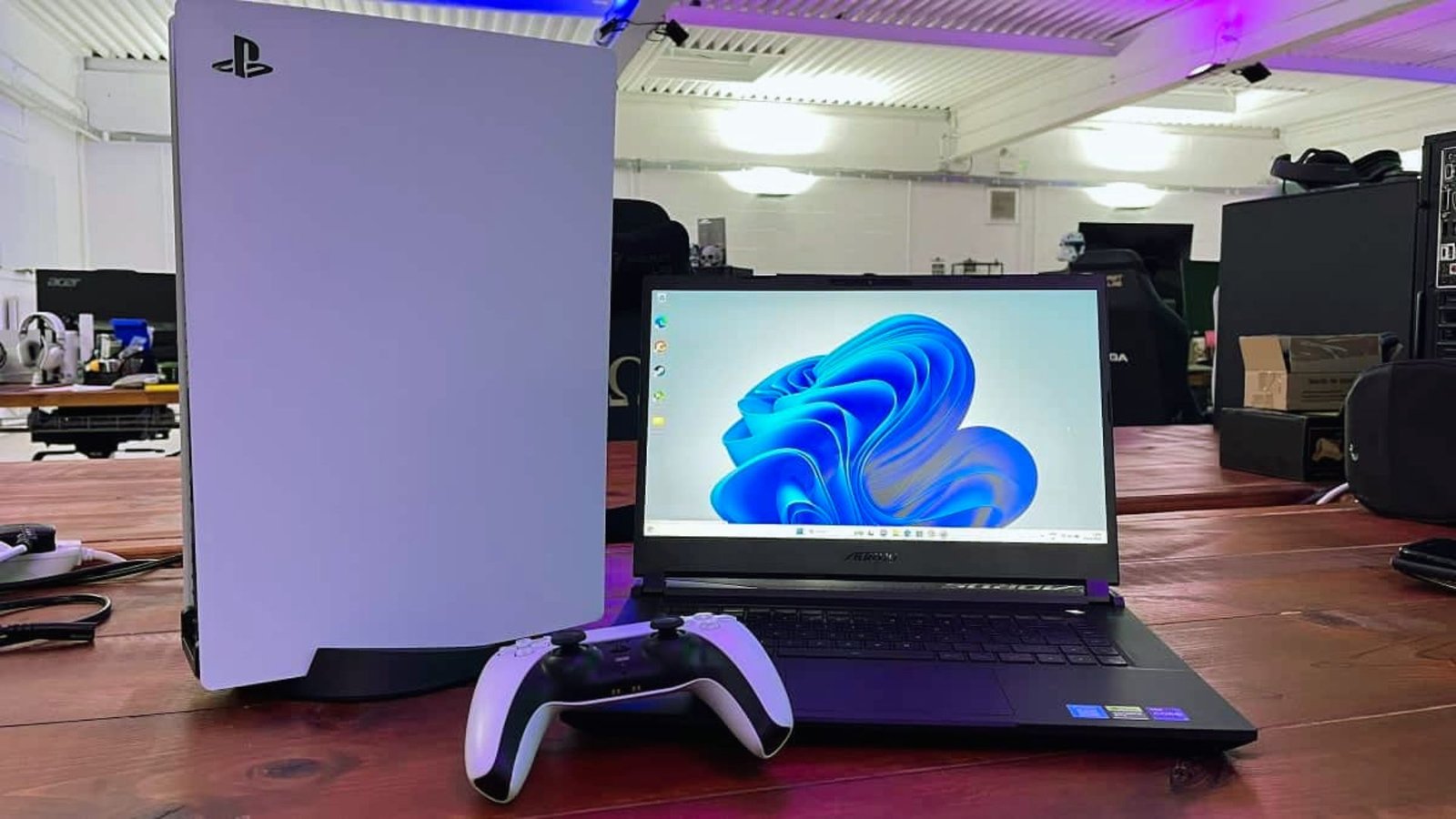
Even with the right setup, issues can pop up. Here are the quick fixes.
Input lag is the most common issue. Use a wired PS5 connection, drop streaming quality to 720p, or turn on low-latency mode in your capture software.
If the image looks blurry, manually set Remote Play to 1080p. On a capture card setup, check that your HDMI cable is firmly connected.
No sound? Check your laptop’s audio output settings. With a capture card, make sure the audio input is set to the card, not your laptop mic.
Tips to Improve PS5 Gameplay on a Laptop Screen
Small adjustments to your settings can make a big difference in how smooth and clear your gameplay looks and feels.
- Use a wired ethernet connection on your PS5 side whenever possible for a more stable and faster signal.
- Connect to a 5GHz Wi-Fi band on your laptop and keep both devices close to the router.
- Set your PS5 display resolution to 1080p and turn off HDR if your laptop screen doesn’t support it.
- Close all background apps on your laptop and switch your power plan to High Performance mode before playing.
- Make sure your capture software or Remote Play app is using your dedicated GPU, not the integrated graphics chip.
Conclusion
I’ve been there, no TV, a PS5 sitting right there, and no idea how to make it work. Once I set up Remote Play, I was gaming in under five minutes. It’s not perfect, but it gets the job done.
If you just need a quick fix, Remote Play is your best bet. For something more reliable long-term, a capture card is worth the investment.
Can I use my laptop as a monitor for PS5? Yes, and now you know exactly how.
Drop a comment below and let me know which method worked for you!
Frequently Asked Questions
Can I use my laptop as a monitor for PS5 without HDMI?
Yes, you can use PS Remote Play to stream your PS5 to your laptop over Wi-Fi or ethernet. No HDMI connection is needed for this method to work.
Can I use my laptop as a monitor for PS5 without Remote Play?
Yes, a capture card lets you connect your PS5 to your laptop using HDMI and USB. It works independently of Remote Play and gives you a more direct connection.
Does using a laptop as a PS5 monitor cause lag?
Some lag is possible, especially with Remote Play on a slow network. A wired PS5 connection and a strong Wi-Fi signal reduce lag significantly. Capture cards tend to have lower latency overall.
Can I play PS5 games on a laptop without a TV?
Yes, both PS Remote Play and a capture card let you play PS5 games directly on your laptop screen. Neither option requires a TV to get started.
Can I use my laptop as a monitor for PS5 using just a USB cable?
A standard USB cable alone won’t work for this. You need either the Remote Play app or a capture card that connects via USB to route the video signal to your laptop.