
A blinking red light on your router is frustrating. Especially when you just need to get online.
I’ve been there staring at that little red light, wondering what went wrong. The good news? Most causes are simple to fix.
In this guide, I’ll walk you through what the red light actually means, the most common reasons it blinks, and step-by-step fixes that work.
No tech background needed. Just follow along and you’ll likely have it sorted in minutes.
What Does It Mean When Your Router Is Blinking Red?
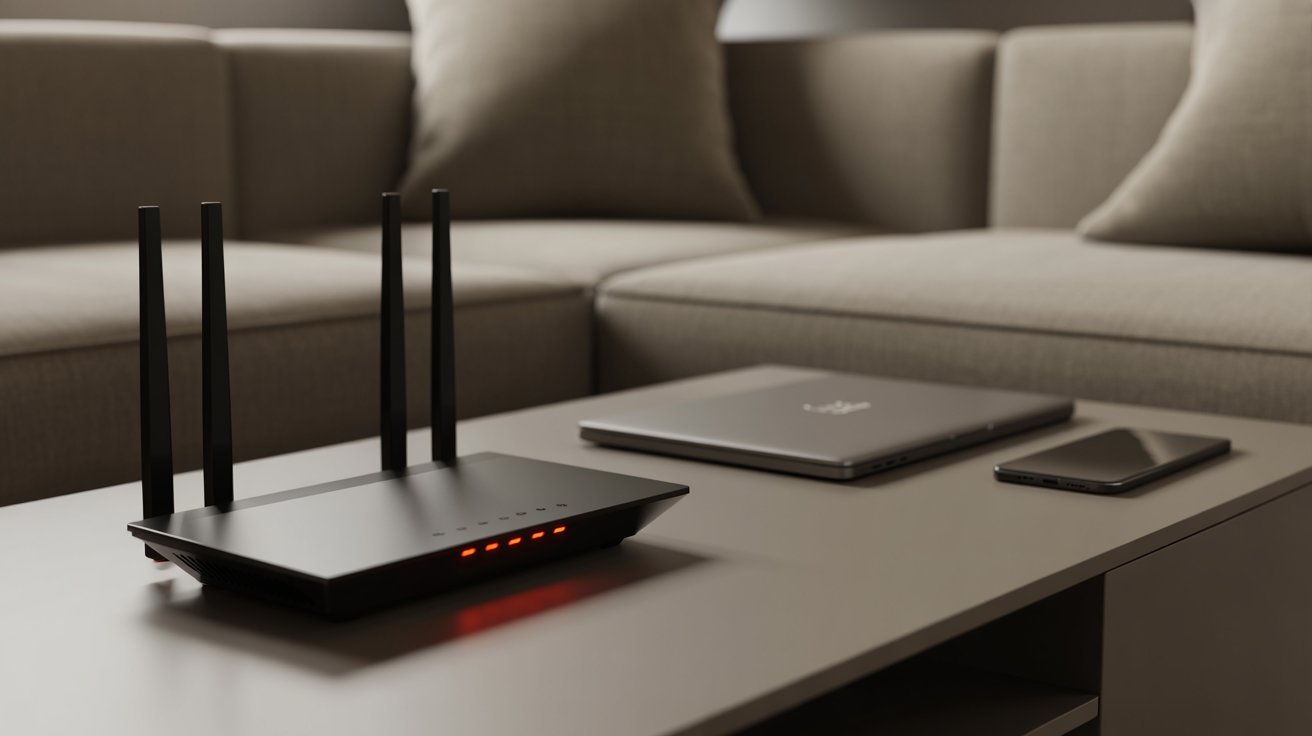
A red blinking light is your router’s way of telling you something needs attention.
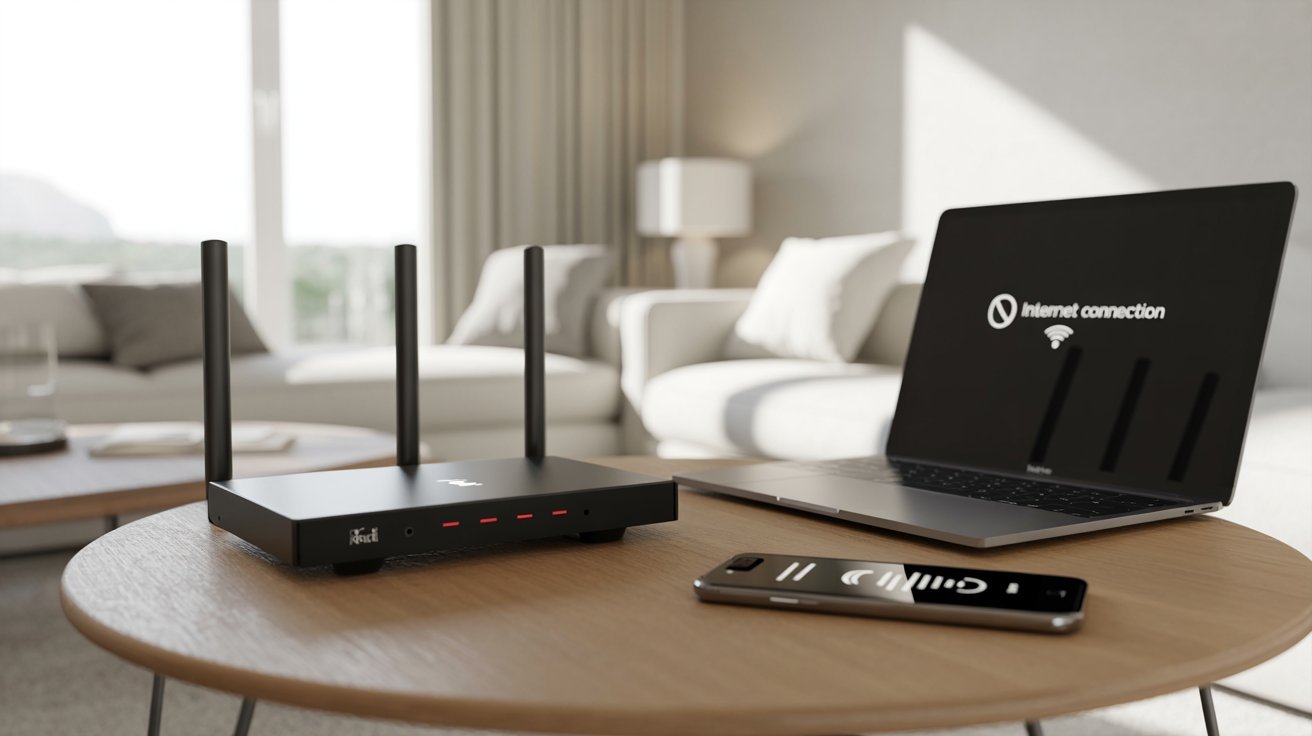
A blinking red light usually means your router lost its internet connection or is having trouble communicating with your ISP. It’s a signal, not a disaster.
Blinking and solid red are different. Blinking often points to a connection issue or an ongoing firmware update. A solid red is more serious and usually means the router can’t connect at all.
Knowing the difference helps you fix it faster.
Why Is My Router Blinking Red? (Common Causes)
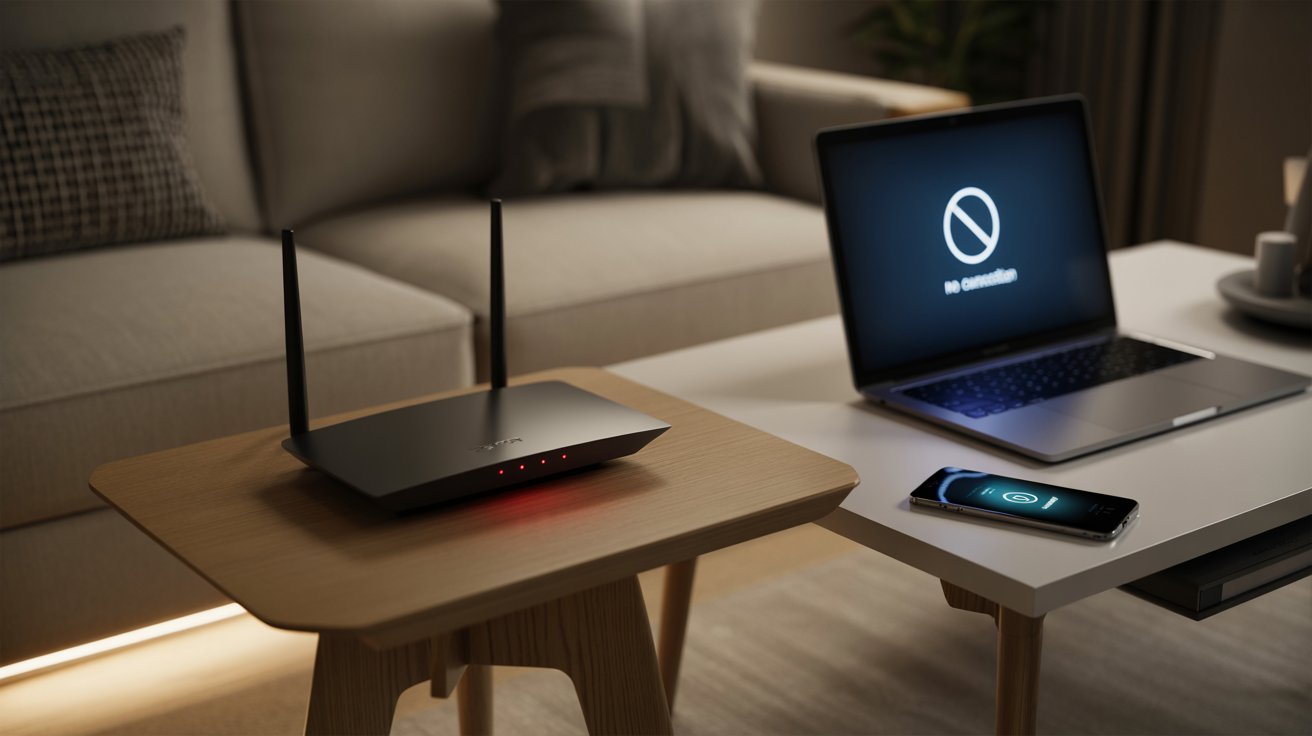
Here’s a breakdown of the most likely reasons your router is showing a red light.
No Internet Connection from ISP
This is the most common cause. Your router is fine, but your ISP isn’t sending a signal. It happens during outages, maintenance, or a billing issue. Check your ISP’s app to see if there’s a known outage in your area.
Loose or Damaged Cables
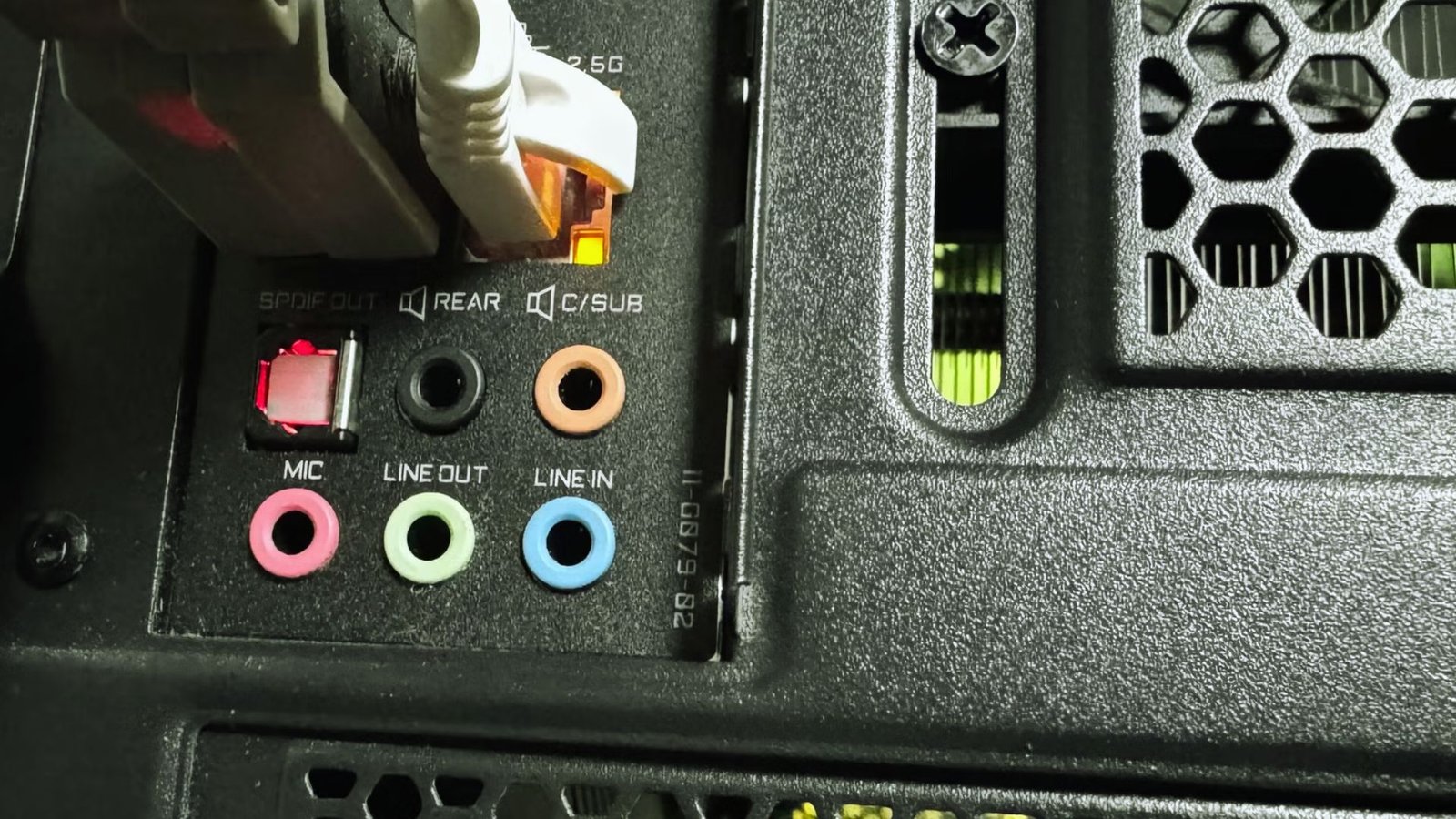
A loose cable can cut off your signal instantly. Check every cable connected to your router and modem. Make sure they’re firmly plugged in. If a cable looks worn or damaged, swap it out.
Router Configuration Issues
Sometimes your router loses its settings after a power outage or a failed update. It gets stuck and can’t connect until you reset or reconfigure it.
Firmware Update Failure
If an automatic update fails halfway through, the router can get stuck and show a red light. This usually needs a manual reset or firmware reinstall through your router’s admin panel.
Overheating Problems
Routers need airflow. If yours is tucked in a cabinet or buried under devices, it can overheat and stop working properly. Feel it. If it’s very hot, that’s likely the issue.
Hardware Failure
If nothing works, the router itself may be failing. Internal components wear out over time. If your router is several years old and keeps showing errors, it may be time for a new one.
Why Is My Router Blinking Red and Green?
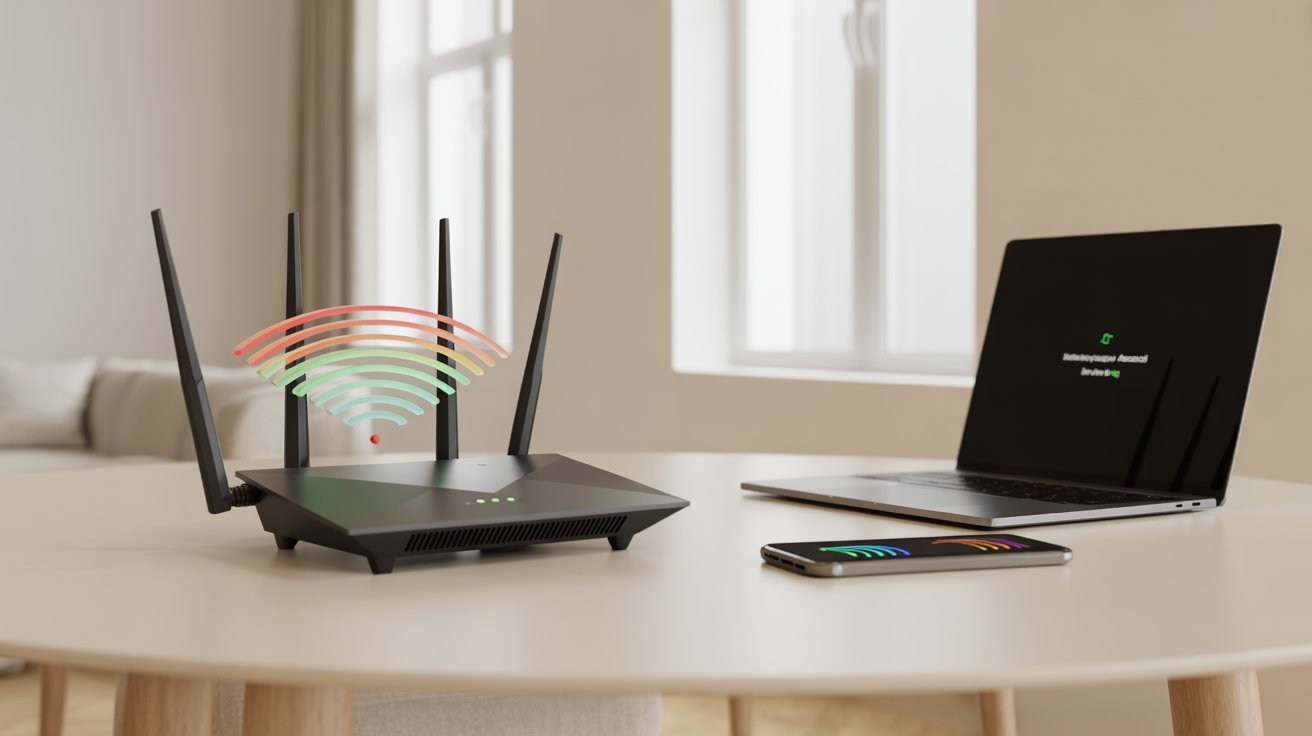
Red and green together can mean different things depending on the moment.
What Red and Green Lights Indicate
A red light signals a connection problem. A green light means the router is functioning. When both alternate, the router is likely in the middle of booting up, updating, or reconnecting.
When It’s Normal vs a Problem
If you just plugged in your router, blinking red and green is normal. It’s starting up. Give it 2 to 3 minutes. If it keeps alternating beyond 5 minutes, try restarting it. If the pattern continues, check for a firmware issue or contact your ISP.
Why Is My Router Blinking Red Spectrum?
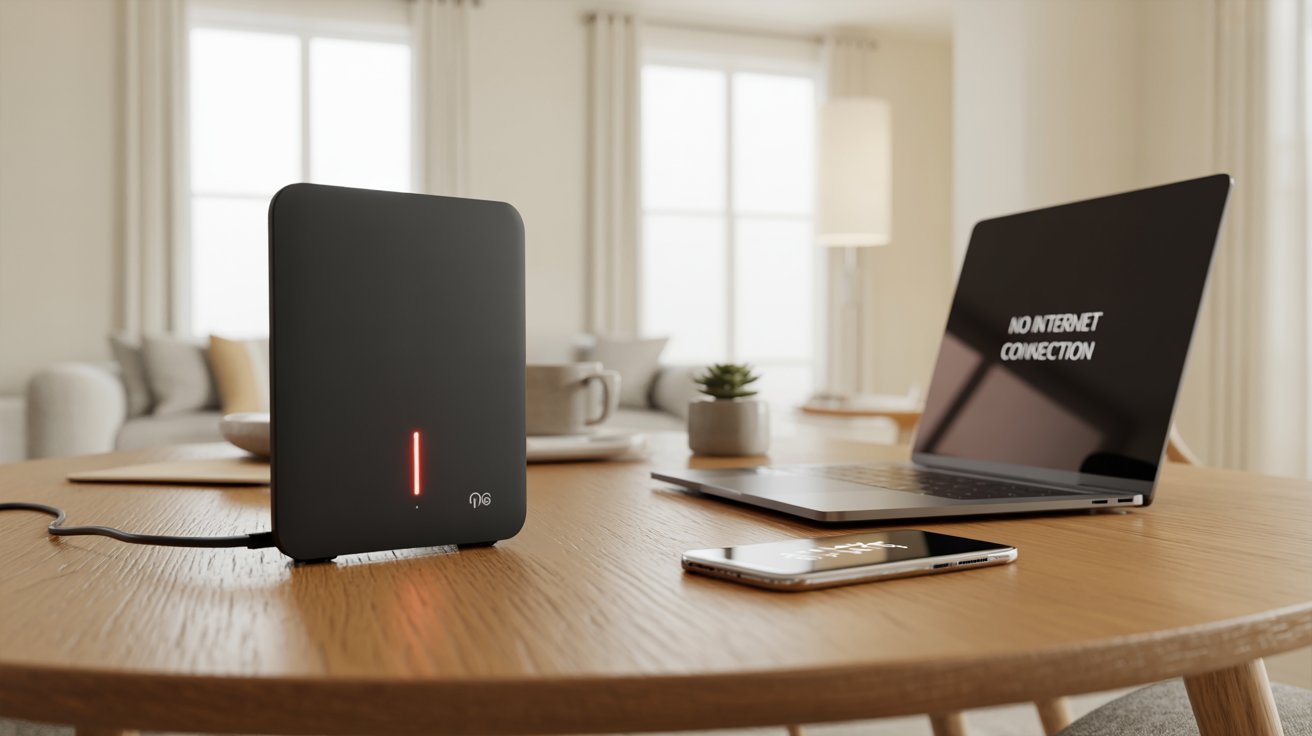
Spectrum routers have their own light behavior. Here’s what to look for.
Common Causes for Spectrum Routers
A blinking red light on a Spectrum router almost always means a loss of internet service. It can also happen if the router failed to reconnect after a restart or a local outage.
Quick Fixes for Spectrum Users
Unplug the router for 30 seconds and plug it back in. Check the coax cable at the back. Log in to the Spectrum app to check for outages. If the light stays red, call Spectrum support. They can often push a signal reset remotely.
Why Is My Router Blinking Red AT&T?
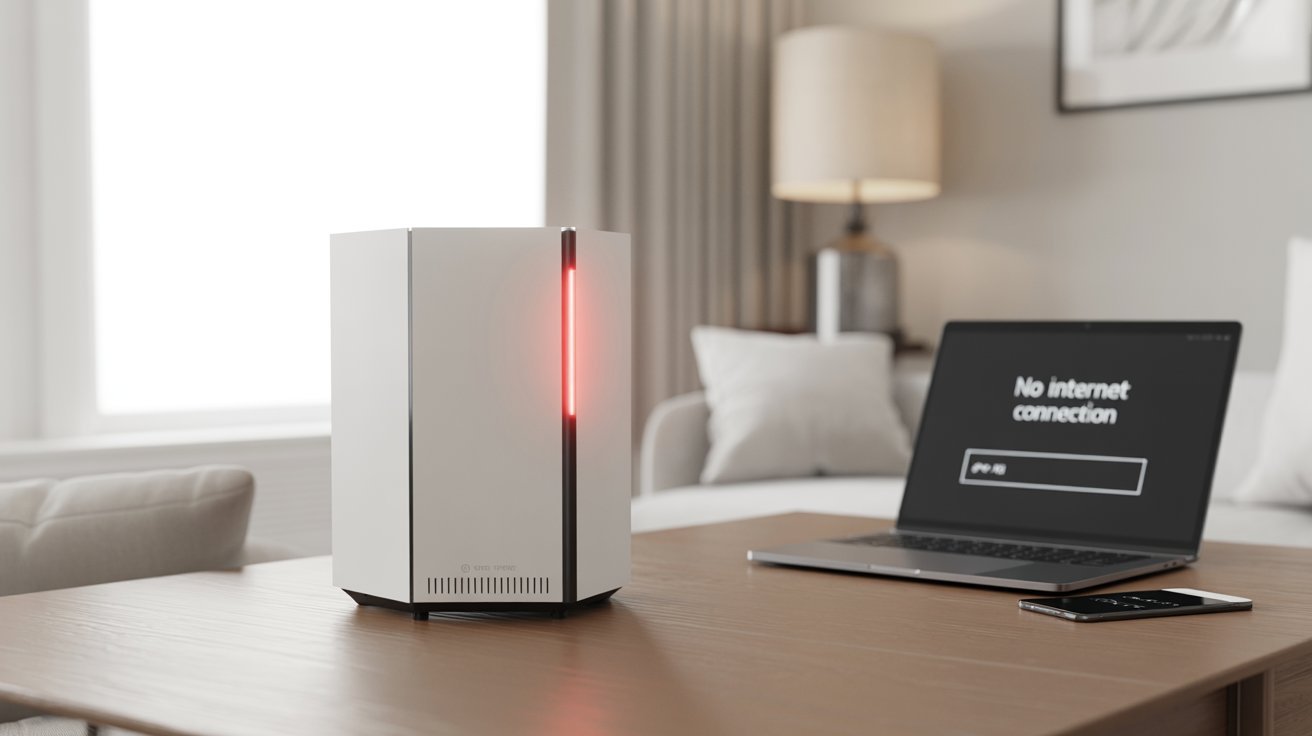
AT&T routers use a specific set of light signals that are worth knowing.
AT&T Router Light Meanings
On most AT&T gateways, a red light means the device can’t connect to the AT&T network. This could be due to an outage, a fiber or DSL line issue, or a gateway problem. Check the AT&T app for known issues in your area.
Common AT&T Fixes
Restart the gateway from the AT&T Smart Home Manager app. Make sure the DSL or broadband cable is secure. Unplug the gateway, wait 1 minute, then plug it back in. If that doesn’t work, AT&T support can run a remote line test without sending a technician.
How to Fix a Router Blinking Red (Step-by-Step)
Go through these steps in order. Most people solve it before reaching the last one.
Step 1: Restart Your Router
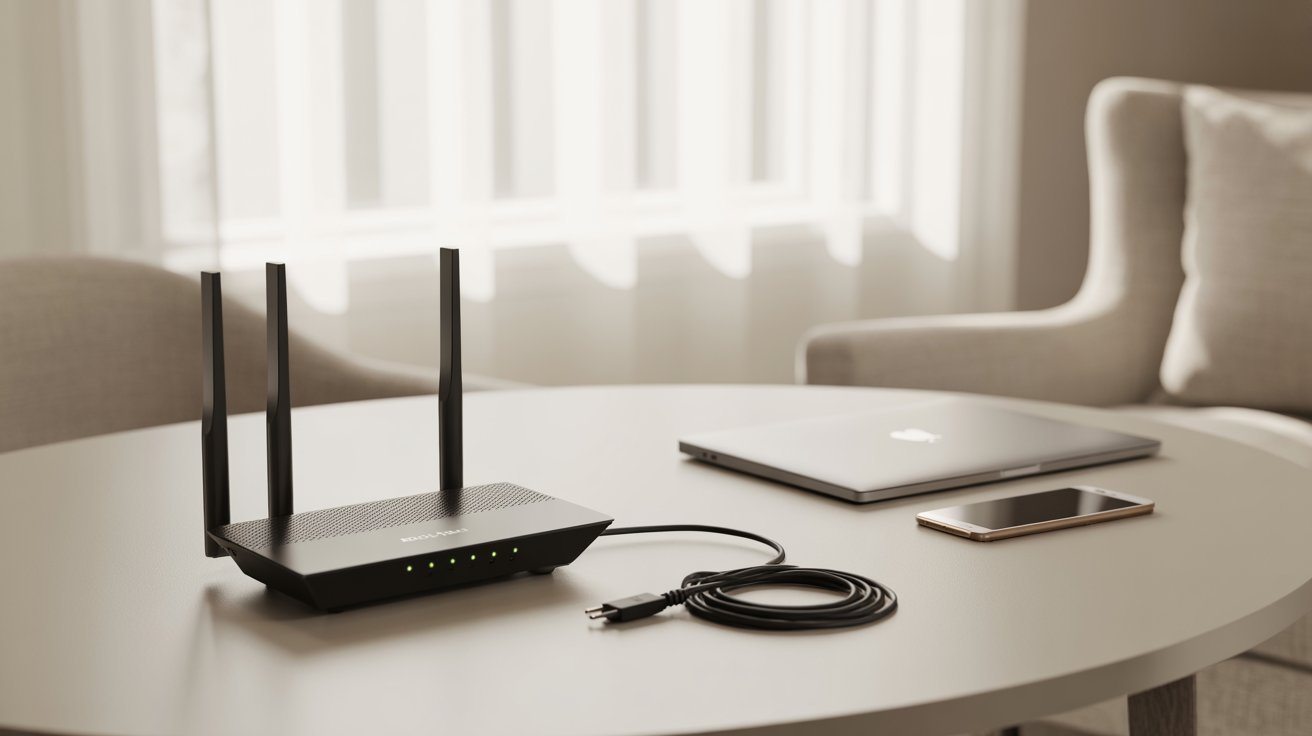
Unplug the router, wait 30 seconds, then plug it back in. Give it 2 to 3 minutes to reboot. This clears temporary errors and reconnects to your ISP. It works more often than you’d think.
Step 2 : Check All Cables
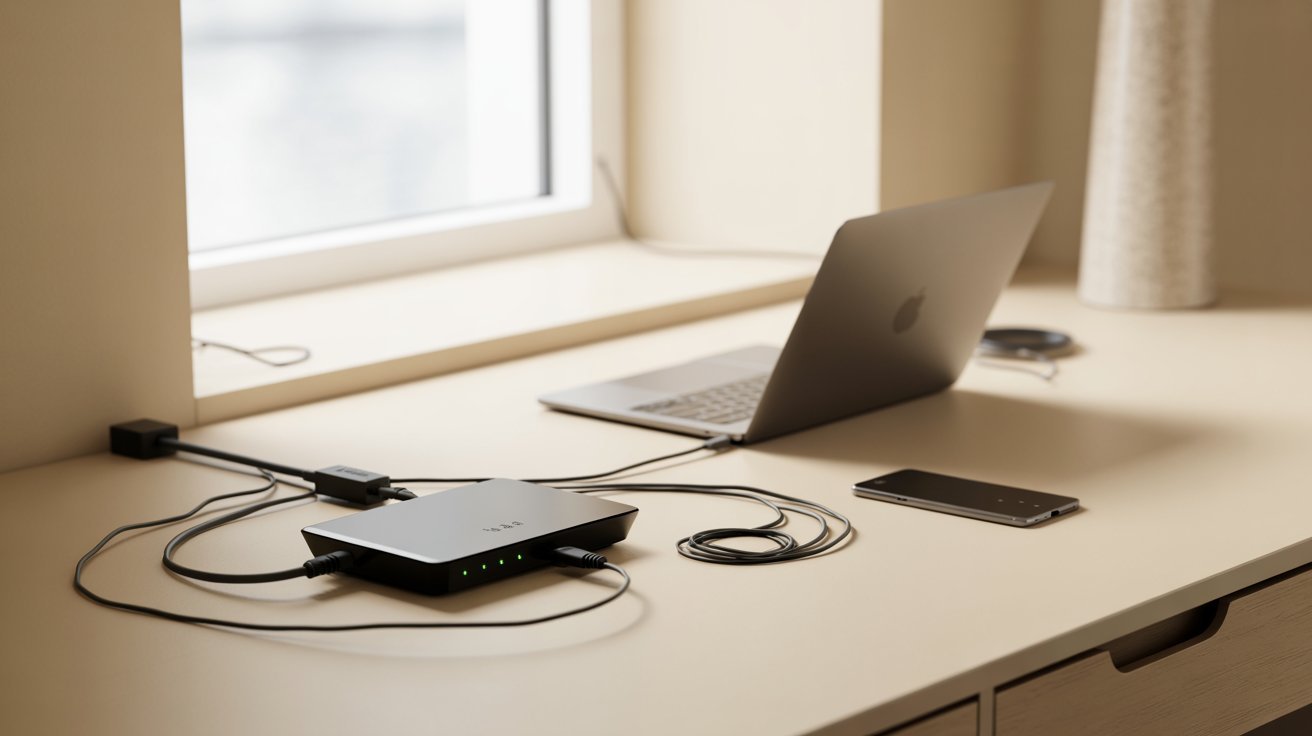
Push every cable in firmly. Look for fraying or bending near the connectors. If you have a spare, swap it out to rule out a bad cord.
Step 3 : Reset the Router
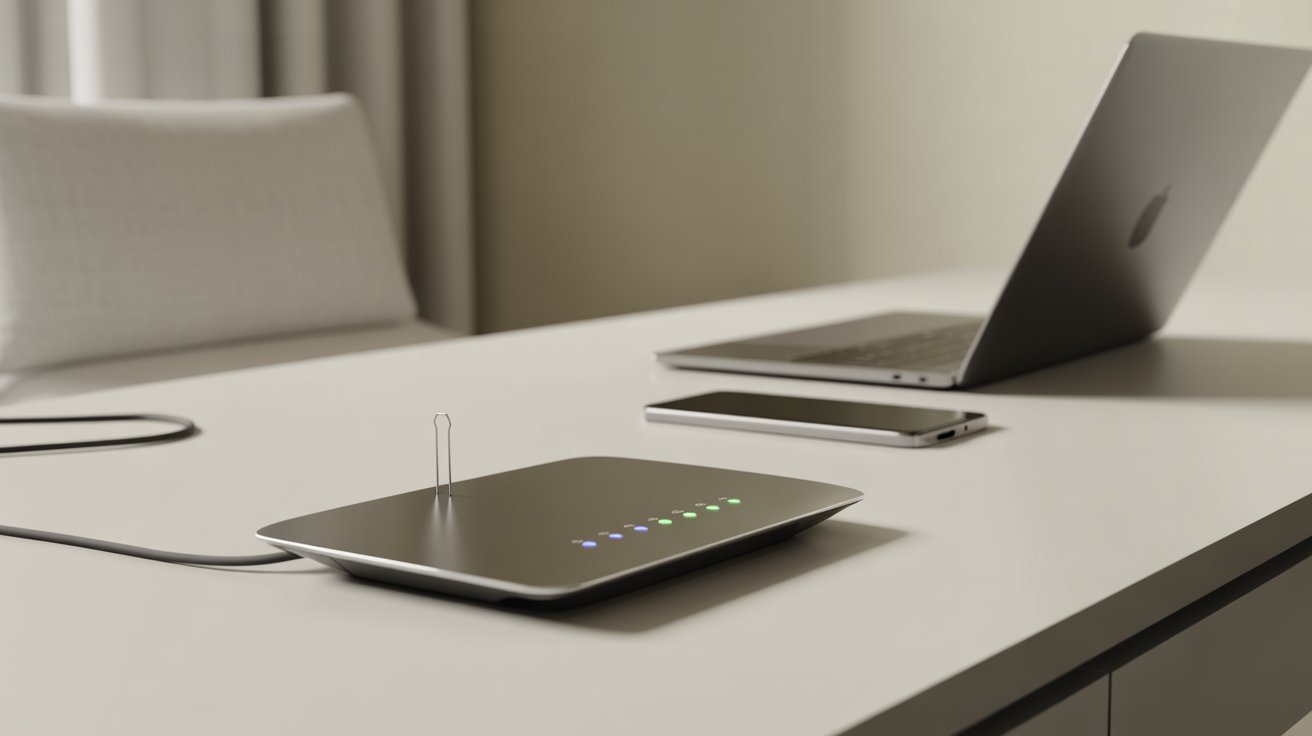
Hold the reset button on the back for 10 to 30 seconds using a pin. This does a factory reset. You’ll need to set up your Wi-Fi name and password again after.
Step 4 : Update Firmware
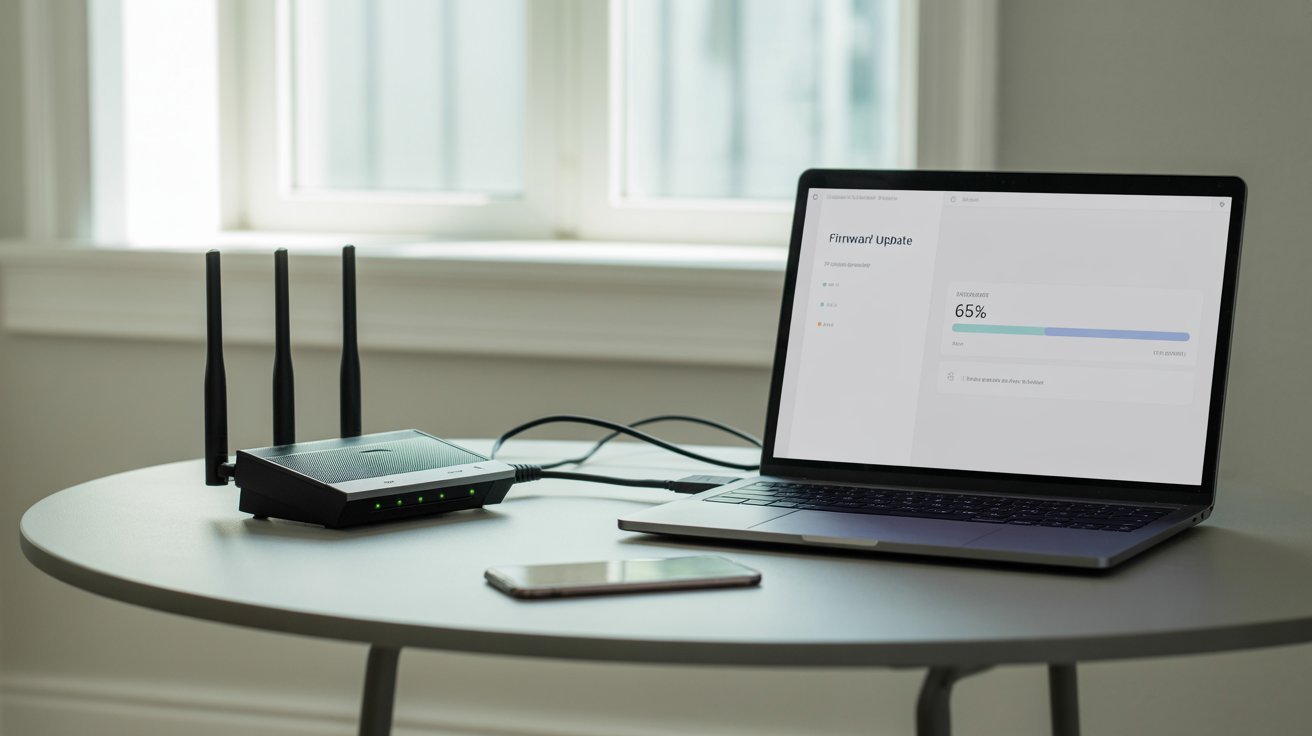
Log into your router’s admin panel at 192.168.1.1 or 192.168.0.1. Find the firmware update section and run any available update. Outdated firmware is a common cause of the red light.
Step 5 : Check for ISP Outages
Use your phone’s data to check your ISP’s app or website for outages. If there’s one in your area, nothing on your end needs fixing. Just wait it out.
Step 6 : Contact Support
If nothing works, call your ISP or router support line. They can run remote tests and tell you if the problem is on their end or if your router needs replacing.
Tips to Prevent Router Red Light Issues
Small habits can keep your router running smoothly for years.
- Place your router on an open shelf with space around all sides
- Never stack other devices on top of it
- Inspect cables every few months and replace any damaged ones
- Log into your router settings regularly and install firmware updates
- Turn on automatic updates if your router supports it
- Use a surge protector to avoid damage from power cuts
- Keep your router away from microwaves, thick walls, and the floor
Conclusion
A blinking red light is annoying, but it’s almost always fixable. I dealt with this exact issue last year.
My router was overheating inside a cabinet, and a simple move to an open shelf fixed everything. So don’t panic when you see that red light. Work through the steps, check your cables, restart, and check for outages.
Most of the time, it’s something simple. If this guide helped you, drop a comment or share it with someone dealing with the same problem!
Frequently Asked Questions
Why is my router blinking red but working?
Some routers blink red during partial connection states where the internet is still functional. It could mean a minor signal issue your router is handling on its own. Monitor it. If speeds are normal, it may resolve by itself.
How long should the red light blink?
During startup or rebooting, red blinking is normal for up to 3 minutes. If it continues beyond that, there’s likely an actual connection or configuration issue that needs attention.
Does red light always mean no internet?
Not always. Some routers use red to signal a firmware update or startup process. Check your router’s manual for its specific light meanings, as they vary by brand and model.
Why is my Spectrum router blinking red?
A blinking red light on a Spectrum router typically means it has lost connection to Spectrum’s network. Restart the router and check for any local outages through the Spectrum app before troubleshooting further.
Why is my AT&T router blinking red?
On AT&T gateways, a red light usually means the device can’t reach AT&T’s network. This can be due to a line issue or service outage. Restarting the gateway or using the AT&T Smart Home Manager app is a good first step.