
I have been there. You plug in the Ethernet cable expecting faster speeds, and somehow your WiFi feels quicker. It is confusing, and honestly, a little frustrating.
In this article, I will walk you through exactly why your Ethernet slower than WiFi situation happens and how to fix it step by step. I have helped troubleshoot this for years, and most causes are simpler than you think.
We will cover cables, adapter settings, router ports, drivers, and more. You will leave here knowing exactly what to do.
Why Is My Ethernet Slower Than WiFi?
Ethernet should always beat WiFi in speed and stability, but sometimes it does not. Several things can cause this, and most of them are easy to fix.
The most common reasons include a damaged or outdated Ethernet cable, a network adapter stuck at 100 Mbps instead of 1 Gbps, plugging into the wrong router port, incorrect speed and duplex settings, outdated drivers or firmware, and VPNs or background apps eating up bandwidth.
Each of these has a straightforward fix, and we will go through every one of them step by step.
Step-by-Step Fix for Slow Ethernet Connection
Follow these steps in order. Most people find the fix within the first three steps.
Step 1- Check Your Ethernet Cable
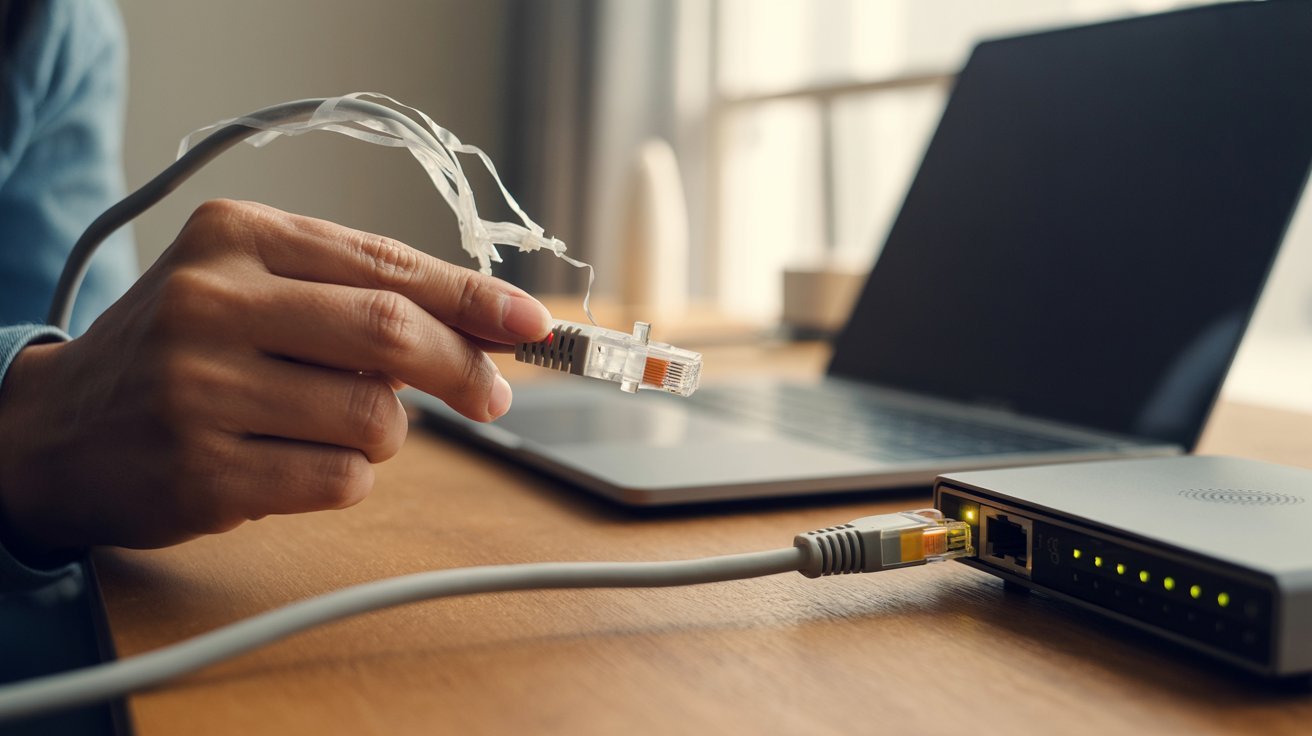
A Cat5 cable supports up to 100 Mbps, while a Cat6 supports 1 Gbps and beyond. Replace any cable that is old, kinked, frayed, or has bent connectors.
Step 2- Verify Network Adapter Speed (NIC)
Your NIC controls how fast your computer receives data. Go to Device Manager, check Speed and Duplex settings under your adapter’s Advanced tab, and update your drivers if needed.
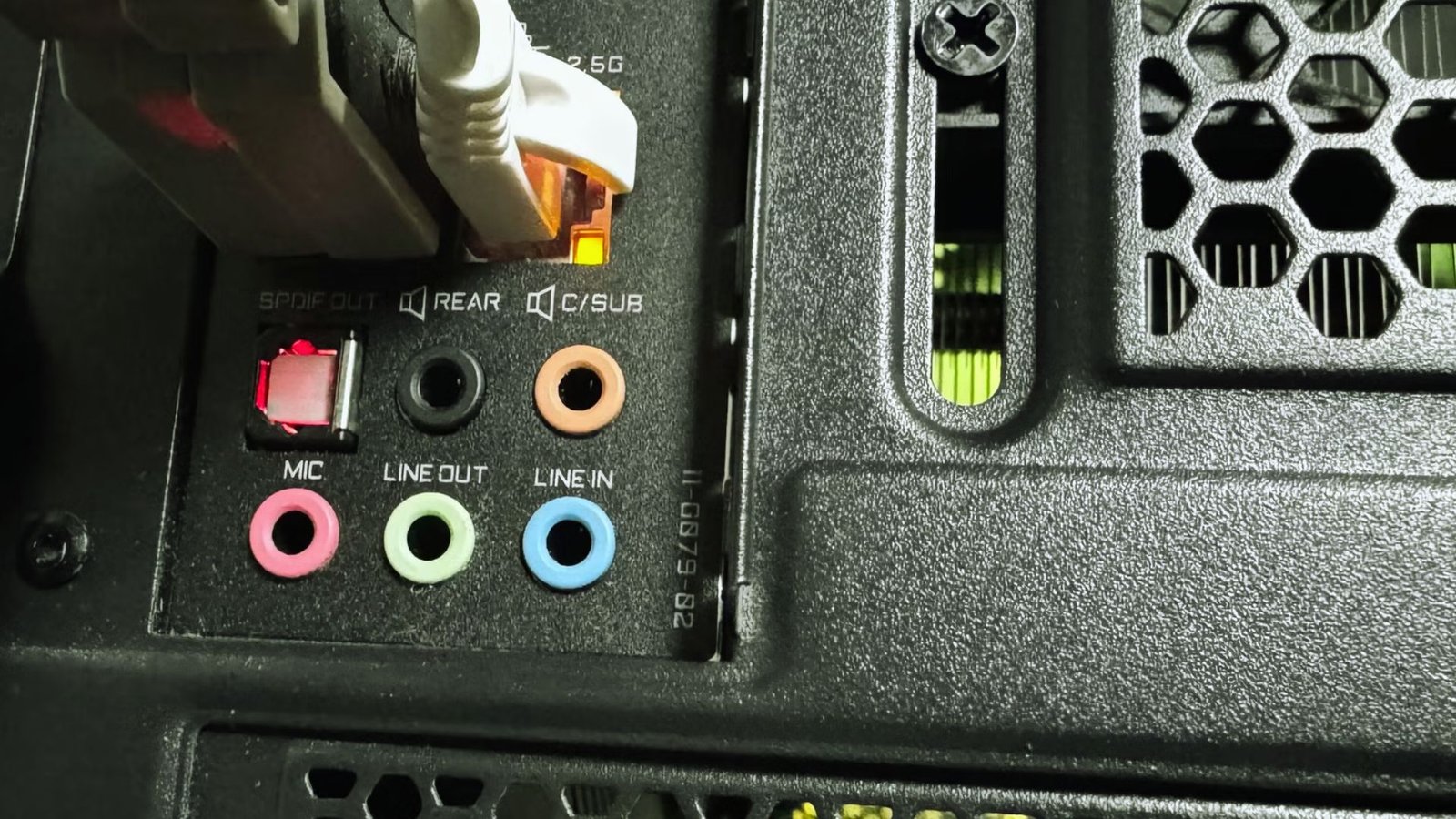
Step 3- Use the Correct Router Port
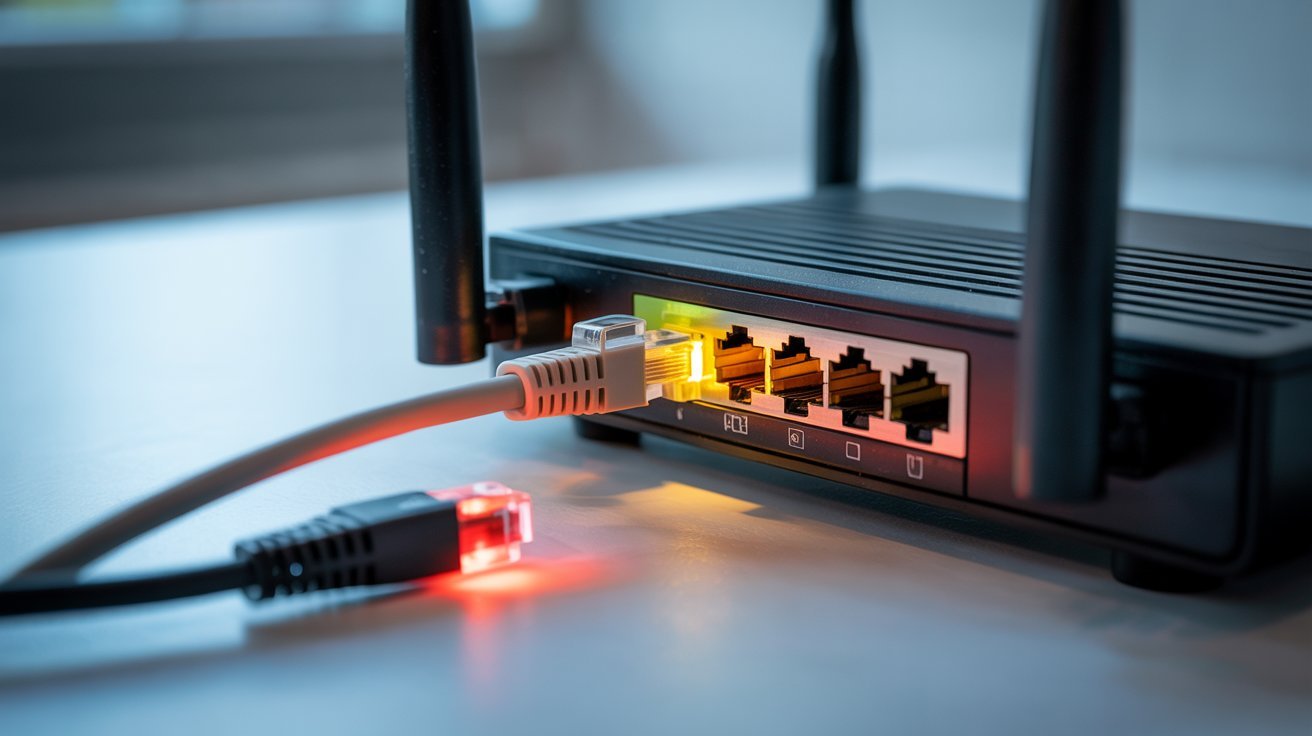
Some older routers have a mix of Fast Ethernet and Gigabit ports. Try switching to a different port and run a speed test to see if it makes a difference.
Step 4- Fix Speed and Duplex Settings
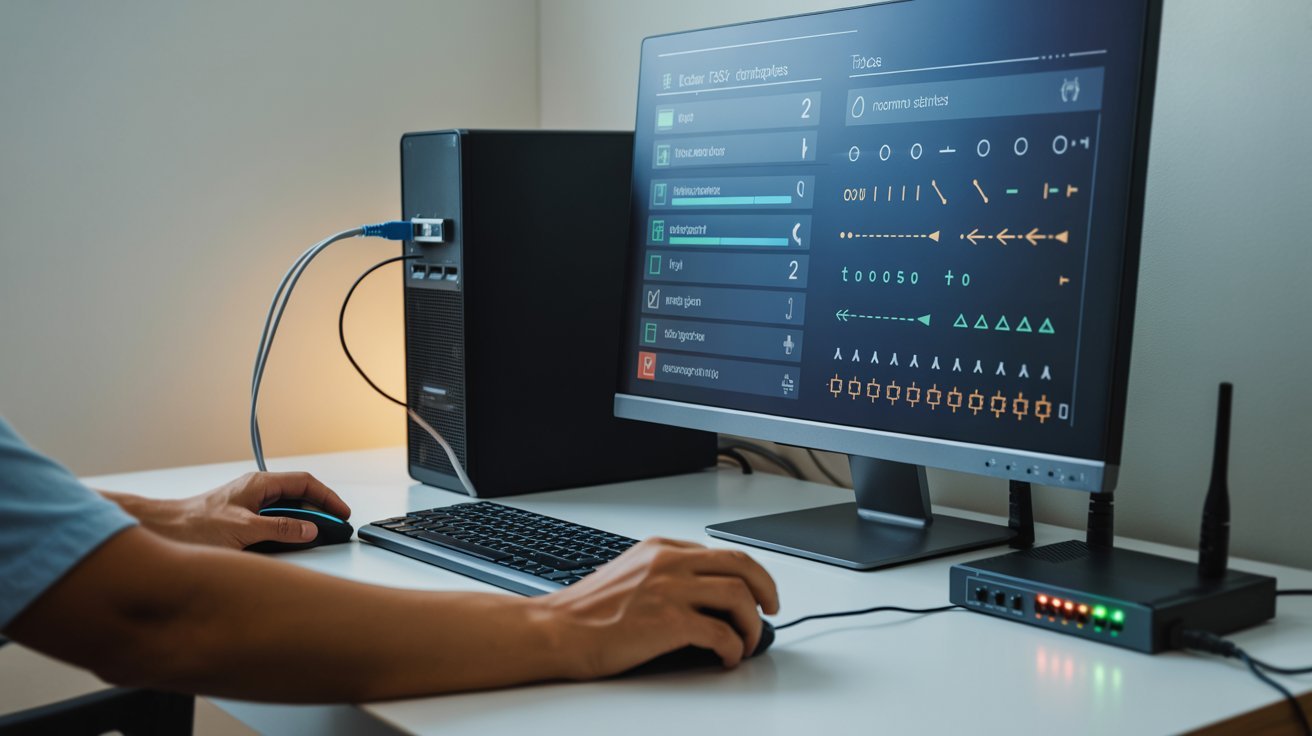
If auto-negotiation is not working correctly, your speeds will stay low. Go to Device Manager, open your NIC properties, and manually set it to 1.0 Gbps Full Duplex.
Step 5- Reduce Interference and Check Cable Routing
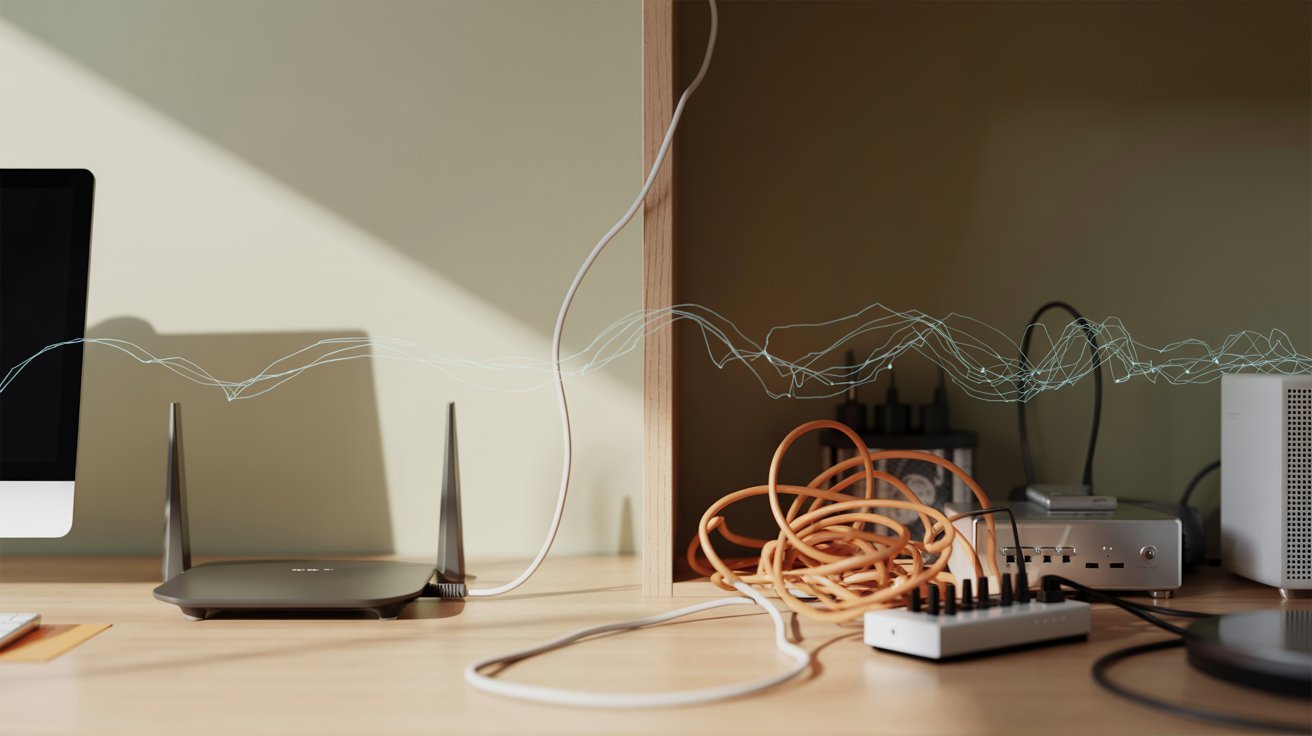
Keep your Ethernet cable away from power cords and large appliances. Also make sure the cable stays under 100 meters, as longer runs lose signal quality.
Step 6- Update Software, Drivers, and Firmware
Keep your operating system, network drivers, and router firmware up to date. Old firmware often causes slow connection issues that look like hardware problems but are not.
Step 7- Disable VPN and Background Apps
A VPN adds an extra routing step that cuts your speed noticeably. Also close background apps like cloud backups and streaming services that quietly use up your bandwidth.
Check Router and Network Configuration
Sometimes the issue is not your cable or computer. It is how your router is set up.
QoS Settings and Bandwidth Allocation
Quality of Service (QoS) lets your router prioritize certain types of traffic. If your router is giving priority to another device or service, your Ethernet connection may get less bandwidth. Log into your router settings and check QoS configurations.
MTU and Network Settings
MTU stands for Maximum Transmission Unit. The standard value is 1500 bytes. If this is set too high or too low, it can slow down your connection. You can check your MTU through the command prompt and reset it if needed.
Router Hardware Limitations
An old router simply cannot keep up with modern internet speeds. If your router is more than five or six years old and you are paying for a fast internet plan, the router itself could be the bottleneck. Upgrading to a modern Gigabit router may be the best fix at this point.
Test Your Ethernet Speed Properly
Before and after making changes, you need accurate data.
Run a Speed Test
Go to a trusted speed test site and run the test while connected via Ethernet. Then disconnect the cable, connect to WiFi, and run the test again. Compare both numbers. This tells you exactly how big the gap is.
Check Link Speed in System Settings
On Windows, go to Settings, then Network and Internet, then click on your Ethernet connection. You will see the link speed listed there. If it shows 100 Mbps and you are paying for Gigabit internet, something is limiting your speed.
Test with a Different Cable or Device
Try using a different cable or connecting a different device to the same port. If the second device gets normal speeds, the problem is with your original cable or computer, not the router.
Can WiFi Be Faster Than Ethernet?
In some cases, yes. WiFi 5 and WiFi 6 offer very high speeds under the right conditions.
If your Ethernet setup is limited to 100 Mbps due to an old cable or adapter, and your WiFi is running on WiFi 6, the wireless connection may actually win.
But Ethernet is still more stable. It does not suffer from wireless interference, signal drops, or congestion from nearby networks.
For gaming, video calls, and consistent speeds, Ethernet is still the better choice when set up correctly.
Tips to Improve Ethernet Speed Instantly
- Here is a quick list of things you can do right now-
- Upgrade to a Cat6 cable or higher
- Plug into a Gigabit port on your router
- Restart your router and computer
- Update your network drivers
- Move the cable away from power cords and electronics
Conclusion
Fixing your Ethernet slower than WiFi issue is mostly about checking the right things in the right order. I know how annoying it is to expect fast wired speeds and get something worse than wireless.
But nine times out of ten, it is a cable, driver, or setting issue that takes minutes to fix. Start with Step 1 and work your way down.
If you found this helpful, drop a comment below and share which step solved your problem. It really helps others dealing with the same thing.
Frequently Asked Questions
Why is my Ethernet connection showing 100 Mbps instead of 1 Gbps?
This usually means your cable, adapter, or router port is limited to Fast Ethernet speeds. Check your cable category and NIC settings to fix this.
Does a VPN slow down Ethernet speed?
Yes, a VPN adds an extra routing step that increases latency and reduces speed. Try turning off the VPN and running a speed test to compare.
Can a damaged Ethernet cable cause slow speeds?
Absolutely. Even minor physical damage to a cable can affect data transfer. Replacing the cable is one of the easiest first steps to try.
How do I check my Ethernet link speed on Windows?
Go to Settings, then Network and Internet, and click on your Ethernet connection. The link speed will be displayed there, showing whether it is running at 100 Mbps or 1 Gbps.
Should I upgrade my router if Ethernet is still slow after all fixes?
If your router is several years old and all other fixes have failed, then yes. Old routers often have hardware limits that prevent Gigabit speeds even with a fast internet plan.