
You’ve seen the Motion Sync option in your mouse software and now you’re wondering should I turn it on or off?
I get it. It sounds technical, and most explanations online just make it more confusing.
In this article, I’ll break it down simply. You’ll learn what Motion Sync actually does, the real difference between ON and OFF, and which setting works best for your game or task.
I’ve spent time testing this myself, so you’re getting real answers, not guesswork.
What Is Motion Sync on a Mouse?
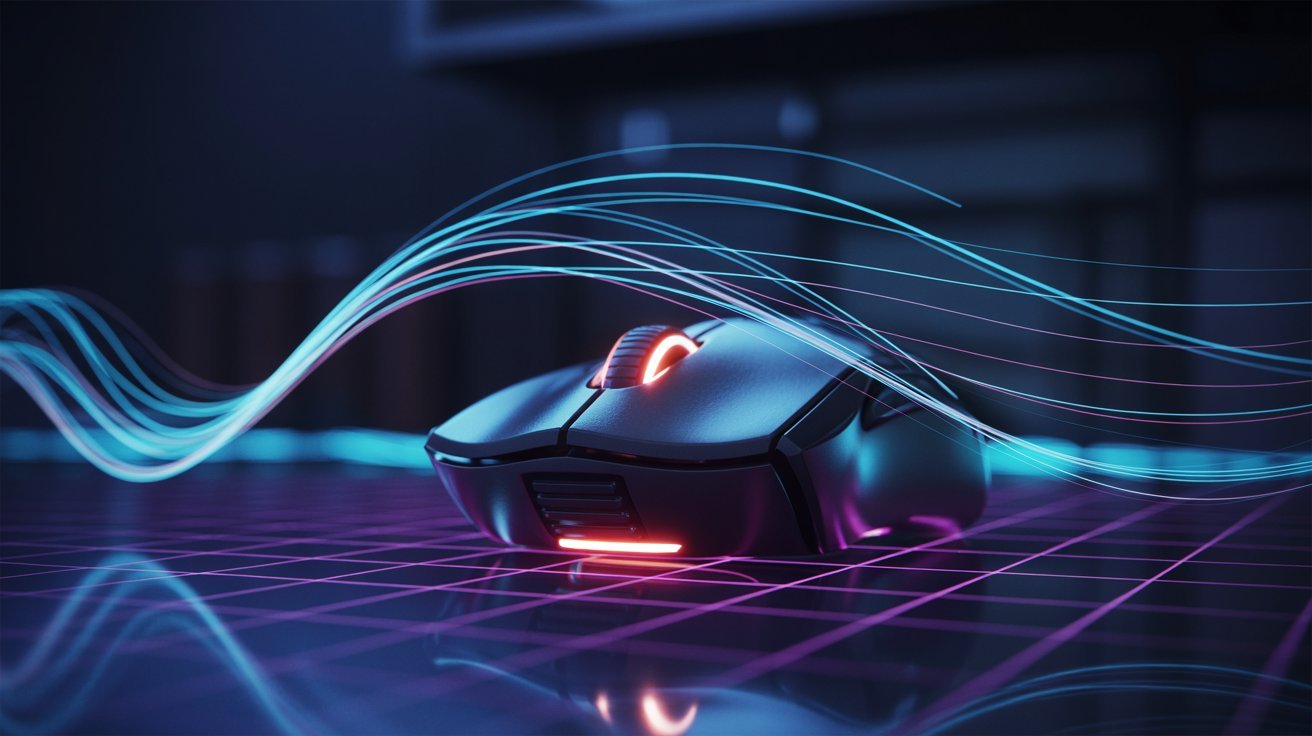
Motion Sync aligns your mouse sensor’s data with its polling rate. Think of it as syncing two clocks so they tick at the same time.
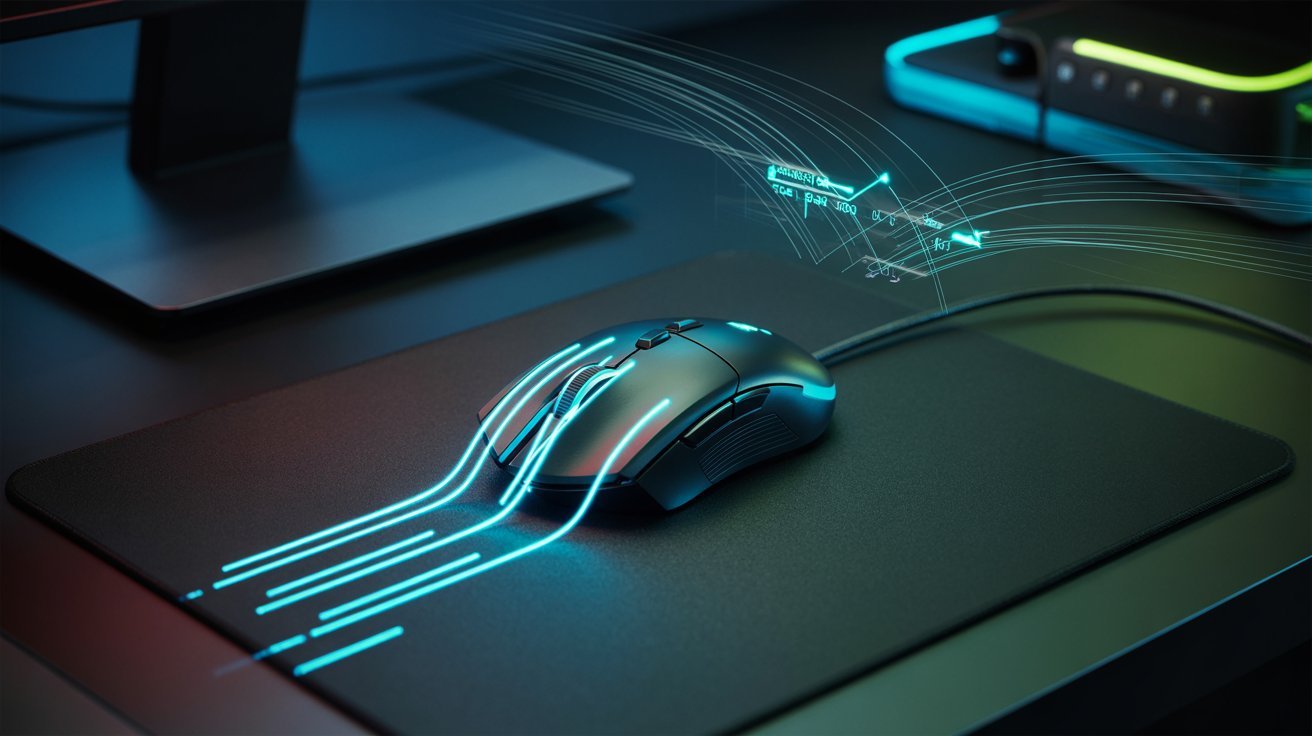
Your mouse sensor picks up movement constantly. But it only sends that data to your PC at set intervals.
Without Motion Sync, that data can arrive slightly off-beat. With it on, the sensor waits to send data right when the polling cycle hits.
The result? Smoother, more consistent cursor movement. It’s a small change, but it genuinely makes a difference.
Benefits of Motion Sync (Why Turn It ON)
Turning it on can make your mouse feel noticeably more controlled especially if smooth tracking matters to you.
Smoother Cursor Movement
The biggest win is consistency. Your cursor moves without the small jitter or stutter you might not even notice until it’s gone. Once it’s smooth, going back feels rough.
Better Tracking Accuracy

When the data syncs properly, your aim and control feel tighter. It’s especially useful in games where you track moving targets like Apex Legends or Fortnite. Less inconsistency means more reliable shots.
Improved Gaming Performance
In tracking-heavy games, Motion Sync helps your mouse feel more stable at high speeds. Fast turns feel cleaner. Slow tracking feels more precise. It’s one of those settings that quietly does a lot.
Disadvantages of Motion Sync (Why Turn It OFF)
It’s not perfect for every situation and for some players, turning it off is the smarter call.
Slight Input Lag (~1ms)
To sync data with the polling rate, there’s a tiny wait. That wait is usually around 1 millisecond. Most people won’t feel it. But in competitive play, even 1ms can matter more than you’d think.
Not Ideal for Tactical FPS Games
Games like CS:GO and Valorant need instant input. Flick shots, quick 180s, fast clicks these need raw, unfiltered data.
Motion Sync adds a tiny buffer that can feel off in these situations. For competitive players, that small delay is enough to skip it entirely.
Motion Sync ON vs OFF: Which Should You Choose?
It really comes down to what kind of gamer you are. There’s no wrong answer here, just the right fit for your style.
Turn Motion Sync ON
Turn Motion Sync ON if you play tracking-heavy games like Apex Legends or Fortnite, prefer smoother and more stable cursor movement, or do design work that needs precision.
Turn Motion Sync OFF
Turn Motion Sync OFF if you play competitive FPS like CS:GO or Valorant, want the lowest possible latency, or prefer raw and instant input with no delay.
There’s no universal right answer. It comes down to how you play and what you value more, smoothness or speed.
Does Motion Sync Increase Latency?
Yes, but barely and for most people, the trade-off is completely worth it.
The 1ms Trade-Off
Motion Sync can add around 1ms of delay. That’s because the sensor waits for the polling interval before sending data. In everyday use, you’ll never notice it. In high-level competitive FPS, some players swear they can feel it.
The good news? It improves consistency. So even if there’s a tiny delay, your inputs feel more even and predictable. For most users, that’s worth it.
How to Test Motion Sync
Don’t overthink this, your hands will tell you everything you need to know in under 30 minutes.
The Simple Switch Test
Open your main game and play 10 to 15 minutes with Motion Sync ON. Then switch it OFF and play another 10 to 15 minutes. Notice which feels more natural to you.
Pay attention to how your aim feels during tracking shots versus flick shots. You don’t need fancy software for this. Your in-game feel is the best feedback tool you have. Trust what your hands tell you.
Common Mistakes to Avoid
A few simple slip-ups can push you toward the wrong setting here’s what to watch out for.
Not Testing Both Modes
Most people just leave Motion Sync on or off without ever comparing both. Test them back to back. It takes 20 minutes and gives you a real answer. Don’t skip this step.
Ignoring Your Game Type
Motion Sync isn’t one-size-fits-all. A tracking game and a tactical FPS have totally different needs. Always factor in what you mostly play before locking in a setting.
Expecting Huge Differences
The change is subtle. If you’re expecting a night-and-day shift, you’ll be disappointed. Look for small improvements in feel and consistency that’s where Motion Sync does its job best.
Tips Before You Decide
A few quick things to keep in mind before you lock in your final setting.
- Test Motion Sync in your main game, not a random one that’s where it actually matters.
- Trust your own hands over online opinions. Everyone’s setup is different.
- Keep your mouse firmware updated. Outdated drivers can throw off how Motion Sync performs.
- Don’t change your DPI while testing. Keep everything else the same so the results are accurate.
- Close background apps before testing. They can mess with input timing more than you’d think.
Conclusion
Honestly, Motion Sync isn’t as complicated as it sounds.
I tested it myself ON felt smoother for casual play and tracking games, OFF felt snappier for competitive FPS. The difference is small, but it’s real.
My suggestion? Try both. Spend a few sessions with each and trust what your hands tell you. Turn it ON for smoother tracking. Turn it OFF for faster response. Either way, you’ve got this.
Found this helpful? Drop a comment below or share it with a fellow gamer who’s been wondering the same thing.
Frequently asked questions
Does Motion Sync Improve Aim?
It can help with tracking-style aiming by making cursor movement feel smoother and more consistent. It won’t fix bad aim, but it removes small inconsistencies that can throw off your shots.
Does Motion Sync Increase Input Lag?
Yes, but only by about 1 millisecond. For most users, this is completely unnoticeable. Competitive FPS players who need the fastest possible response may prefer to keep it off.
Should I Enable Motion Sync for FPS Games?
It depends on the type. For tracking-heavy games like Apex Legends, turning it on can help. For tactical shooters like CS:GO or Valorant, keeping it off usually feels better.
Is Motion Sync Good for Everyday Use?
Yes, for everyday tasks like browsing, design work, or casual gaming, Motion Sync is a solid choice. The smoother cursor movement makes the experience feel more controlled and less erratic.
How Do I Know if Motion Sync Is Working?
Check your mouse’s companion software Razer Synapse, Logitech G Hub, or similar apps. If the option is toggled on and saved, it’s active. You can also feel the difference by switching it on and off during a gaming session.