
Staring at the back of your PC, wondering which port to plug your headphones into? You’re not alone.
Those colored ports confuse a lot of people, especially when no one ever explains what they mean.
I’ve been there too. In this article, I’ll walk you through what color is audio out on a PC, how to connect your headphones or speakers, and what to do when sound isn’t working.
I’ve helped people sort out PC audio for years. This guide keeps it simple and straight to the point.
What Color Is Audio Out on PC?
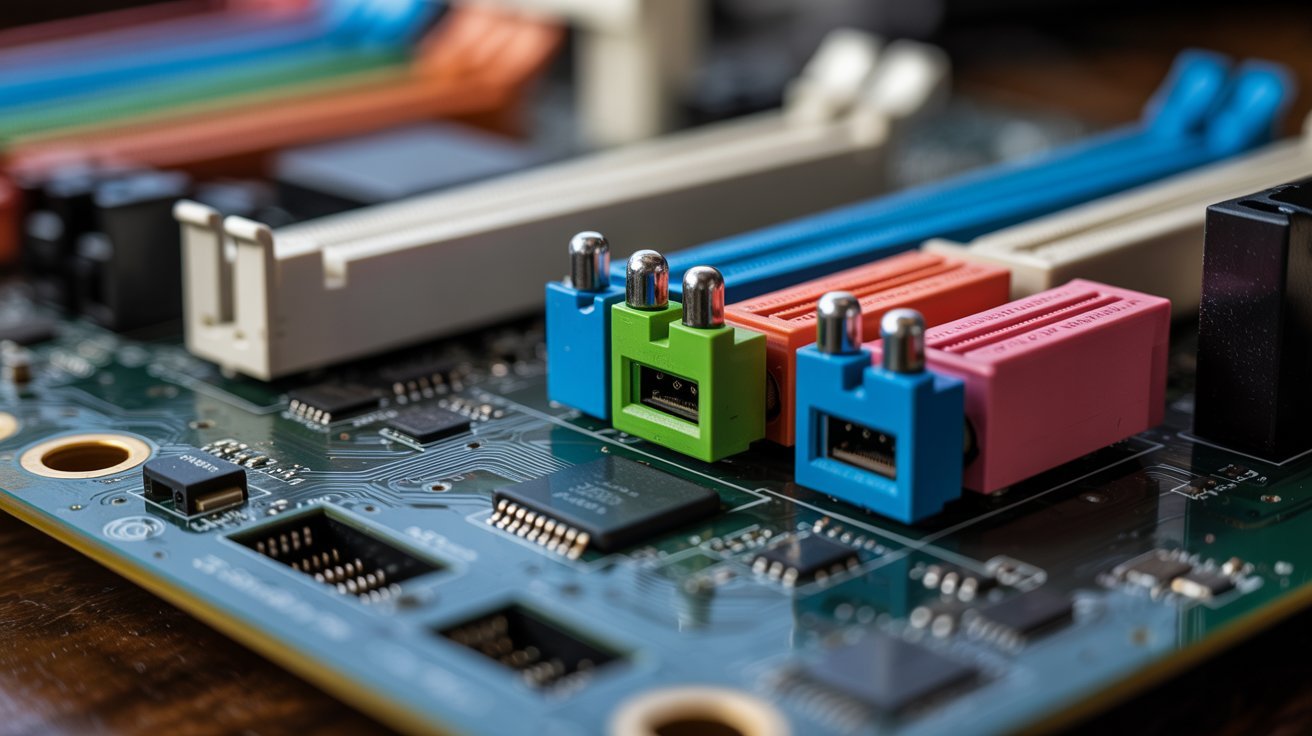
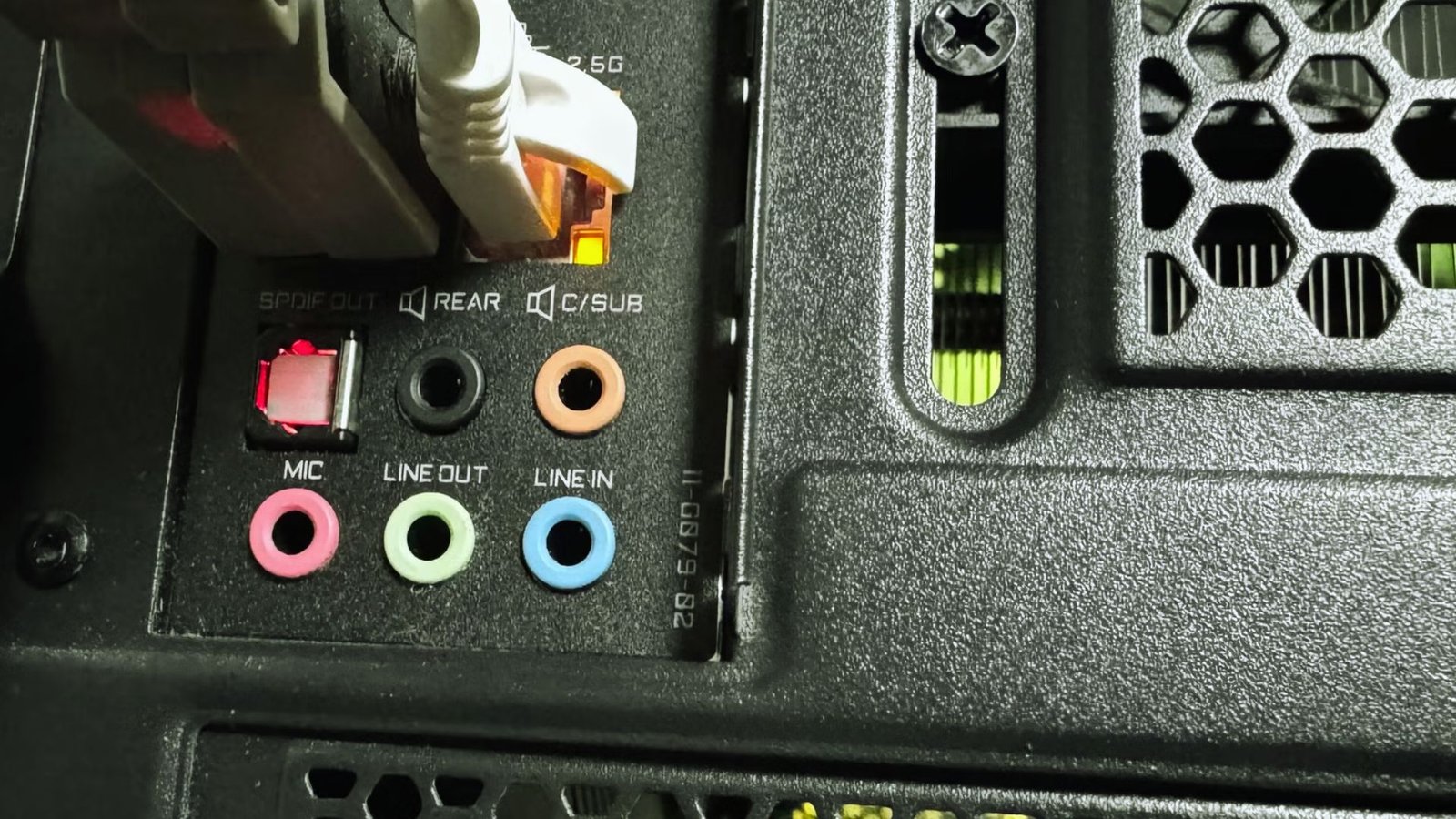
The green port is audio out on a PC. That’s the short answer. Plug your headphones or speakers into the green port and you’ll get sound.
It’s usually marked with a small headphone or speaker icon. You’ll find it on the front or back of most desktop PCs.
Once you know green means audio out, you won’t second-guess it again. It’s consistent across most PCs, which makes it easy to remember.
Now let’s break down all the port colors so you never plug into the wrong one.
PC Audio Port Color Codes Explained
Each port color on your PC has a specific job. Knowing which is which saves you from a lot of frustration.
Green Port Audio Out (Line Out)
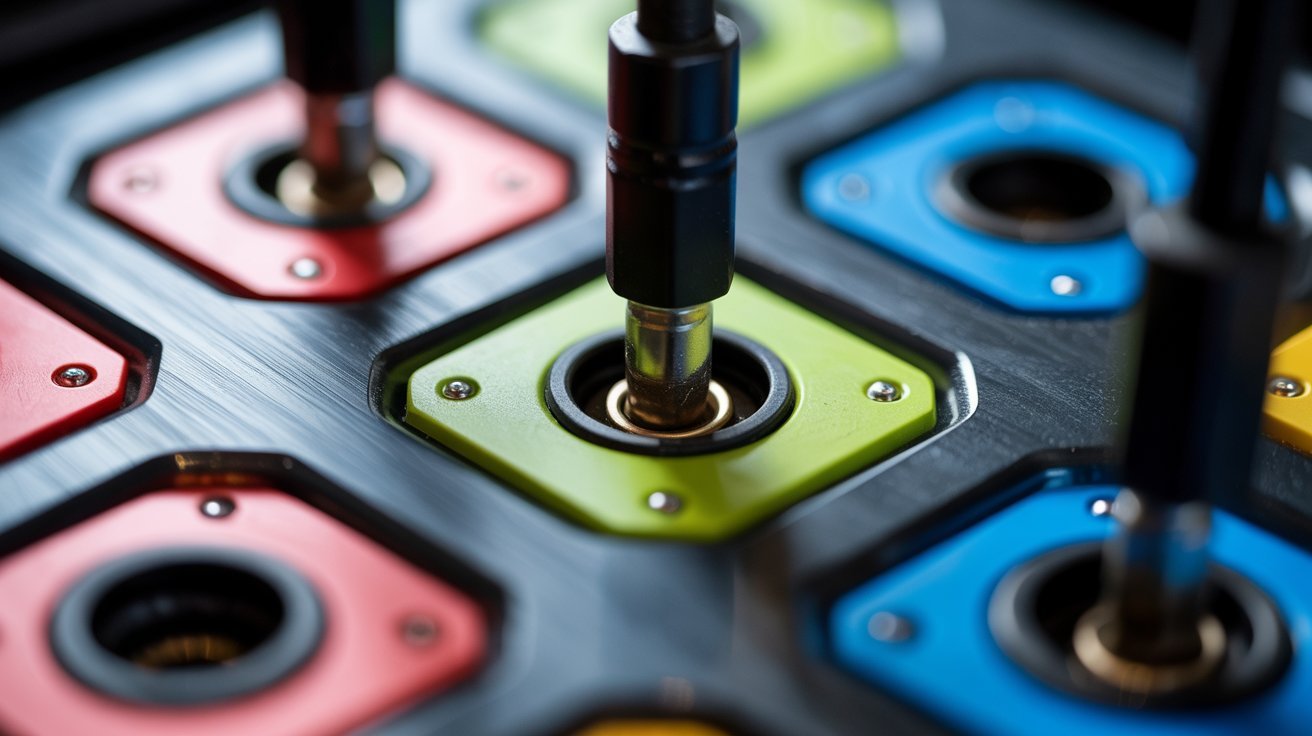
The green port is the main audio output. This is where you plug in your headphones or speakers. If you want to hear sound from your PC, green is the port you’re looking for.
Pink Port Microphone Input
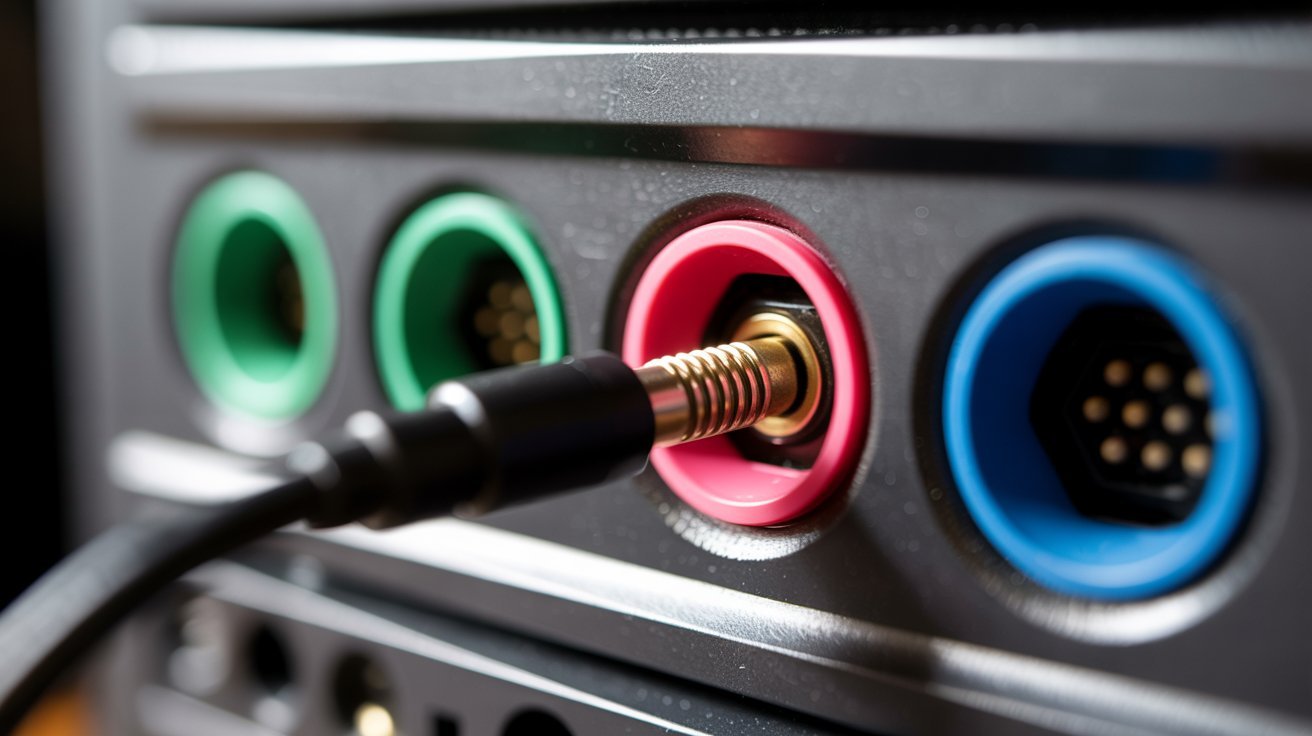
The pink port is for microphones only. It picks up sound going into your PC. Don’t plug headphones here and expect to hear anything. It simply won’t work for output.
Blue Port Line In
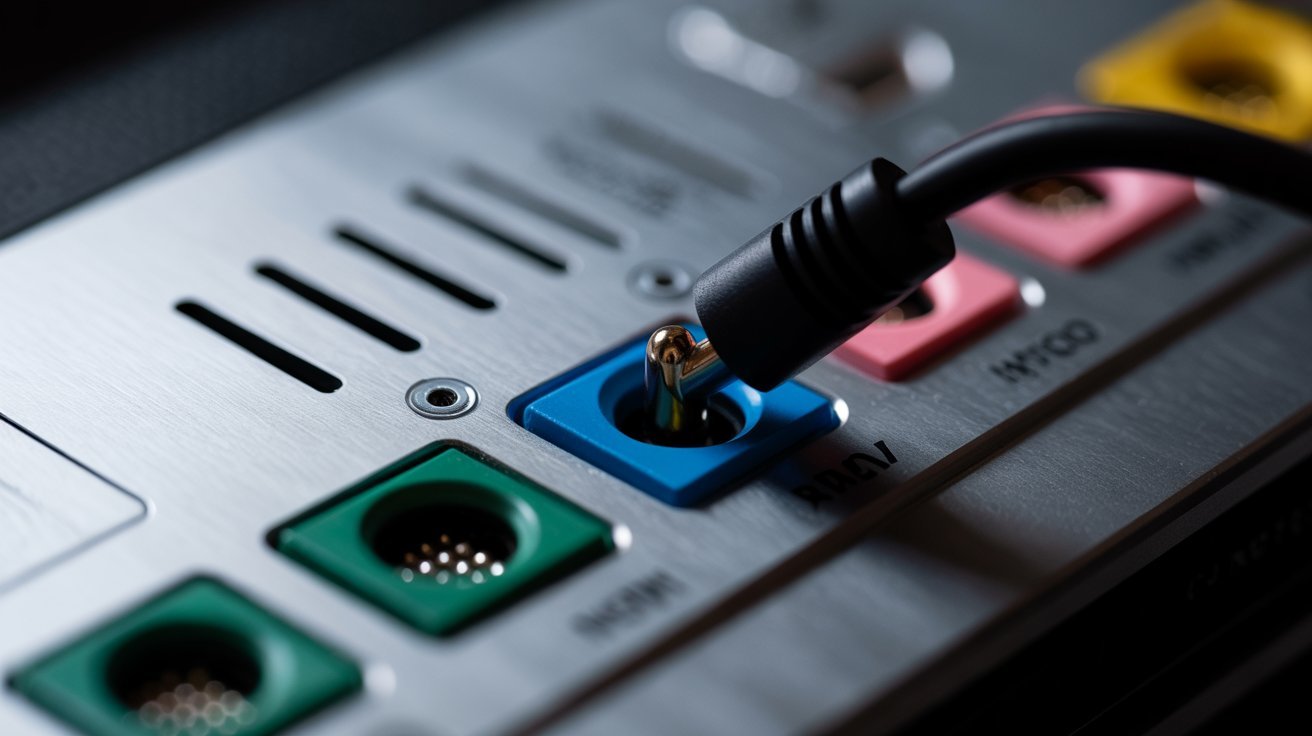
The blue port handles external audio input from devices like CD players or instruments. It’s not for output either. Don’t confuse it with the green port just because it looks similar in shape.
Other Colors
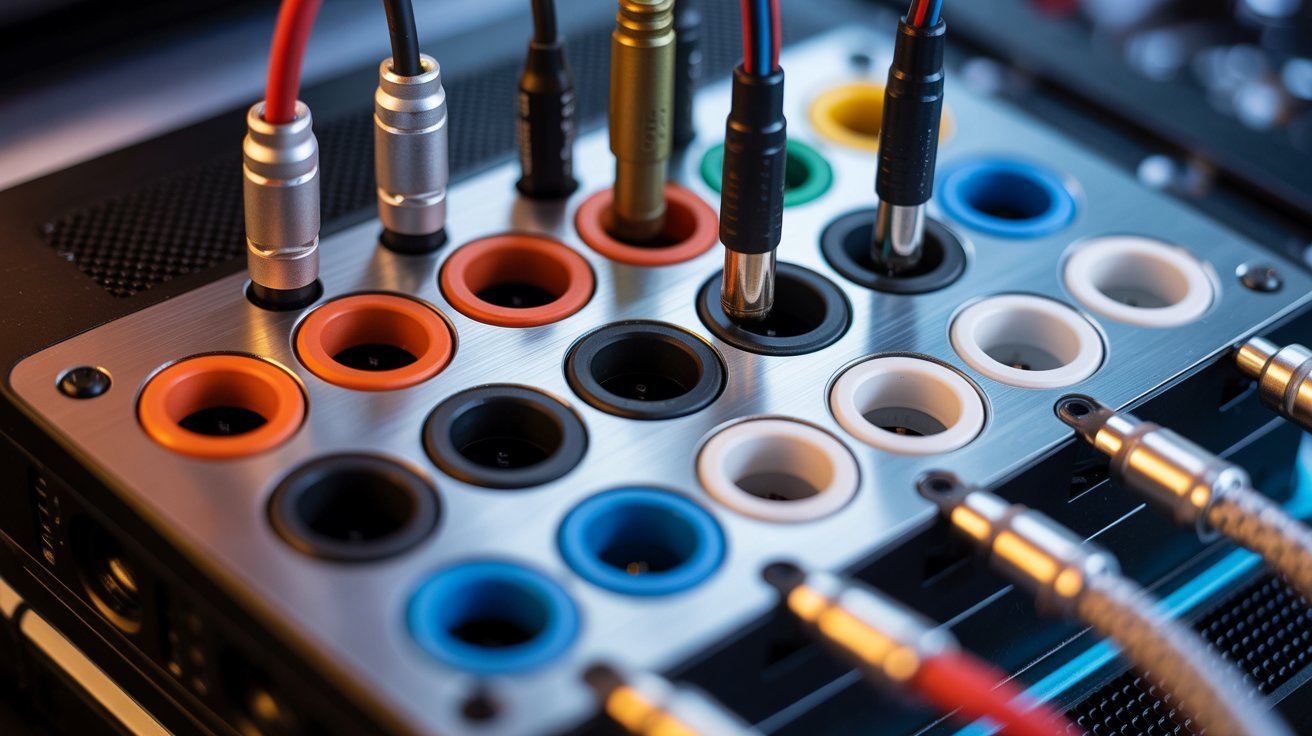
Your PC may have more ports depending on the sound card or motherboard. Orange is for the subwoofer, black handles rear surround speakers, and gray or white covers the side speakers.
These are mostly for surround sound setups. If you just use headphones or basic speakers, you won’t need any of them.
How to Connect Headphones to a PC (Step-by-Step)
Connecting headphones takes less than a minute once you know what you’re doing.
Step 1: Plug Into the Green Port
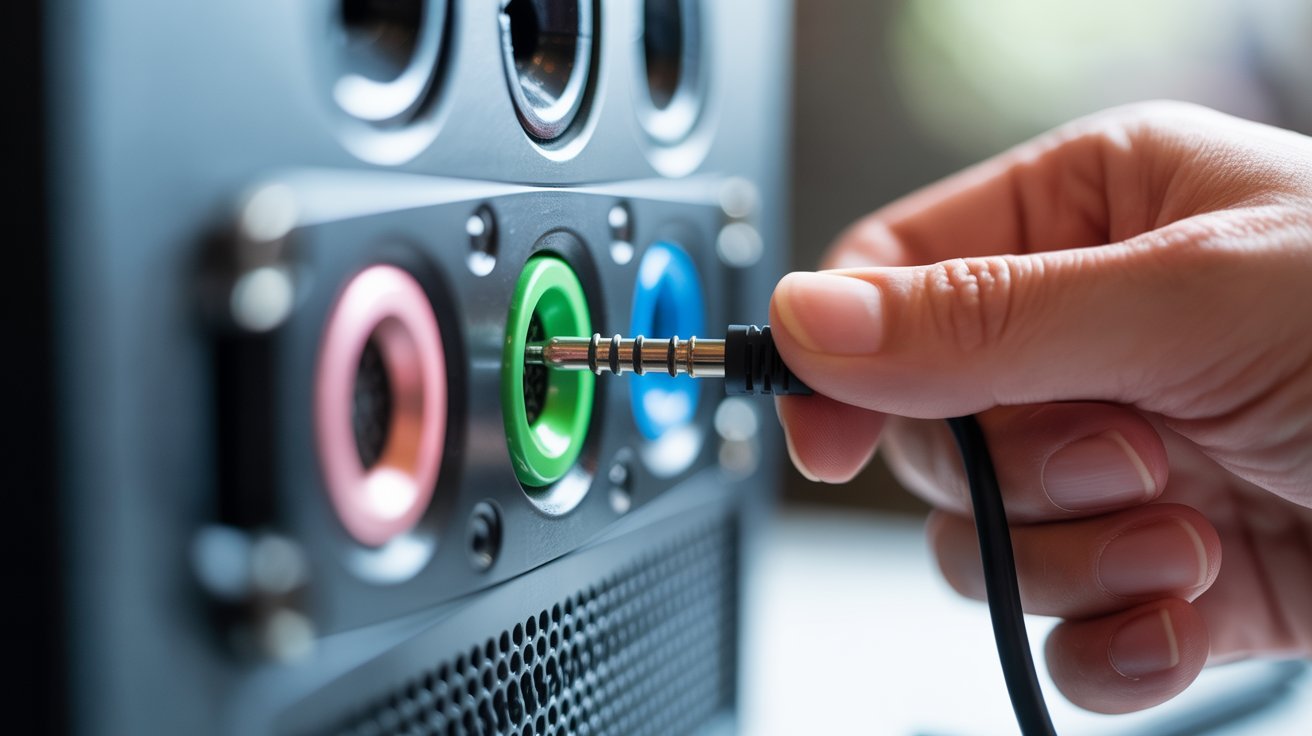
Find the green port on your PC. It’s usually on the back panel of a desktop or on the side of a laptop. Push the 3.5mm headphone jack firmly into the green port until it clicks or feels secure.
Step 2: Select Audio Output in Settings
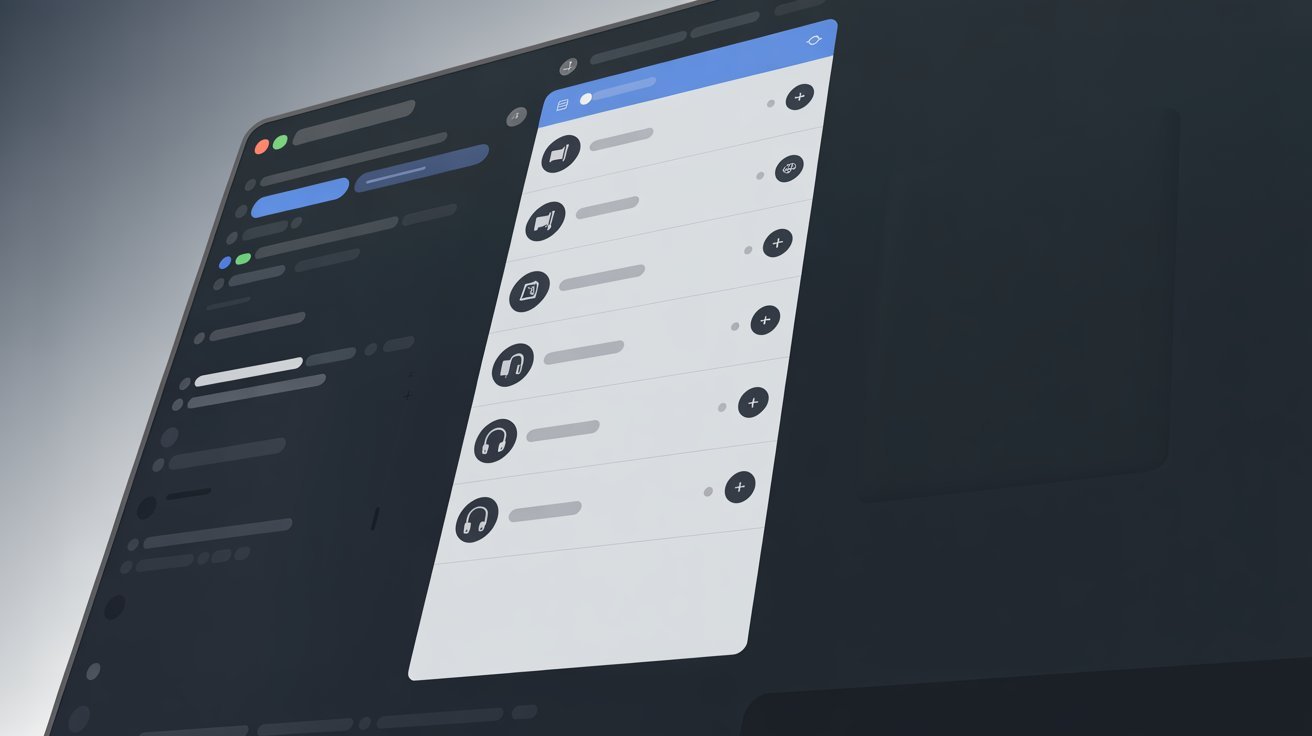
Sometimes Windows doesn’t switch automatically. Go to Settings > System > Sound, then choose your headphones or speakers as the default output device. This step solves a lot of “no sound” problems.
Step 3: Test Your Sound
Play any audio, a YouTube video or a music track works fine. If you hear the sound clearly, you’re all set. If not, move on to the fix section below.
Fix: No Sound From Headphones or Speakers
Sound not coming through? Try these steps one by one.
Step 1 : Check If You Used the Correct Port
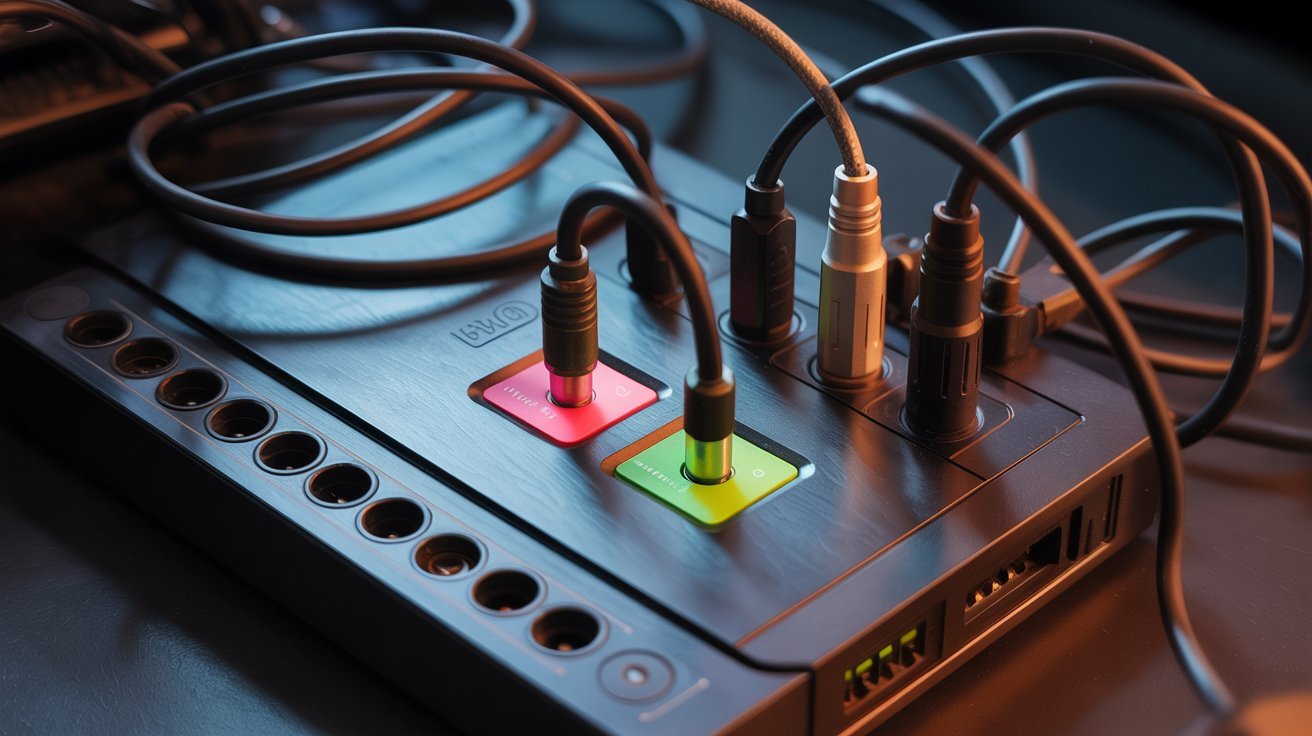
This one catches a lot of people. The pink and blue ports look similar to the green one. Double-check that your cable is in the green port and not the pink or blue one.
Step 2 : Verify Audio Output Settings
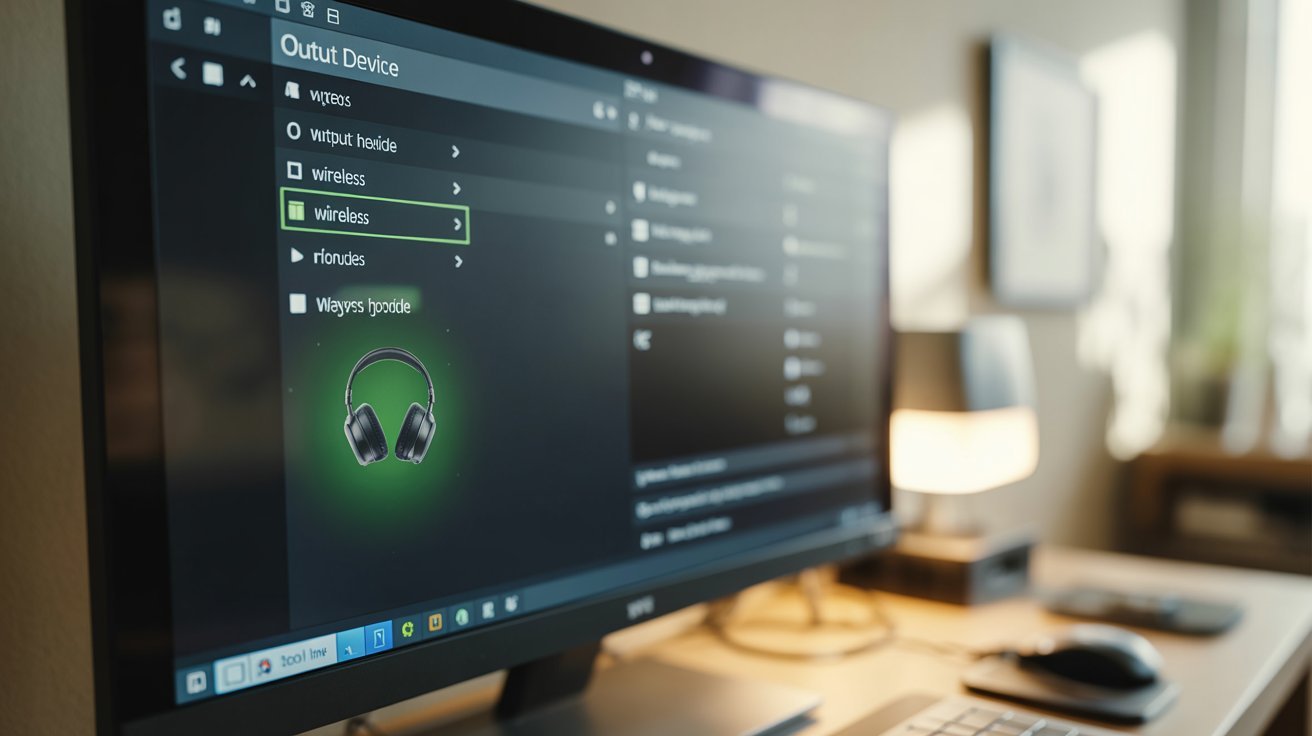
Open your sound settings and make sure the right device is selected as the default output. Windows sometimes switches back to the built-in speakers or a different device automatically.
Step 3 : Inspect Cable or Headphones
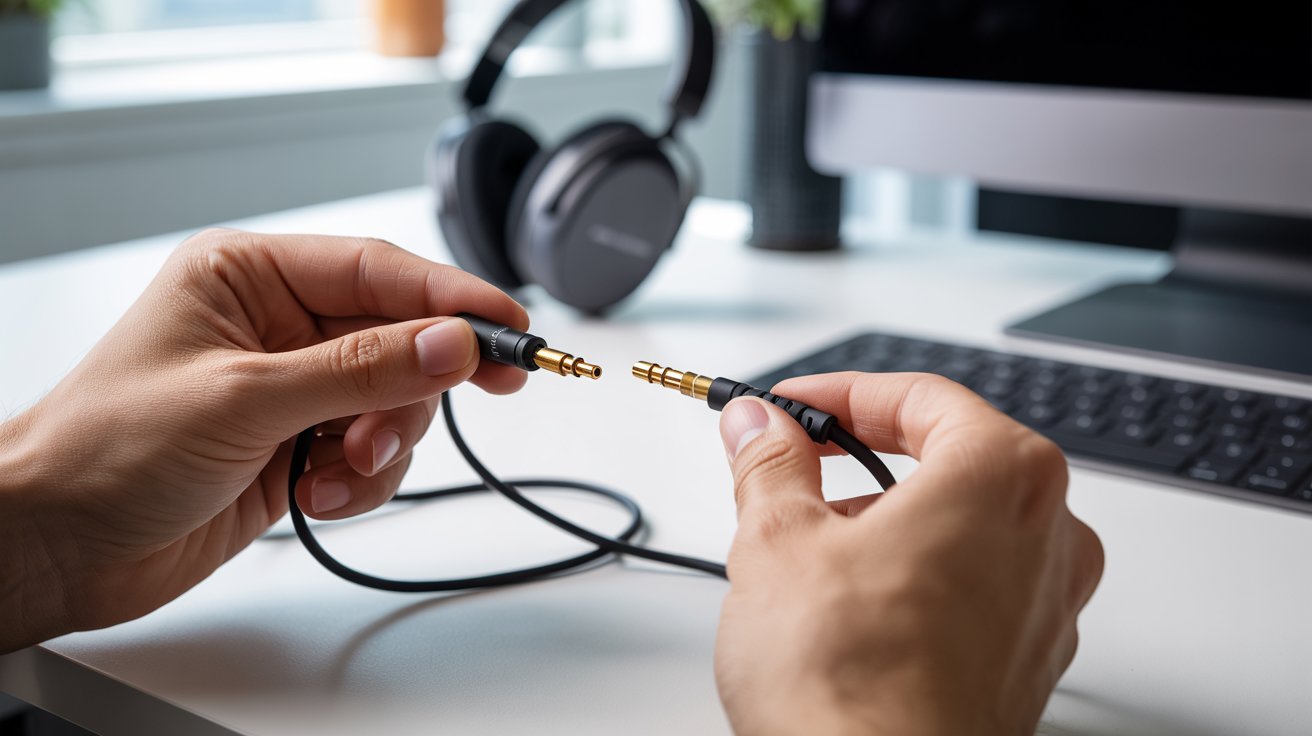
Try your headphones on another device. If they work there, the issue is with your PC settings. If they don’t, the cable or headphones may be faulty.
Step 4: Update or Restart Audio Drivers
Go to Device Manager, find your audio driver, right-click, and choose Update Driver. A simple restart can also fix small driver glitches that block sound.
What If Your PC Has No Green Audio Port?
Older desktops and some slim PCs may skip the traditional color-coded ports. Here’s what you can do.
Use USB Headphones or Sound Cards
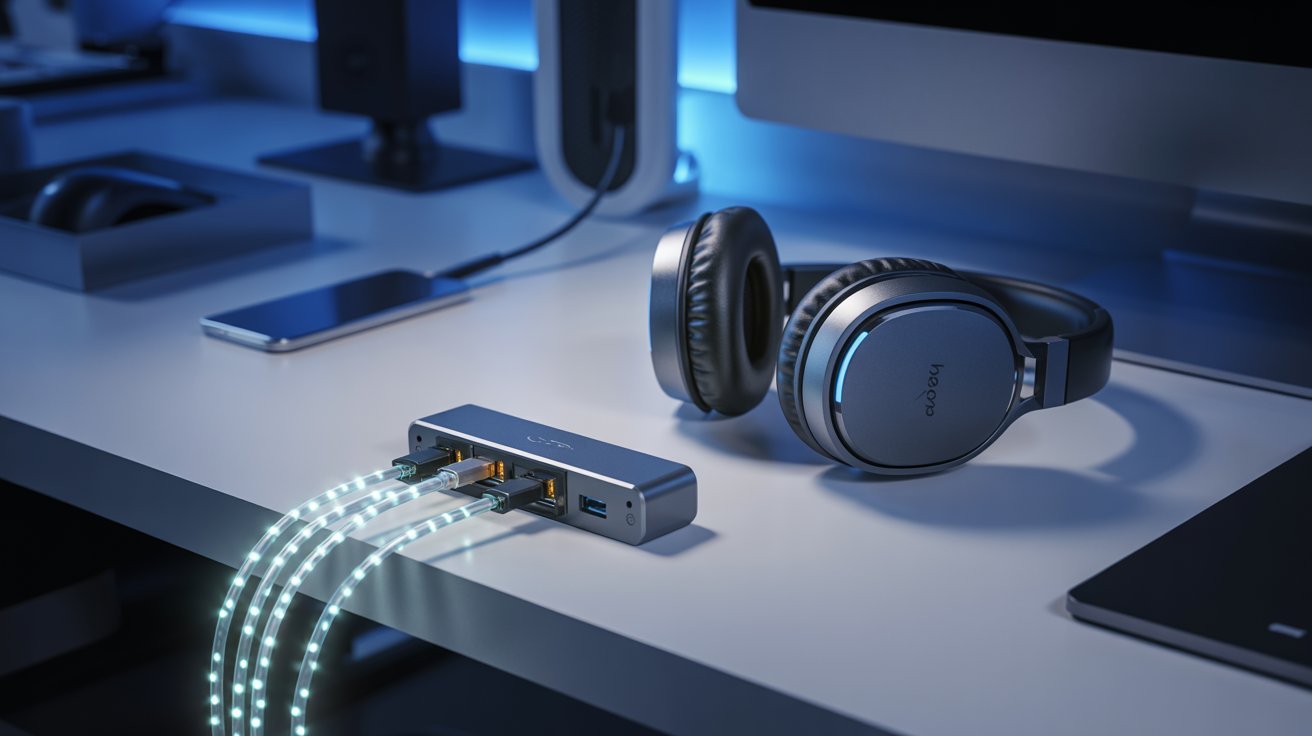
USB headphones bypass the built-in audio system completely. External USB sound cards are cheap and add standard 3.5mm ports to any PC quickly.
Use a 3.5mm Splitter or Adapter
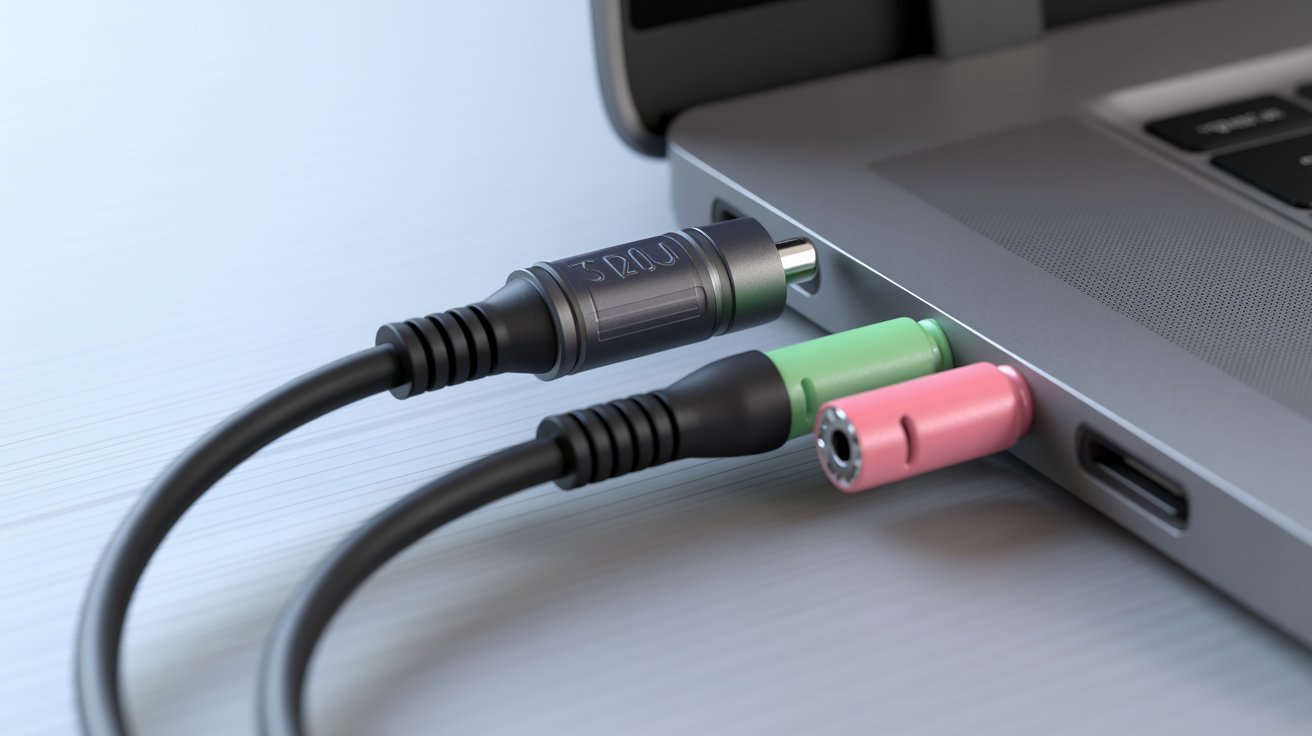
Some laptops combine the mic and headphone into one port. A TRRS splitter separates them into two standard jacks. This works well for headsets with separate mic and audio cables.
Use HDMI or Bluetooth Audio
If your monitor has speakers, HDMI carries audio too. Bluetooth speakers or headphones also work without any port at all. Both options are great when physical ports aren’t available.
Common Mistakes to Avoid
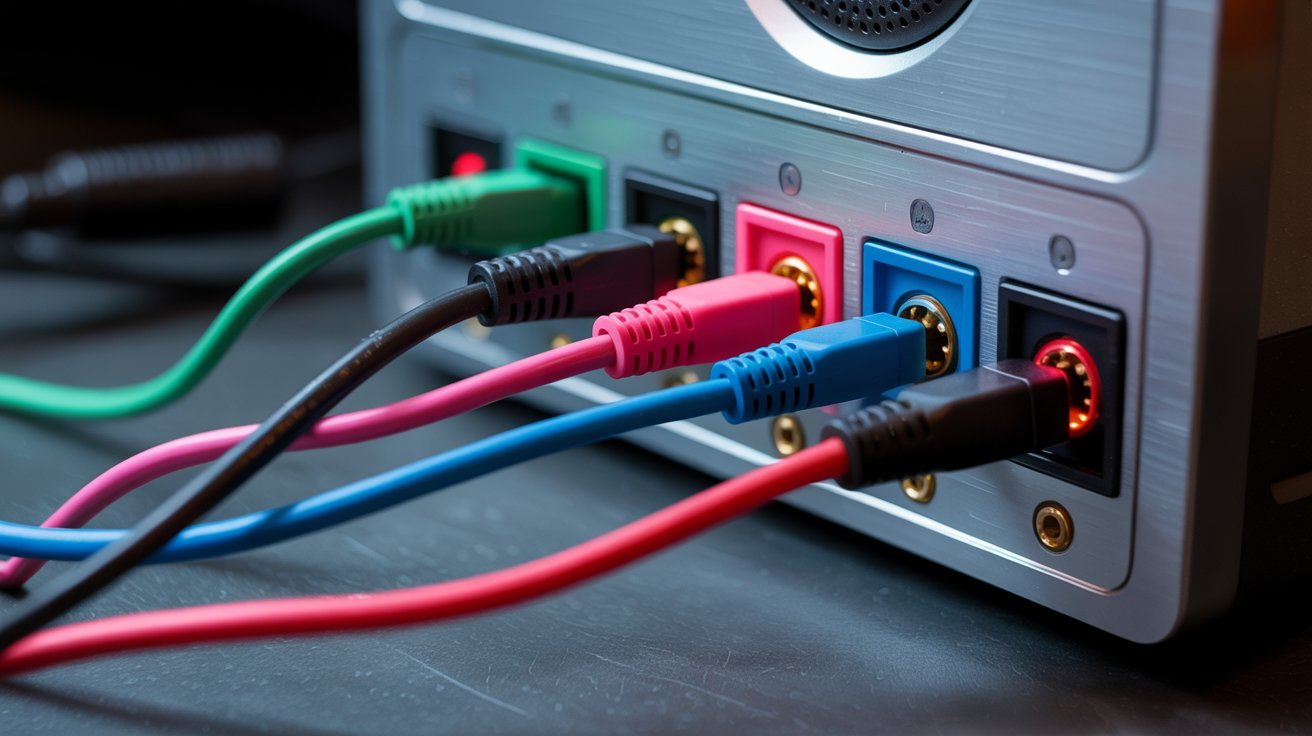
These small mix-ups cause most PC audio problems.
Plugging Into the Wrong Color Port
It happens more than you’d think. The ports sit close together and look almost identical in shape. Always check the color and the icon before plugging in.
Confusing Line-In With Audio-Out
Blue (line-in) and green (audio-out) are not the same. Line-in brings sound into your PC. Audio-out sends sound to your ears. Mixing them up means silence every time.
Not Checking System Sound Settings
Hardware connections matter, but software settings matter just as much. Always check that the correct output device is selected in Windows Sound settings after plugging in.
Tips to Use Audio Ports Correctly
A few simple habits keep your audio setup working smoothly every time.
- Green means output, pink means mic, blue means line-in. Memorize that and you’re set.
- Check the icon next to the port. A headphone symbol means audio out, a mic symbol means input.
- Always plug into the green port first before changing any settings.
- Use a 3.5mm adapter or USB sound card if your cable doesn’t fit the port.
- Blow out dust from ports regularly. Dust causes crackling and weak audio.
- Test sound right after connecting. Play a short clip to confirm it’s working.
- If sound cuts out, re-seat the cable. A loose connection is usually the problem.
Conclusion
Now you know exactly what color is audio out on a PC. The green port is your go-to for headphones and speakers, and that’s unlikely to change anytime soon.
I remember the first time I stared at those colored ports with zero idea what any of them meant. A little confusion is totally normal. But once it clicks, it’s hard to forget.
Try it out today. Got questions or ran into a weird port situation? Drop a comment below. I’d love to help.
Frequently Asked Questions
What color is the headphone jack on a PC?
The headphone jack on a PC is green. It’s the standard audio output port used for both headphones and external speakers.
Can I use the blue port for headphones?
No, the blue port is a line-in port meant for audio input. Plugging headphones into it won’t produce any sound output.
Why is there no sound after plugging in headphones?
This usually happens when the wrong port is used or the output device isn’t set correctly in Windows Sound settings. Check both before assuming the hardware is faulty.
Do all PCs have a green audio port?
Most desktop PCs do, but some slim desktops and laptops skip color coding. In those cases, look for the headphone icon next to the port instead.
Can one port handle both mic and audio?
Yes, some laptops use a combined port called a TRRS jack. It handles both mic and audio through one hole, but you may need a splitter for separate cables.