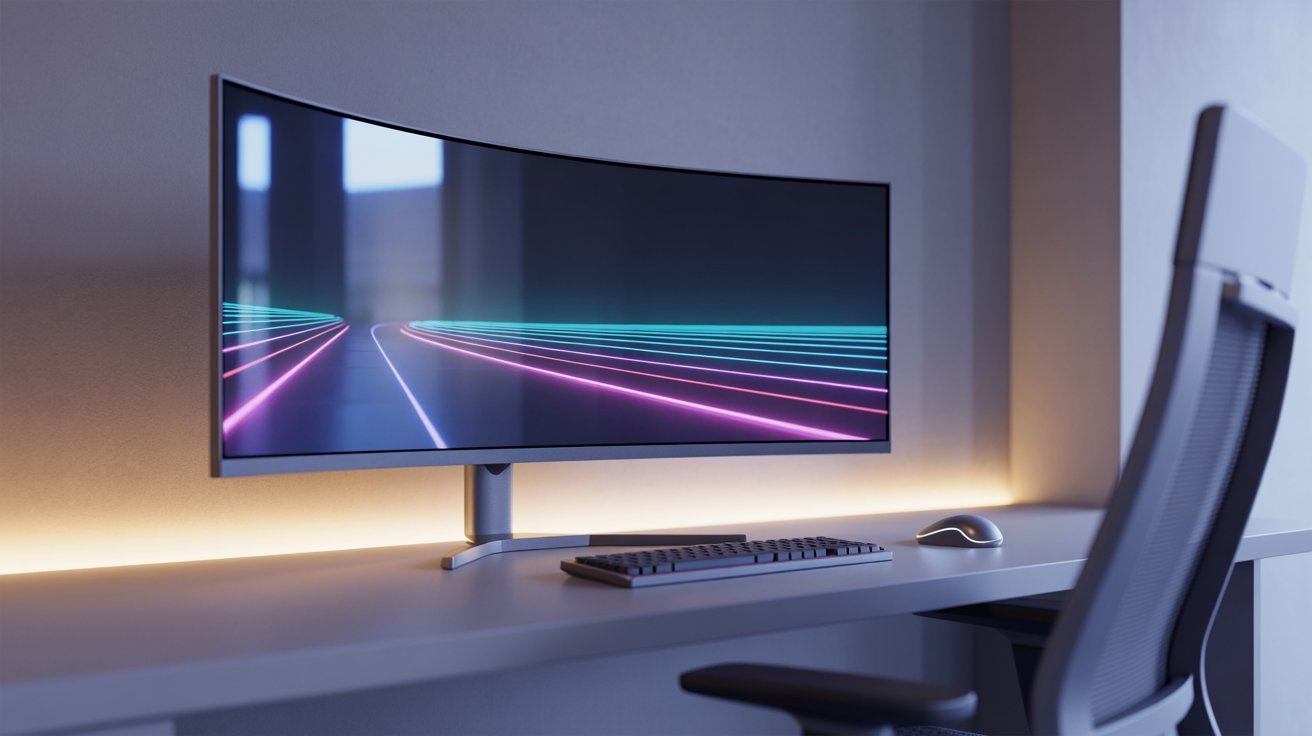

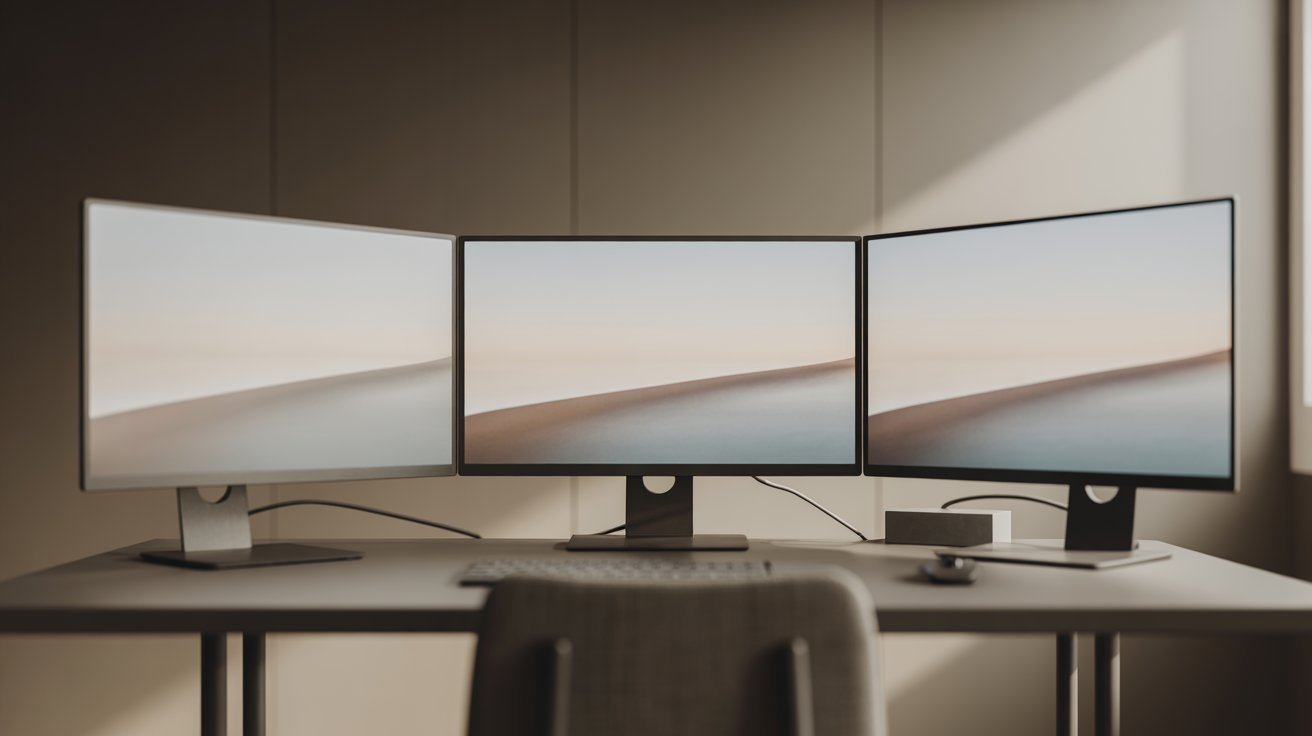
I’ve spent a lot of time rethinking my desk. Adding a third monitor changed how I work completely. If you’re looking for triple monitor setup ideas, you’re in the right place.
This guide covers 17 real setups you can try, from gaming rigs to home office builds. I’ll also walk you through how to connect everything and what gear you actually need.
With years of desk-building experience behind me, I know what works and what wastes space. By the end, you’ll know exactly which layout fits your life.
What Makes the Best Triple Monitor Setup?
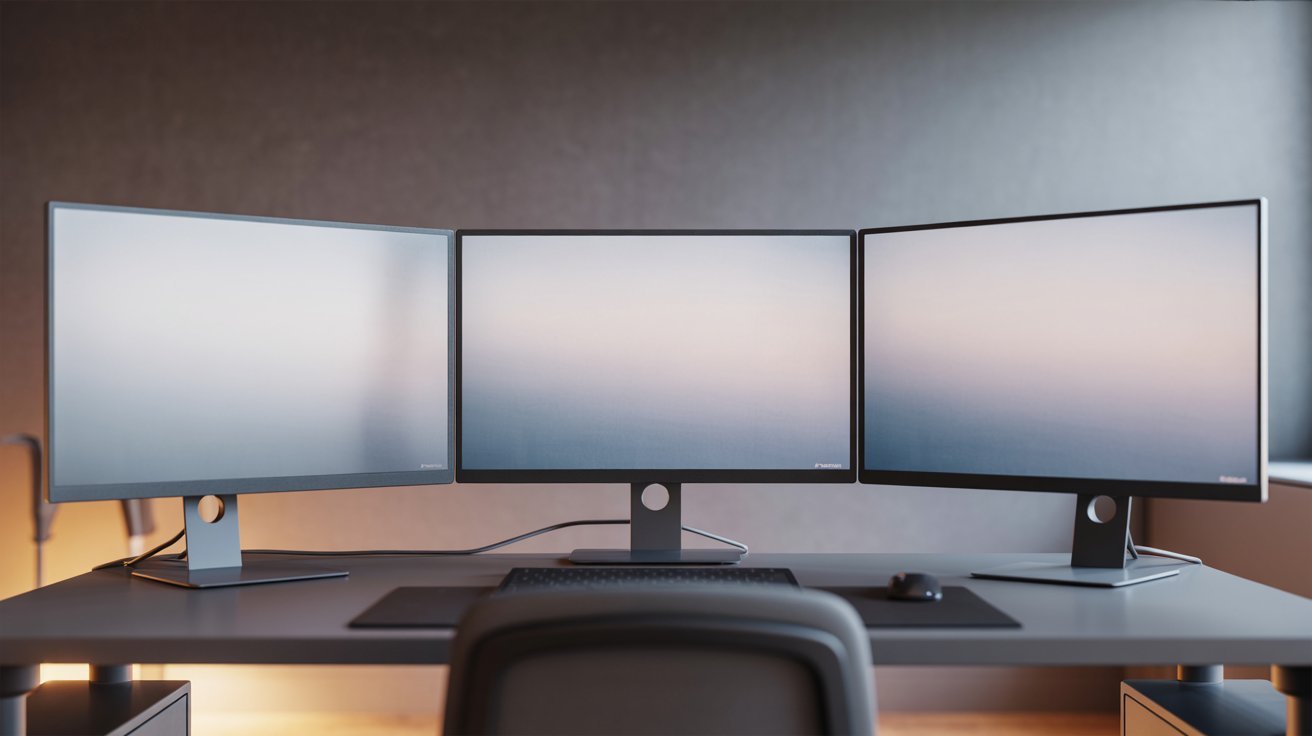
The best triple monitor setup starts with knowing your space and hardware. Your desk should be at least 60 inches wide, and your GPU needs to support three outputs. Most modern dedicated GPUs handle this without issues.
For monitor size, 24-inch or 27-inch screens are the most practical choice. Try to keep the same resolution across all three to avoid eye strain.
More screen space means less tab-switching, better focus, and the ability to run multiple tasks at once. Think about cable length and power outlets before you buy anything.
How to Set Up a Triple Monitor Desk Setup Properly
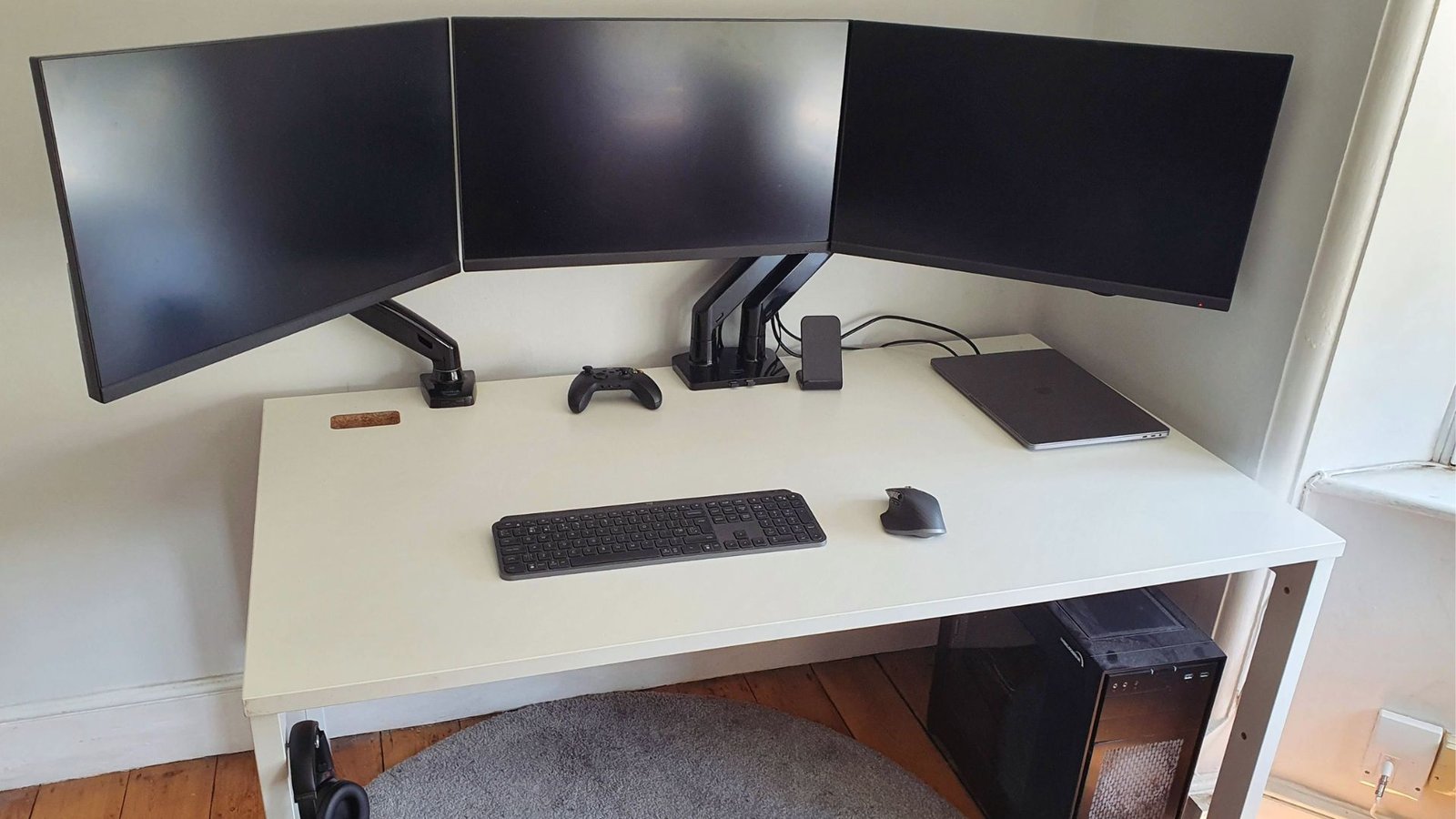
Setting up three monitors correctly saves time and avoids common display errors.
System Requirements for 3 Monitors
You need a GPU with at least three display outputs. Most desktop GPUs have this. For laptops, a docking station is usually required. Keep your drivers updated to avoid connection issues.
How to Connect Three Monitors to Your PC or Laptop
Use DisplayPort or HDMI cables. Connect each monitor to a separate port on your GPU. For laptops, a USB-C hub or docking station can add the extra ports you need. Then go to display settings and arrange your screens in the correct order.
Best Layout Positioning for Daily Use
Place the center monitor directly in front of you. Angle the side monitors at about 30 degrees. This keeps everything in your line of sight and reduces neck strain throughout the day.
17 Triple Monitor Setup Ideas to Upgrade Your Desk
Here are 17 setup ideas to help you build a desk that works for your space and style.
1. Surround View Triple Monitor Setup
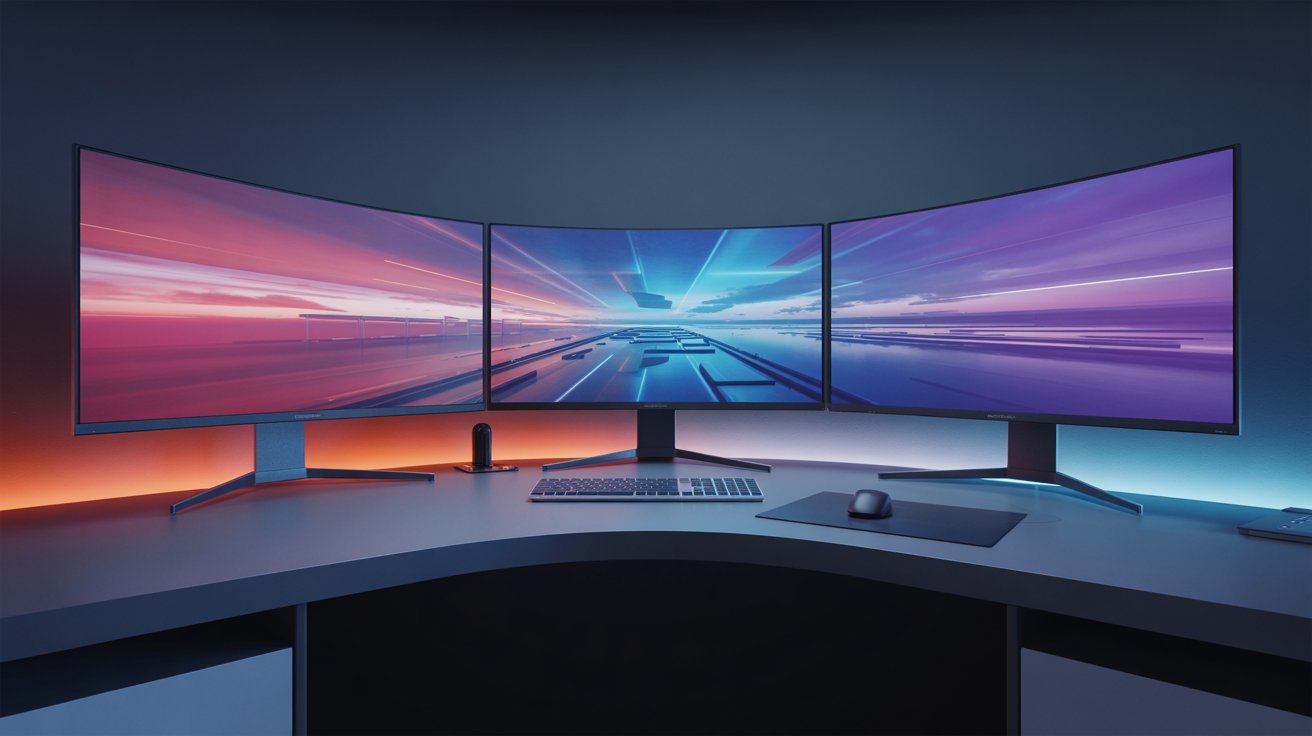
Three monitors face you in a wide arc. Great for gaming and immersive work sessions. Pairs well with a curved monitor arm.
2. Productivity Powerhouse Setup (2+1 Layout)
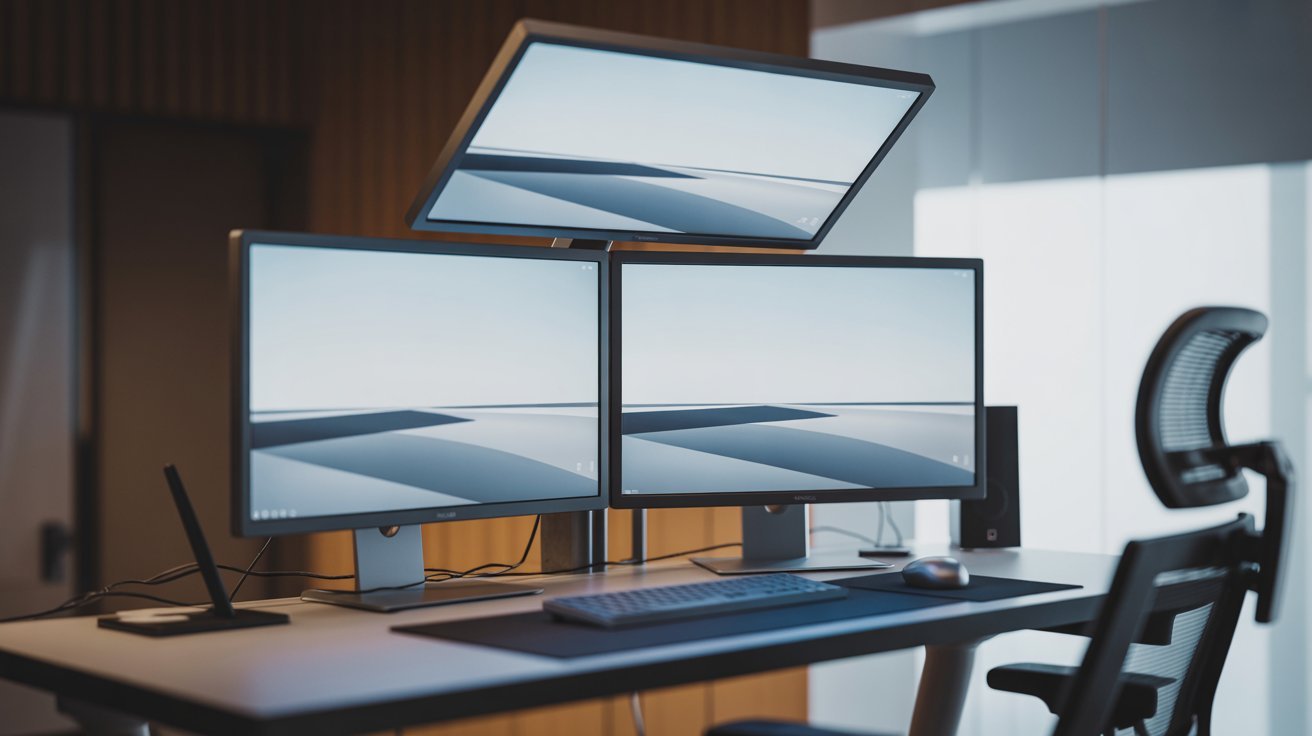
Two monitors sit side by side, and one mounts above. Use one for tasks, one for reference, and one for communication tools.
3. Asymmetrical Triple Monitor Setup
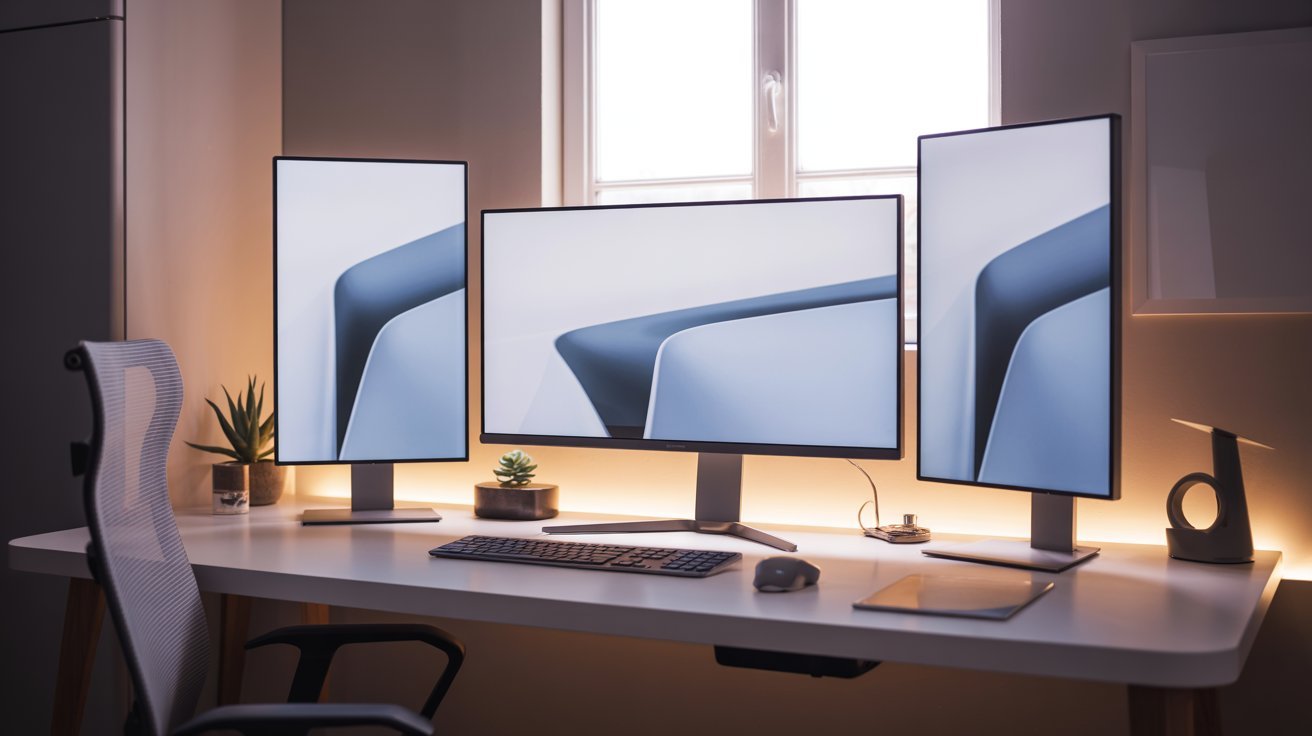
One large main monitor with two smaller screens on the sides. Keep your focus on the center while the sides handle secondary info.
4. Stacked Triple Monitor Setup
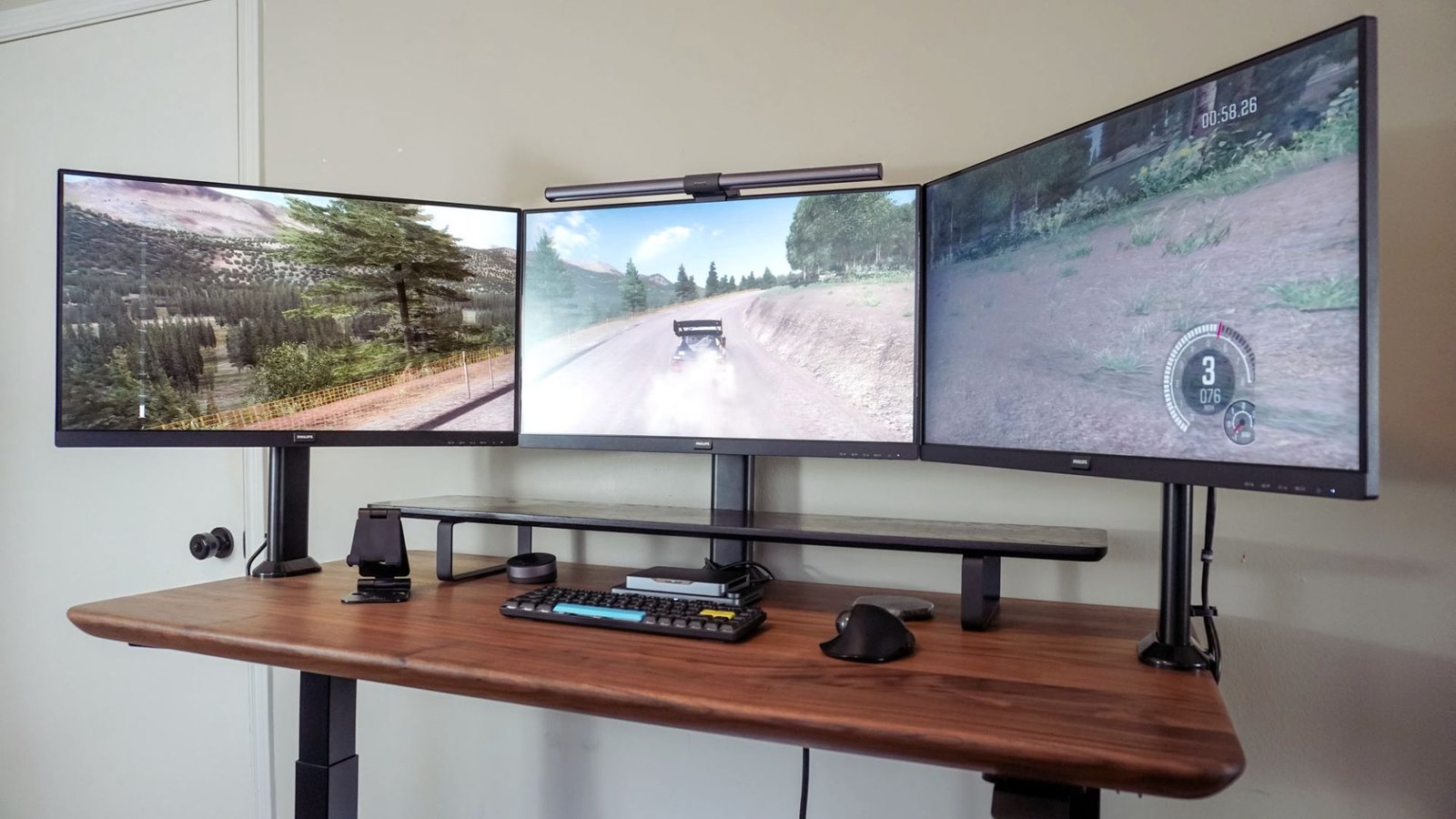
One monitor sits on top of another, with a third to the side. Works well when desk width is limited but vertical space is available.
5. L-Shaped Triple Monitor Desk Setup
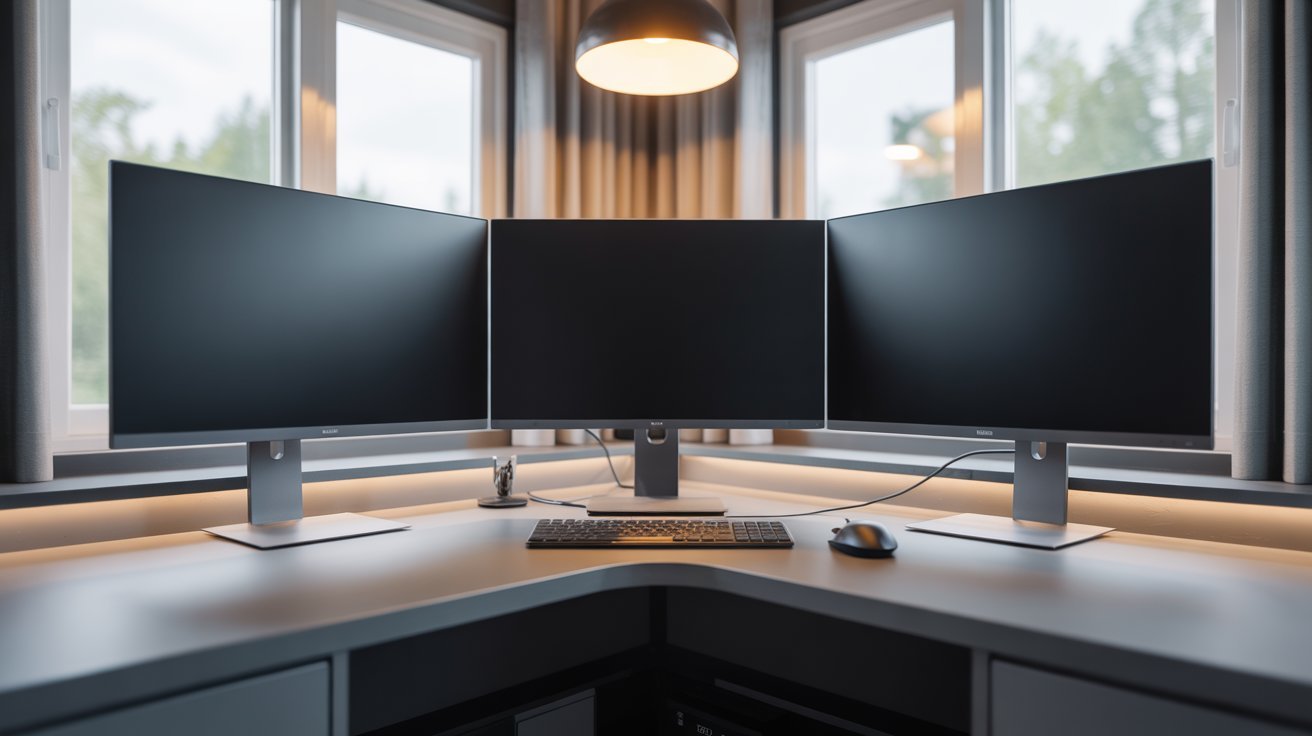
Use the corner of an L-shaped desk. Two monitors go on the main side, one on the return. The corner gives natural separation between screens.
6. Ultra-Wide Hybrid Triple Monitor Setup
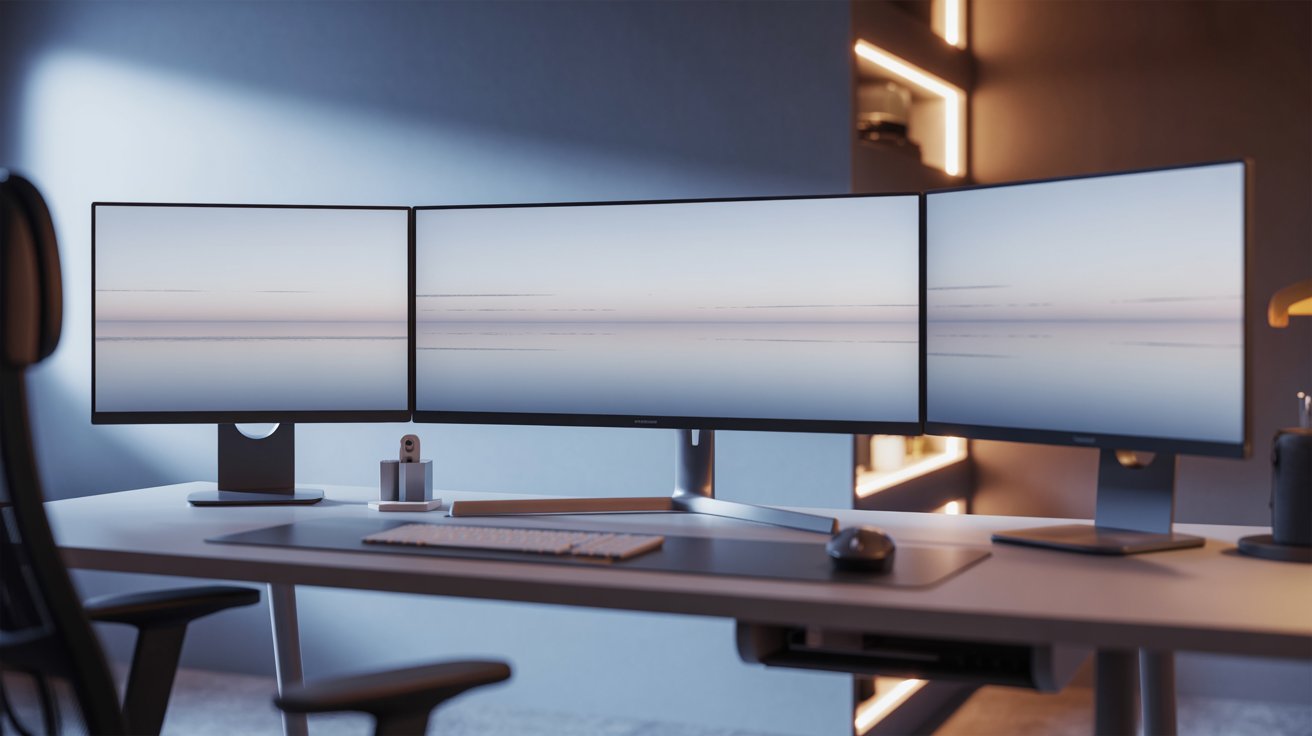
Pair an ultra-wide center monitor with two standard screens on the sides. You get more real estate without going full triple ultra-wide.
7. Triple Monitor Setup with Laptop
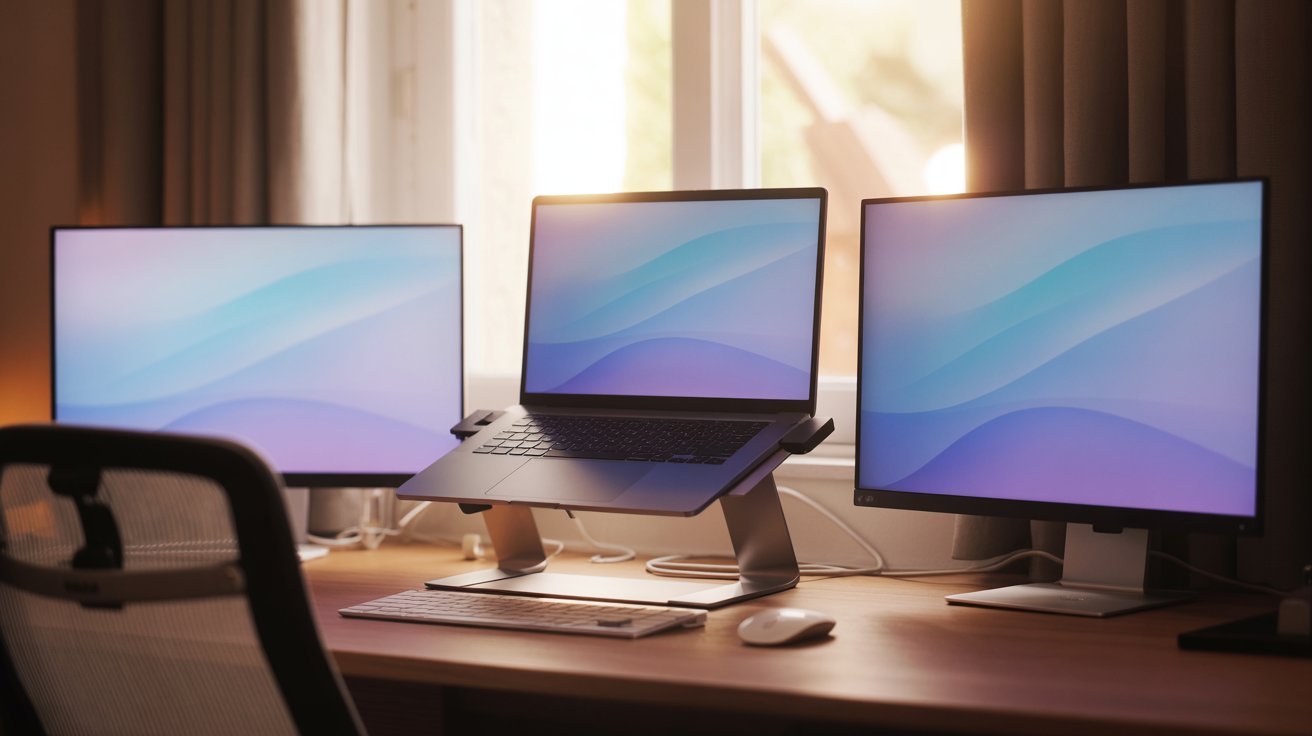
Use your laptop as one of the three screens. Add two external monitors with a docking station. This is a cost-effective way to go triple without buying a third monitor.
8. Streaming Triple Monitor Setup
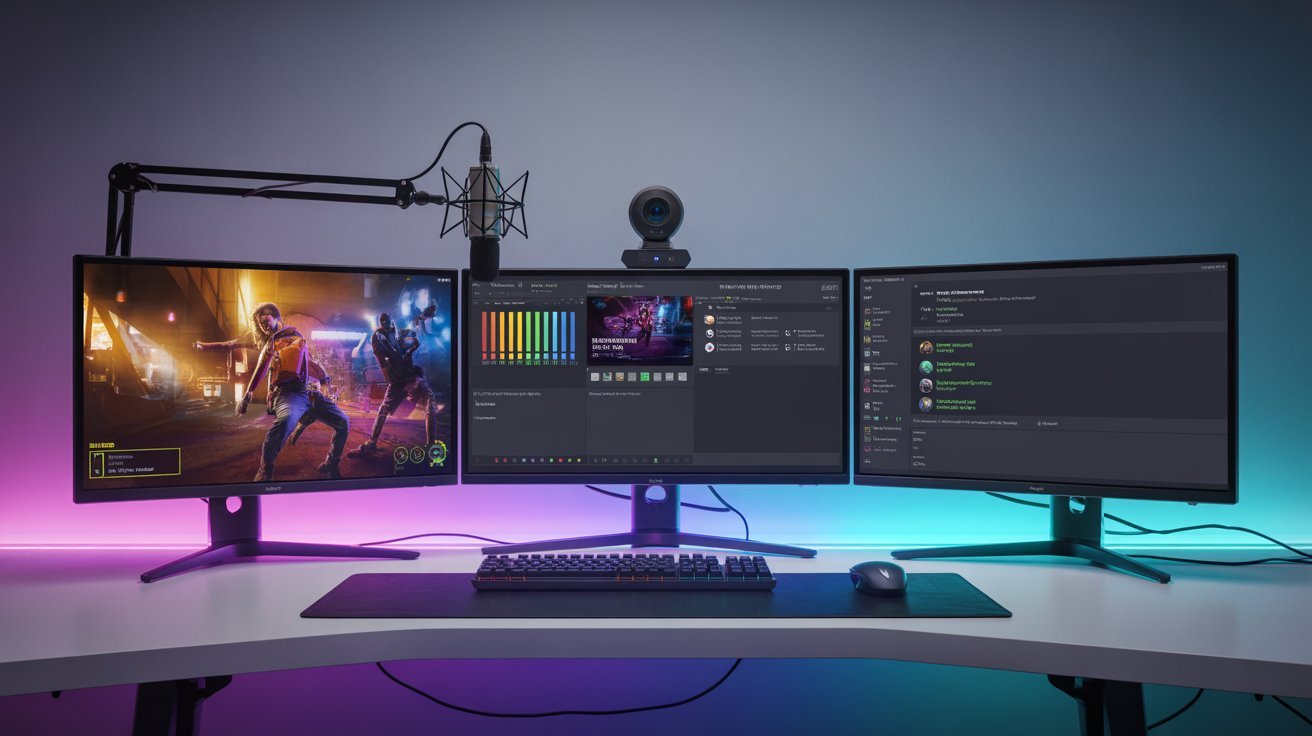
One screen for your game, one for live chat and alerts, one for OBS or Streamlabs. Keeping each task on its own screen makes streaming much smoother.
9. Mixed Resolution Triple Monitor Setup
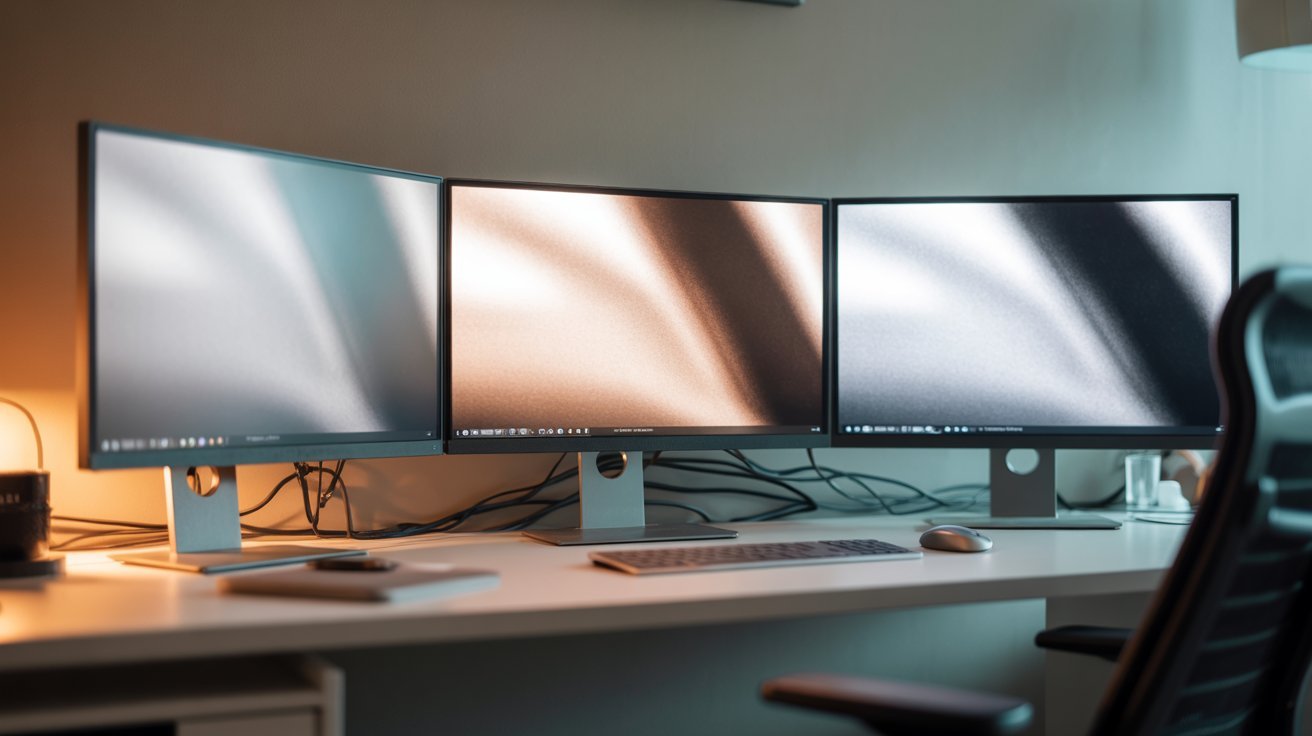
A high-resolution center monitor with lower-res screens on the sides. This keeps costs down while still giving you three active displays.
10. Dual Portrait Triple Monitor Setup
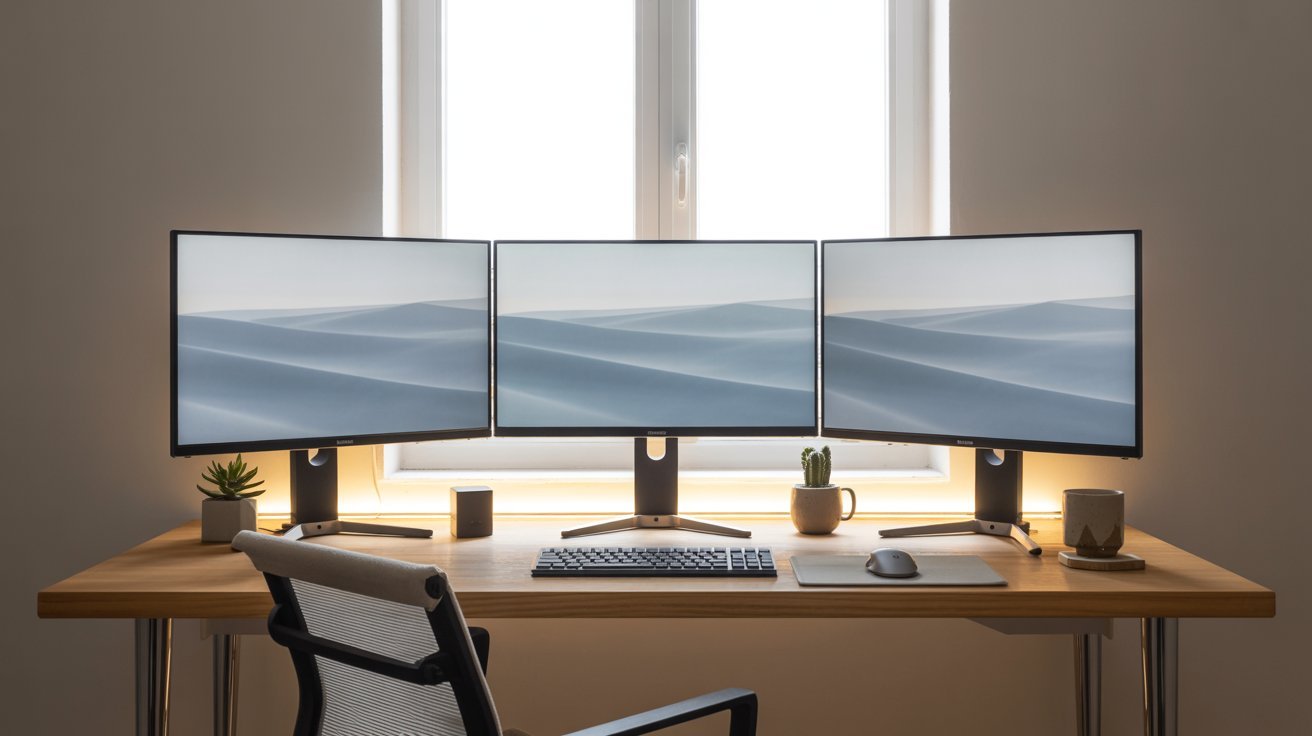
Two vertical monitors on the sides with one landscape monitor in the center. Great for reading long documents or writing code.
11. Dual Landscape + One Portrait Setup
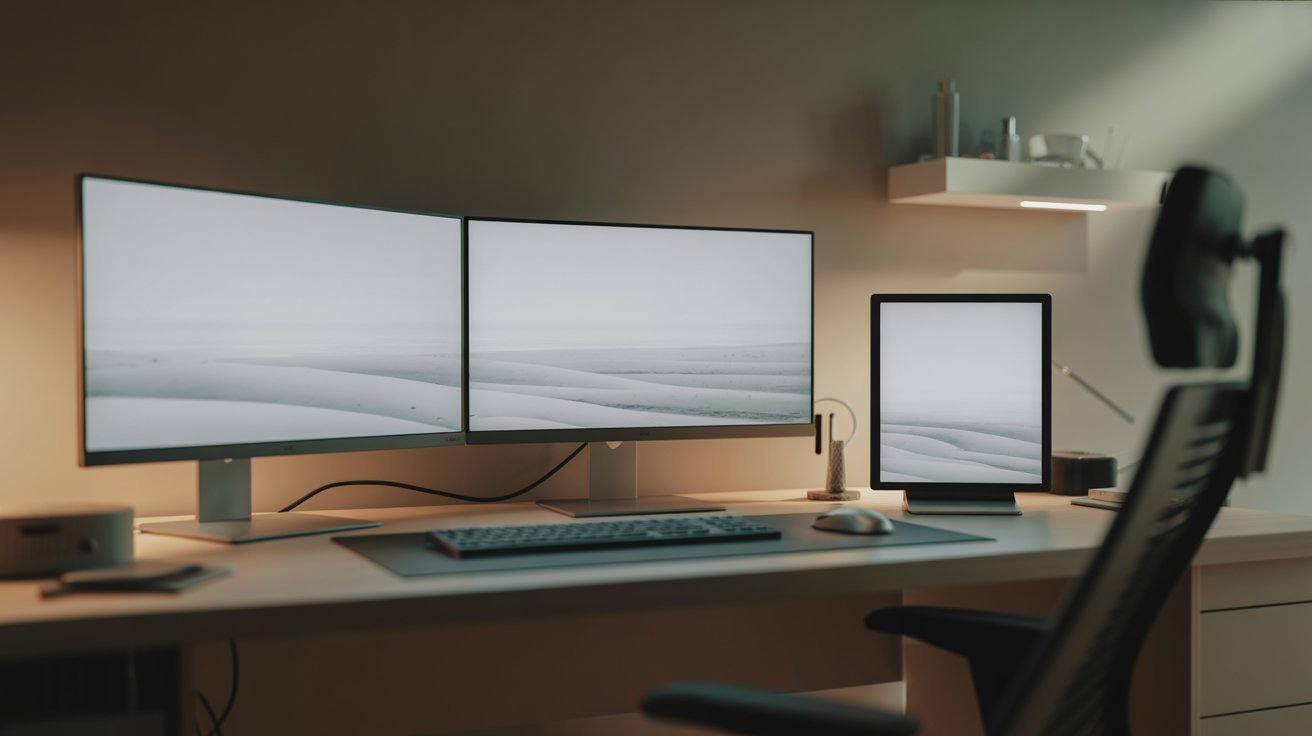
Two standard horizontal screens with one vertical screen on the side. Useful for social media managers or anyone monitoring feeds and chats.
12. Swivel Arm Triple Monitor Setup
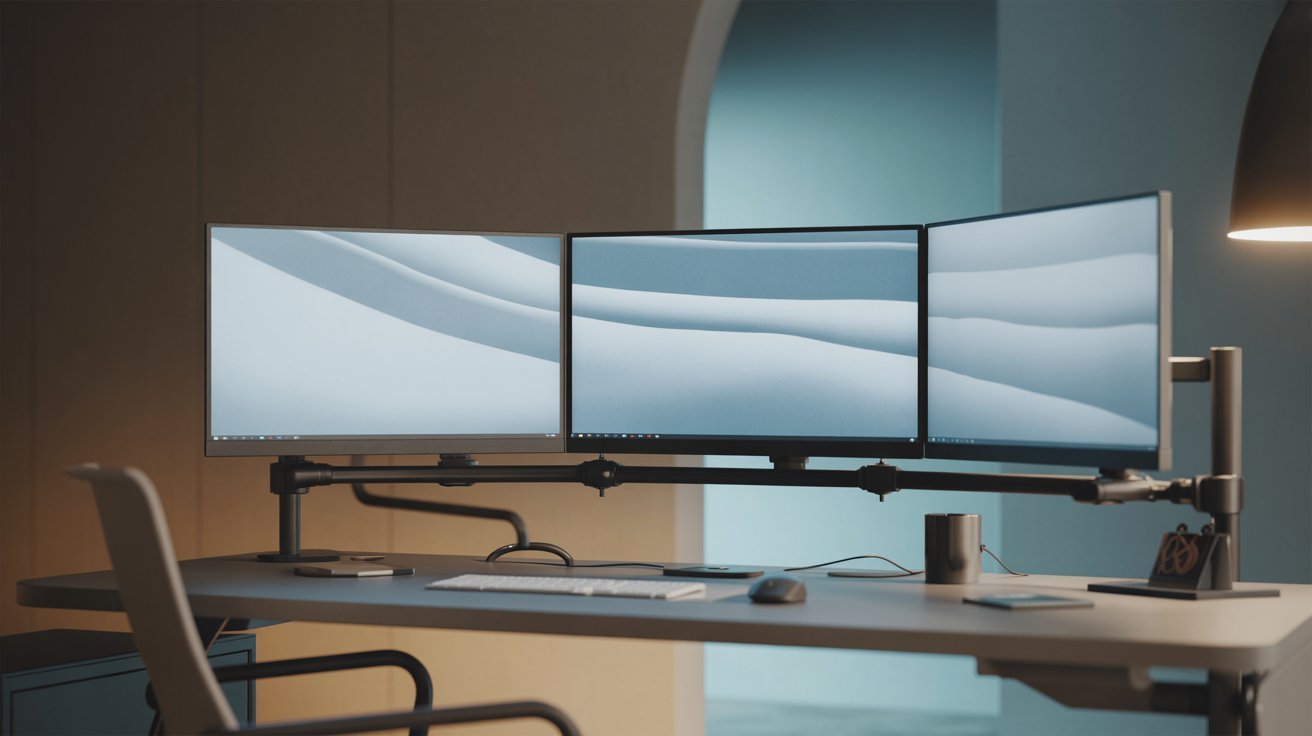
All three monitors sit on swivel arms. You can reposition them anytime. This setup is the most flexible for people who switch between tasks often.
13. Vertical Sandwich Monitor Setup
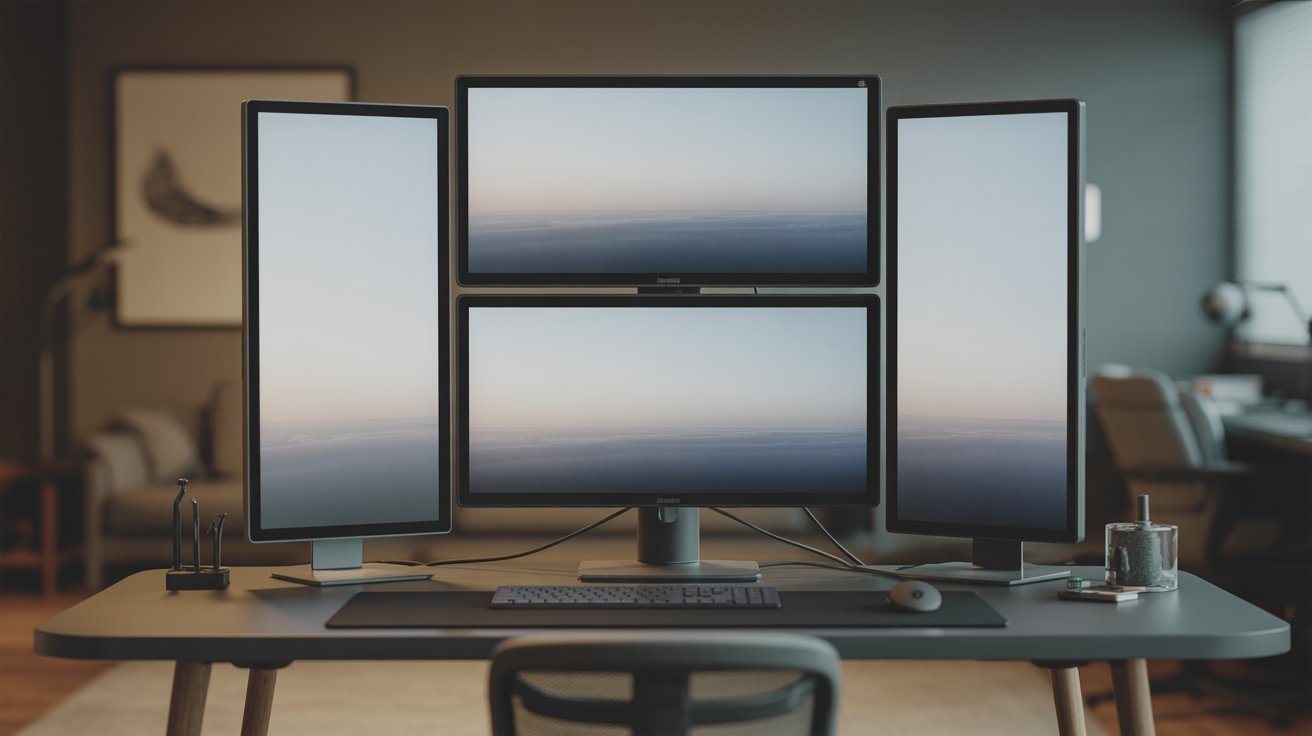
One landscape monitor on top, one on the bottom, one on the side. Works well for data-heavy jobs where you need lots of vertical space.
14. Floating Triple Monitor Setup
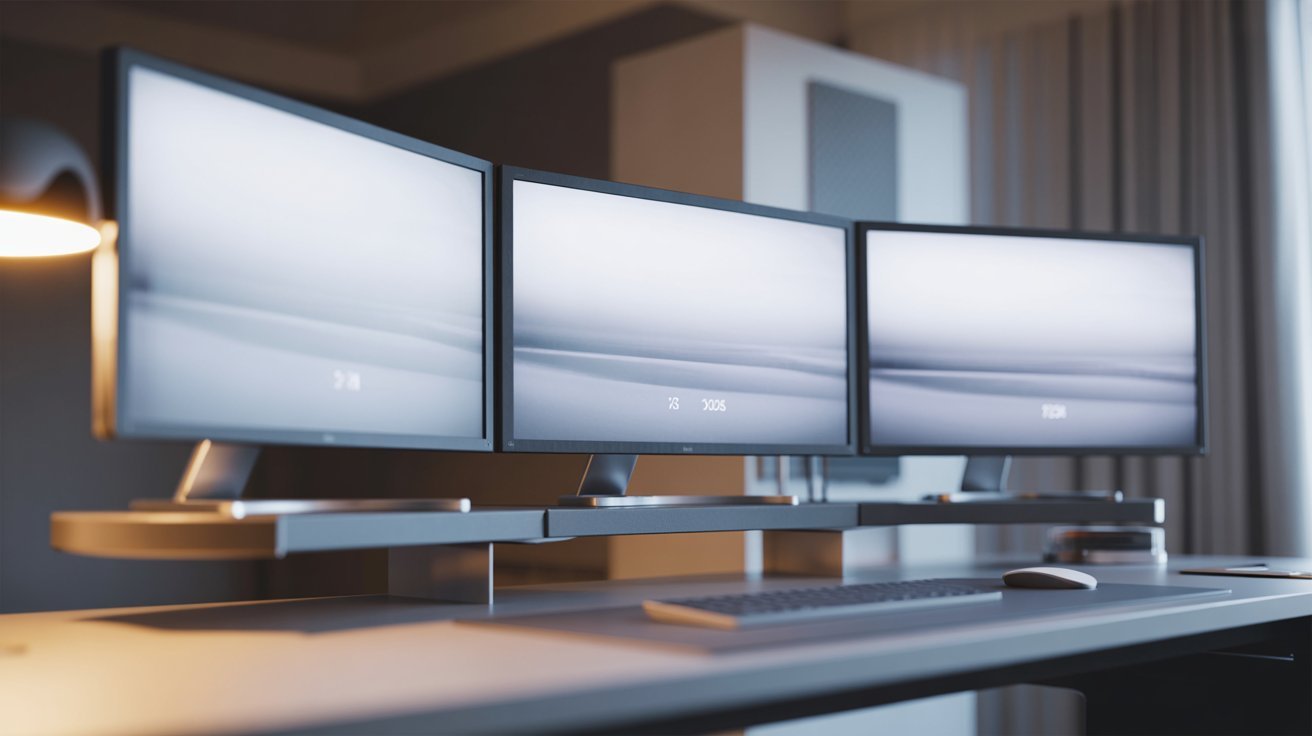
All three monitors are wall-mounted or on arms with no stands. This frees up your entire desk surface and gives a clean, open look.
15. Triple Curved Monitor Setup
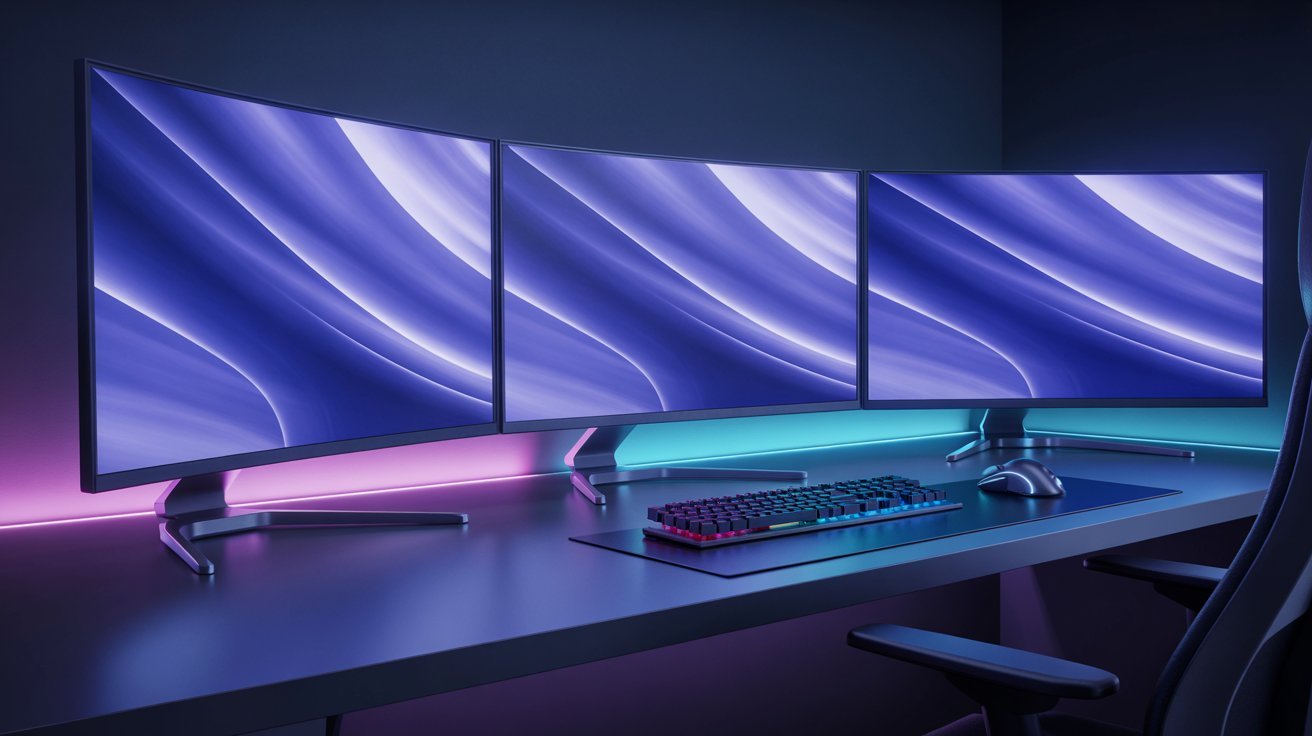
Three curved monitors placed side by side. Creates a wrap-around feel that works especially well for gaming or simulation software.
16. Focused Center Monitor Setup
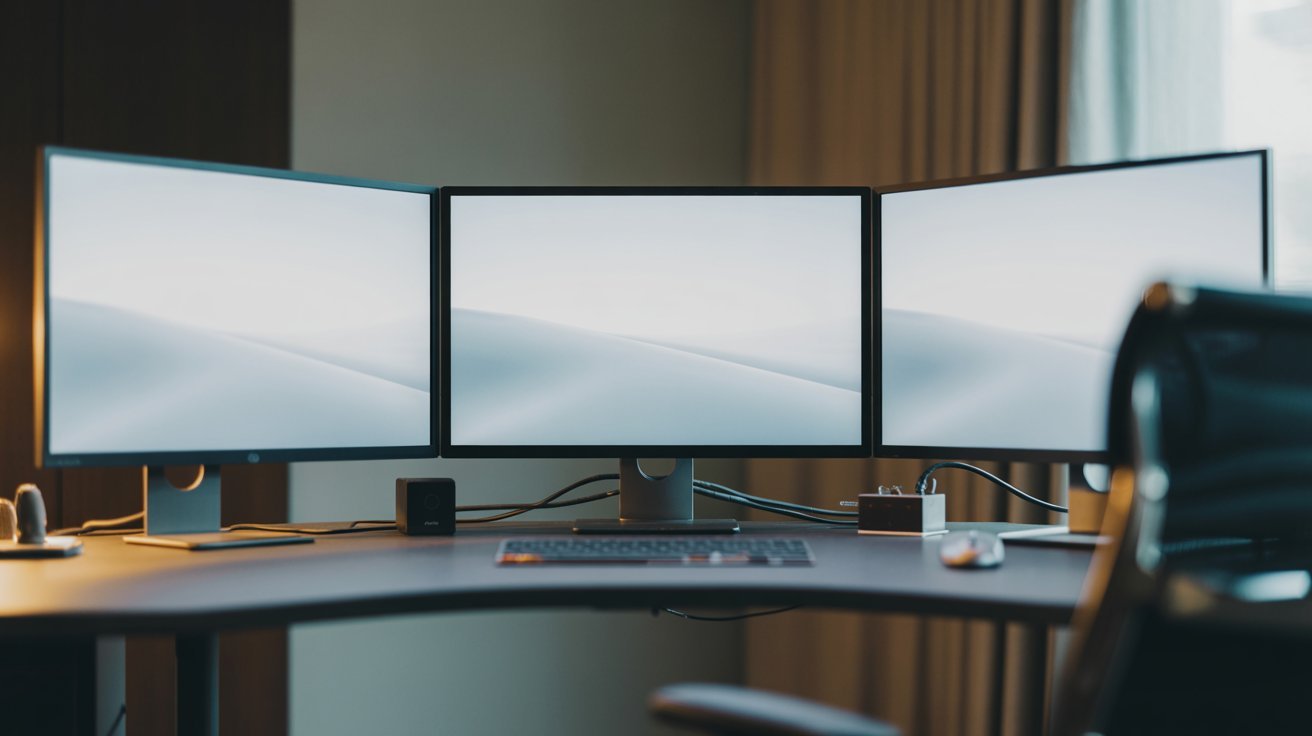
One large center screen with two smaller screens on each side. Keep your main work front and center while secondary tools stay within reach.
17. Curved + Flat Triple Monitor Setup
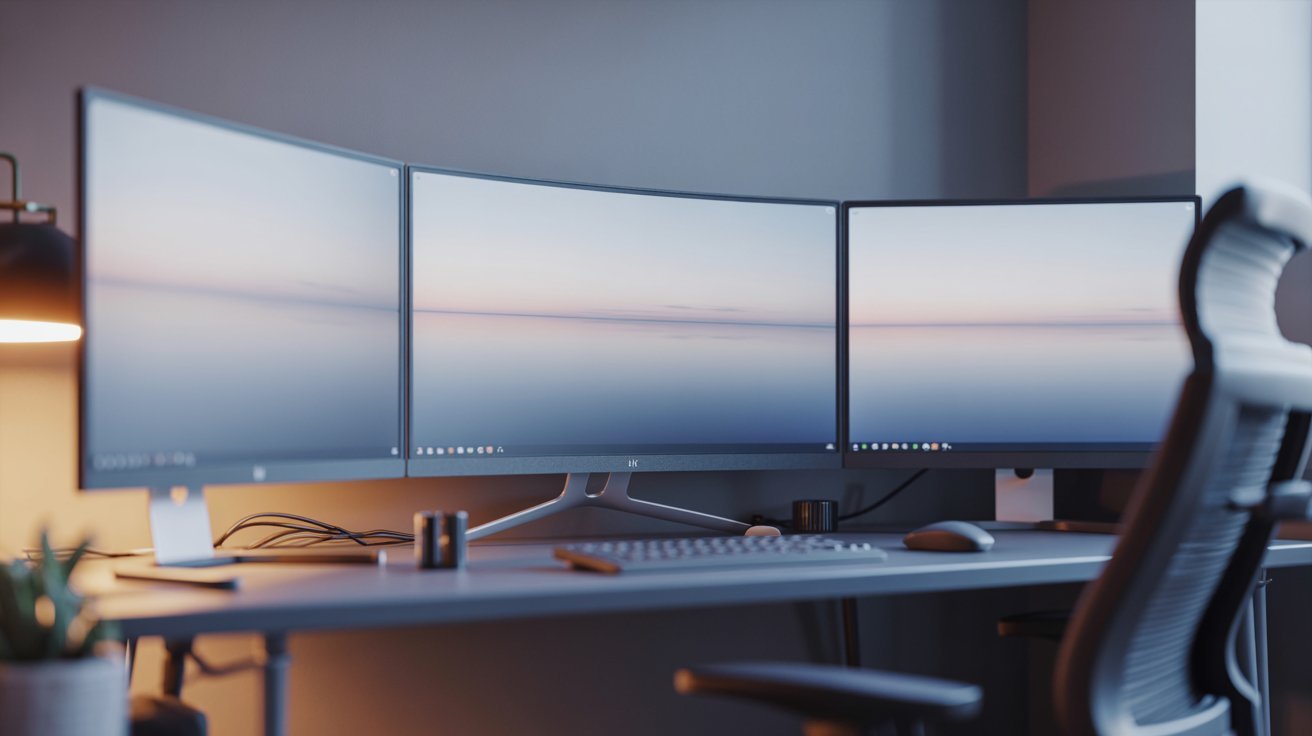
One curved center screen with two flat side monitors. A popular choice for people who work and game on the same setup.
Essential Gear for a Triple Monitor Desk Setup
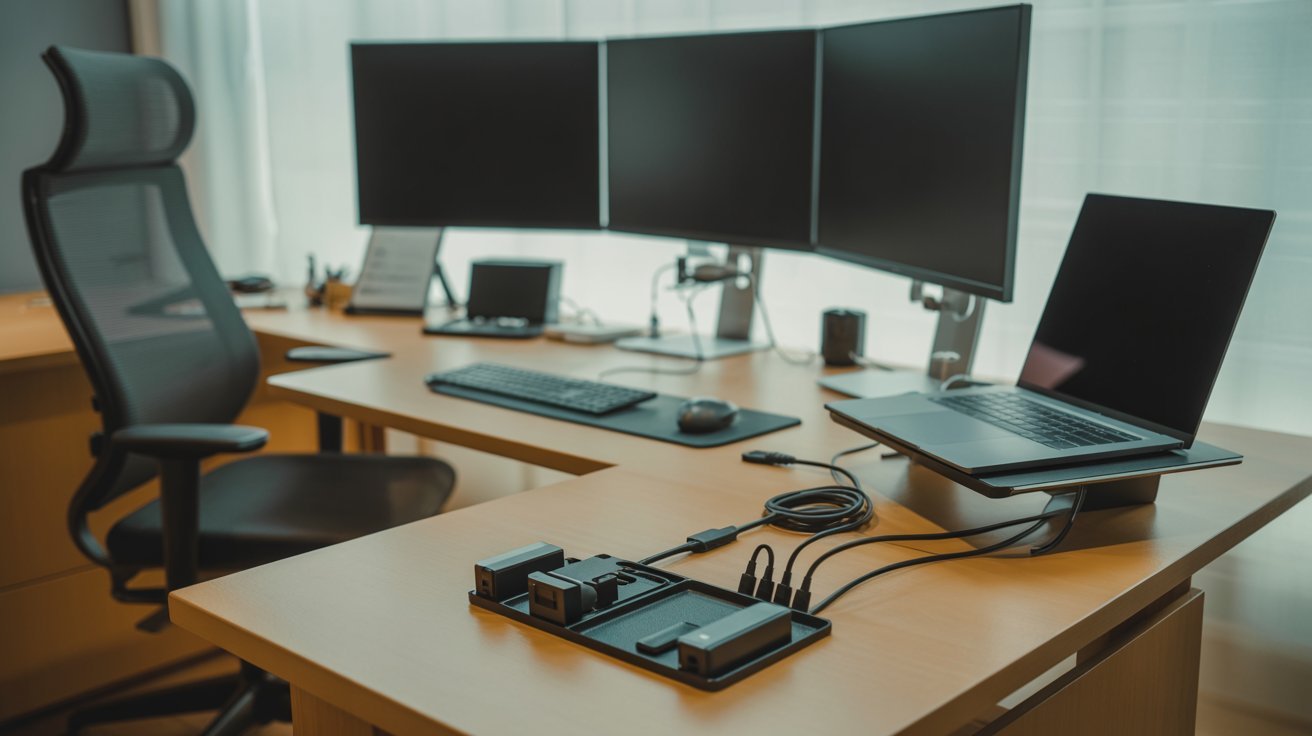
The right gear makes the setup cleaner, more stable, and easier to manage long-term.
- Monitor Arms and Mounts: Use a triple monitor arm to position screens freely and free up desk space. Make sure the arm is rated for your monitor’s weight.
- Cable Management: Run cables through trays, Velcro ties, or desk grommets. Neat cables protect your gear and keep your desk looking clean.
- Desk Size: A desk at least 60 inches wide works for most setups. Go deeper if you’re using larger monitors or extended arms.
- Laptop Stands and Docking Stations: A docking station adds ports and keeps your laptop at a better angle when used as part of a triple setup.
Tips to Optimize Your Triple Monitor Setup
Small adjustments to your setup can make a big difference in daily comfort and focus.
- Keep all monitors at eye level so your neck stays in a neutral position throughout the day.
- Line up the tops of all three screens evenly for a consistent and comfortable view.
- Match refresh rates across all monitors to cut down on flickering and smoother window movement.
- Run cables through a tray or behind the desk to keep your workspace clean and airflow clear.
- Check your GPU can handle three monitors at your target refresh rate before pushing the settings too high.
Conclusion
Setting up three monitors is one of the best decisions I’ve made for my workspace. It changed how I work, game, and stay organized every day.
The right triple monitor setup ideas make a real difference, no matter what you use your desk for. Start with one layout from this list and adjust from there. You don’t need to get it perfect on the first try.
Drop a comment below and tell me which setup you’re going with. And if this helped, share it with someone who’s been thinking about a desk upgrade.
Frequently Asked Questions
Can I use three different brand monitors in a triple monitor setup?
Yes, you can mix brands. Just try to match the resolution and refresh rate across all three screens.
Do I need a special GPU for a triple monitor setup?
No, most modern dedicated GPUs support three monitors. Just check how many display outputs your card has.
What desk size do I need for a triple monitor setup?
A desk that is 55 to 60 inches wide works well for most 24-inch monitor setups.
Can a laptop support a triple monitor setup?
Yes, with a docking station or USB-C hub, most laptops can run two external monitors plus the built-in display.
Is a triple monitor setup good for productivity?
Yes. Three screens cut down on tab-switching and help you move faster through multi-step tasks.